MISP sharing groups demonstration video

MISP sharing groups

Sharing groups in MISP are a more granular way to create re-usable distribution lists for events/attributes that allow users to include organisations from their own instance (local organisations) as well as organisations from directly, or indirectly connected instances (external organisations).

For a possible future project I had to document if sharing groups are an answer for a sort of multi-tenancy for sharing threat events within MISP.

Sharing groups certainly provide an answer, as long as you are aware of their limitations. With a sharing group you can

  • Reuse the code base or application for different organisations (tenants) in MISP;
  • Limit the access to the information based on the organisation (tenant);
  • Use the same infrastructure to provide meaningful results.

Sharing groups however do not provide real separate databases, the separation of data is done in software. In practice this is not much different as how cloud providers separate information between different customers, or tenants.

There’s a video that demonstrates sharing groups : https://vimeo.com/710012285.

The video is part of the MISP Tip of the Week repository.

MISP and Microsoft Sentinel

MISP and Microsoft Sentinel

A short post with things to consider when integrating MISP threat intelligence with Microsoft Sentinel. There are two documentation resources that describe the integration in detail and should get you started in no-time:

KeyError: ‘access_token’

This error is caused by invalid client secret or missing client ID. One of the steps in the documentation involves creating a new secret. You then have to add this secret to the configuration file (config.py). Do not add the secret ID but the client ID in the client_id field. This sounds obvious but as you’re probably in the “client secret” window pane when copying the client secret to the configuration, it’s easy to get confused and use the secret ID as client ID.

Traceback (most recent call last):
  File "script.py", line 100, in <module>
    main()
  File "script.py", line 65, in main
    RequestManager.read_tiindicators()
  File "/home/user/sentinel/security-api-solutions/Samples/MISP/RequestManager.py", line 78, in read_tiindicators
    access_token = RequestManager._get_access_token(
  File "/home/user/sentinel/security-api-solutions/Samples/MISP/RequestManager.py", line 70, in _get_access_token
    access_token = requests.post(
KeyError: 'access_token'

Also see https://github.com/microsoftgraph/security-api-solutions/issues/110

Auth token does not contain valid permissions or user does not have valid roles

This error is caused because of missing permissions. When you follow the steps in the documentation, you need to grant your newly created MISP application additional permissions (ThreatIndicators.ReadWrite.OwnedBy). Adding the permissions is not sufficient, you also need to Grant Consent. In simple setups you can use the “Grant Admin Consent for …” button in the API permissions pane.

{
  "error": {
    "code": "UnknownError",
    "message": "Auth token does not contain valid permissions or user does not have valid roles.",
    "innerError": {
      "date": "2022-04-20T07:16:57",
      "request-id": "<request id>",
      "client-request-id": "<client id>"
    }
  }
}

No indicators in Sentinel

The Python script pushes the indicators to Microsoft Graph, this will not immediately make them available in Sentinel. To do this, you have to setup a connector in Sentinel. In Sentinel, click ‘Data connectors’ and look for the ‘Threat Intelligence Platforms’ connection. Open the connection pane and click Connect.

A simple way to deploy MISP servers with Packer and Terraform

Infrastructure as code for MISP

For a future project I was looking into ways of deploying (and deleting) instances of MISP on a regular basis. Instead of manually installing MISP, I wanted the deployment and the configuration automated and based on simple configuration files. This is called “infrastructure as code”, typically addressed by CI/CD (Continuous Integration, Continuous Development). To throw in other popular terminology “DevOps” could support me in provisioning (and deploying) the infrastructure that is going to be used by other teams.

For the setup and deployment I rely on software from HashiCorp and deploy everything in the Amazon AWS cloud.

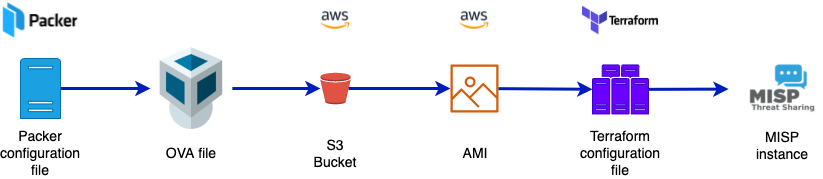
This post only scratches the surface of what’s possible with this approach but it was sufficient for my needs. Also, there are most likely better ways of configuring Packer, Terraform or AWS. The workflow is :

  • Use Packer to deploy a -local- virtual image of a MISP server;
  • Upload the virtual image to a cloud bucket (S3);
  • Convert the virtual image to something that can be used by the cloud provider (AMI for AWS);
  • Create infrastructure (servers) based on this AMI, with the help of Terraform.

Setup AWS

Before we can even start using Packer or Terraform, we need to setup the AWS environment.

S3 bucket

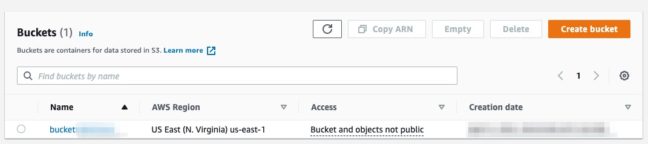
The virtual machine images used for provisioning the systems are stored in an S3 bucket. So obviously we first have to create this bucket. Make sure that you do not set the S3 bucket and objects public!

AWS_CLI

The next step consists of installing the AWS CLI. This is a unified tool to manage AWS services. The Linux installation is straightforward and in order to function the CLI needs a user account.

User account

These steps are well documented by Amazon:

  • Login to AWS;
  • Create an IAM user account;
  • Create an access key and secret access key.

You don’t need to download the credentials file. After installing AWS CLI you can configure the client from the console and it will store the credentials in your home directory (.aws/credentials).

aws configure

After creating the user account and setting up the AWS CLI, we need to create a service role that can upload images to AWS.

IAM

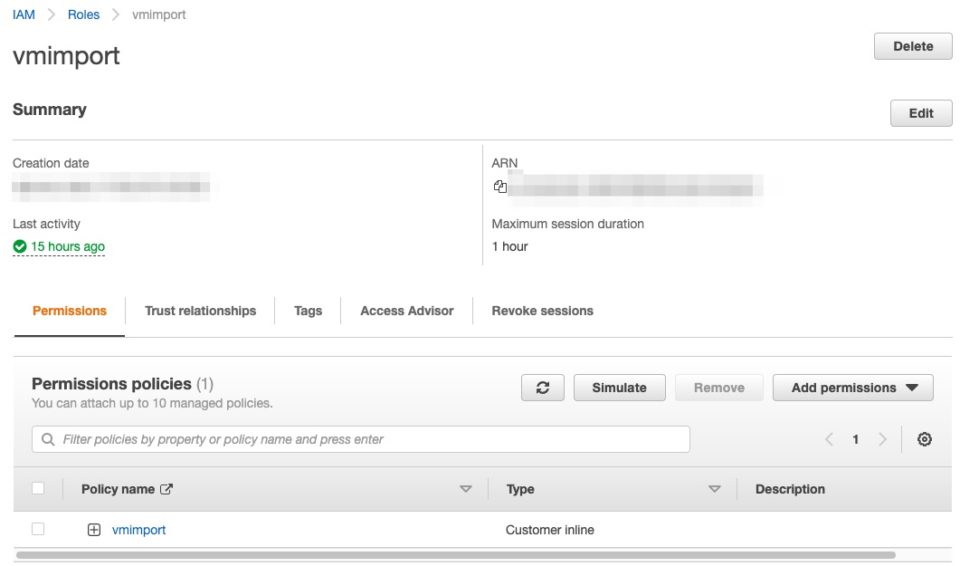
Under the Identity and Access Management (IAM) section of AWS you have to add an additional role to upload virtual machine images and import them into EC2. In order to work with Packer, this role needs to have the specific name vmimport. You can create it via the web interface but it’s much easier from the console, with the help of AWS CLI.

The documentation to create the service role for vmimport provides all necessary details. In essence you require the files trust-policy.json and role-policy.json. To make it easier, I have stored these files in a separate repository https://github.com/cudeso/misp-basic-cicd/tree/main/aws-service-role.

Clone the directory and use AWS CLI to create the role. Do not forget to replace the bucket name “bucket.mydomain.int” with your bucket name!

aws iam create-role --role-name vmimport --assume-role-policy-document "file://aws-service-role/trust-policy.json"
aws iam put-role-policy --role-name vmimport --policy-name vmimport --policy-document "file://aws-service-role/role-policy.json"

If all goes well, this role, and associated policy should be visible under IAM.


Virtual Private Cloud

You’re almost done. The -soon to be- uploaded virtual machines all need to run in one network, a so called Virtual Private Cloud or VPC. If you do not already have a VPC, then the easiest way to create one is in the VPC dashboard via the VPC Wizard. Your VPC should have Internet access, so do not forget to add an Internet gateway (something which is done automatically by the wizard).

For the later configuration steps, you need to note

  • The VPC ID;
  • The region where the VPC resides;
  • A subnet ID where the virtual machine (instance) needs to run.

Summary of AWS changes

To summarize the AWS part, you need

  • An S3 bucket;
  • A user account with an access key;
  • The AWS CLI, using the access key;
  • A new role, and associated policy;
  • A VPC where the new machines will run.

Now it’s time to turn to Packer.

HashiCorp Packer

Packer is a free and open source tool for creating golden images for multiple platforms from a single source configuration. To make things easier, the MISP project already has a repository with a good Packer configuration file: https://github.com/MISP/misp-packer. The default branch is for Ubuntu 18.04, but there’s also a branch for Ubuntu 20.04. Do not forget to have VirtualBox installed, otherwise you will not be able to build the virtual machine image.

The default repository allows you to create a Virtualbox image, but it does not include the configuration to upload this image to an S3 bucket and transform it into an AMI. I added configuration files to https://github.com/cudeso/misp-basic-cicd/tree/main/cudeso-misp-packer that will help you with this. The changes compared to the original MISP repository include

  • In misp-with-s3.json, the S3 import post-processor clause. This does the upload to an S3 bucket, as well as transforming the image to an AMI;
  • In the preseed.cfg file, changes to the keyboard layout and adding the necessary cloud-init Ubuntu package;
  • In build_vbox.sh, the call to the correct Packer configuration file.

In order to use these files you have to copy them over to the MISP Packer repository. Then export the access and secret key as an environment variable and execute build_vbox.sh.

cp -r misp-basic-cicd/cudeso-misp-packer/* misp-packer/
export AWS_ACCESS_KEY_ID=KEY
export AWS_SECRET_ACCESS_KEY=SECRET
./build_vbox.sh

If all goes well (and this can take a while), the builder will return with the AMI ID. Note this ID as you need it in the next stage.


Terraform

Terraform is an open-source infrastructure as code software tool that provides a consistent CLI workflow to manage hundreds of cloud services.

You can find an example of the Terraform configuration file in https://github.com/cudeso/misp-basic-cicd/tree/main/terraform. There are two files that are essential, main.tf and terraform.tfvars. The first one contains the actual configuration, whereas the second contains the variables used to configure the AMI ID (image), VPC and network. You can leave main.tf unchanged, but terraform.tfvars definitely needs to be updated with your settings.

In terraform.tfvars, update the VPC, AMI and subnet ID. Optionally you can also change hte region. Update the CIDR_HOMELAB to specify from where you want to connect to the instance.

misp_cicd_vars = {
  region        = "us-east-1"
  vpc           = "vpc-VPC_ID"
  ami           = "ami-AMI_ID"
  instance_type = "t2.micro"
  subnet        = "subnet-SUBNET_ID"
  public_ip     = true
  secgroupname  = "misp_cicd_securitygroup"
}

homelab_vars = {
  cidr_blocks = ["CIDR_HOMELAB"]
}

In the main.tf file you can find the definitions for the new instance, and a corresponding security group. This security group allows inbound SSH and HTTPS traffic (from a CIDR location defined in the variables file) and allows all outbound traffic.

Once you have updated the files, you can initialise Terraform, update the formatting of the files and verify its configuration.

terraform init
terraform plan
terraform fmt
terraform validate

If no errors are shown then it’s time to build the infrastructure with Terraform.

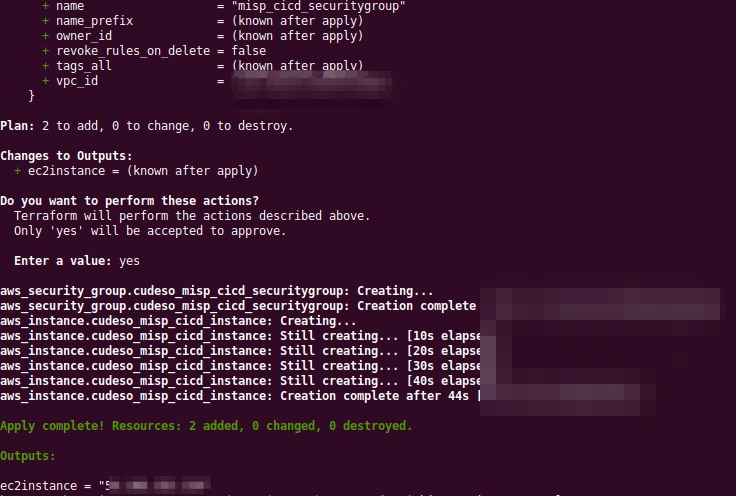
terraform apply


If the operation was successful, it will return the IP of the created instance. Apart from the virtual machine instance, it also has created an associated security group.

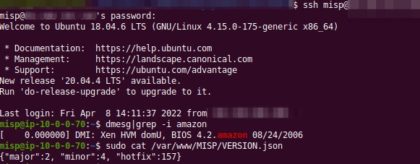
Afterwards, you can then connect to the new MISP server. The username and password to authenticate were previously defined in the Packer configuration.


When you’re done, you can delete the instance with terraform destroy. This will not only destroy the instance, it will also delete the newly created security group.

terraform destroy

References

Additional topics

There are topics not covered in this post that you might find useful to further explorer:

  • Use Github actions to automate the execution of Terraform.
  • Terraform stores the state of the infrastructure in terraform.tfstate files. If you want to collaborate with other people then it’s recommended to store these remotely in the Terraform Cloud.

Azure

I used the Amazon cloud for this approach, but you can as well use Azure. Packer includes Azure Virtual Machine Image Builders.

Resources

I used a number of online resources to come to this result. Have a look at these sites for further information.

Using VMRay Analyzer for Initial Triage and Incident Response

Using VMRay Analyzer for Initial Triage and Incident Response

I published an article on the blog of VMRay: Using VMRay Analyzer for Initial Triage and Incident Response.

In this article I cover a practical case study how VMRay Analyzer helped with getting an accurate and noise-free analysis for initial triage and obtaining the relevant indicators of compromise for faster incident response.

Key recommendations and findings from the HSE Conti ransomware attack

Key recommendations and findings from the HSE Conti ransomware attack

The healthcare sector has been in the crosshairs of ransomware gangs.

One of the victims of last year was Ireland’s Health Services Executive. A report analysing the Conti ransomware attack was published as a follow-up to the incident. This Independent Post Incident Review provides a long list of recommendations that are not only valuable for the HSE but read as a “must-do” list for other organisations to be better prepared for such ransomware incidents.

I extracted the recommendations from the document and put the list on Github: https://github.com/cudeso/tools/tree/master/hse-conti-ransomware.

Integrate DFIR-IRIS, MISP and TimeSketch

Scripts to integrate DFIR-IRIS, MISP and TimeSketch

I published a set of scripts that I use to integrate

  • Threat events and indicators stored in MISP;
  • CSIRT case handling data such as events, IOCs, timelines, assets and evidences in DFIR-IRIS;
  • Analysis events on PCAP and EVTX files in TimeSketch.

The Python scripts tie everything together between MISP, IRIS and TimeSketch. The scripts and example usage, with screenshots, are published in a Github repository: https://github.com/cudeso/dfir-iris-misp-timesketch.

The scripts make it possible to document threat elements in MISP, then query TimeSketch for any of their occurrences and afterwards import the events in IRIS, both in timeline and notes. Afterwards you can use the data in IRIS to create an incident report.

Basic Automation with the VMRay API

VMRay

I wrote an article on the VMRay website: Basic Automation with the VMRay API. This article walks you through the use of VMRay as a replacement of a Data Exchange Point.

The article documents how to Submit a Sample via VMRay API and look at the Behaviour Patterns to decide if a file is allowed into your environment or not.

Visualising MISP galaxies and clusters

MISP Galaxies and Clusters

The MISP galaxies and clusters are an easy way to add context to data. I’ve previously written an article “Creating a MISP Galaxy, 101” that describes how you can create your own galaxy and cluster.

Apart from the context, galaxies and clusters also allow you to describe relations between individual elements. These relations can for example be the synonyms (naming) for an APT group or the fact that a specific group uses a (MITRE ATT&CK) technique. They can also be used to describe similarities between different tools.

A visual representation of relations make it much more easier for human analysts to represent interactions between different elements (for example in reporting) but also allow to correlate and pivot to other relevant elements.

Visualise the galaxy relations

One of the tools that I discovered in the MISP galaxy repository is a script to create these visual representations, based on the galaxy/cluster JSON file but outside MISP. This allows you to

  • Document the threat in MISP and have the contextual relations in the threat event;
  • Create and re-use the same relation-graph in customer reports.

The Python script to create these graphs is graph.py. You can either create a graph for a specific UUID or create all graphs. You need to have Graphviz installed. On OSX this is all very straightforward.

python3 -m misp-galaxy
source misp-galaxy/bin/activate
git clone https://github.com/MISP/misp-galaxy
pip install graphviz
brew install graphviz
cd misp-galaxy/tools
./graph.py -u 2abe89de-46dd-4dae-ae22-b49a593aff54

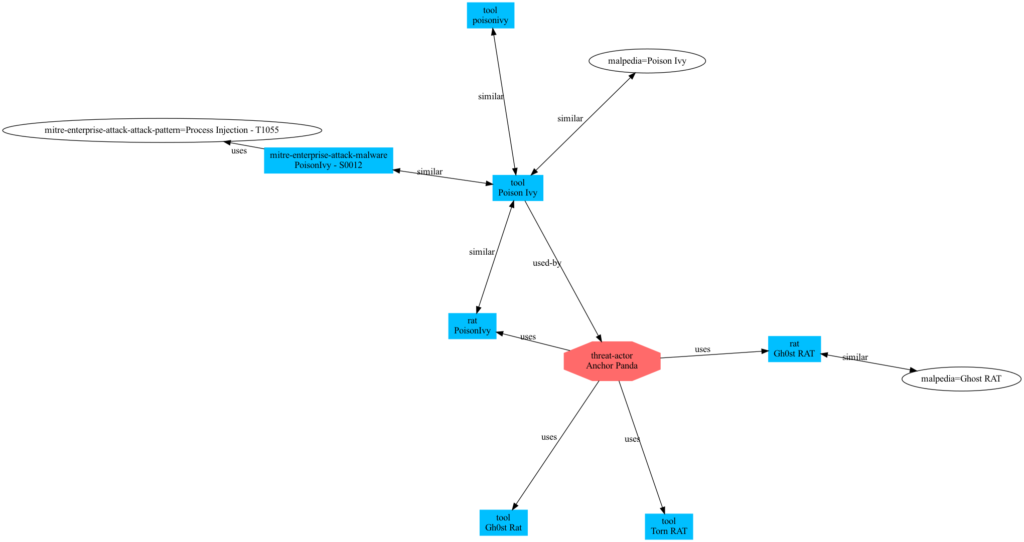
This will generate a graph for the ID 2abe89de-46dd-4dae-ae22-b49a593aff54, or the PoisonIvy RAT.

Eventually you end up with the graph


Conclusion

This post describes building graphs and visual relations between galaxies and clusters based on the MISP built-in information. Obviously you can do the same for your own threat research and maybe you can contribute back to the community?

Incident response case management, DFIR-IRIS and a bit of MISP

Incident response case management

A good case management is indispensable for CSIRTs. There are a number of excellent case management tools available but either these are more tailored towards SOCs, are overpriced or are unnecessary complex to use. I have used TheHive, RTIR, Omnitracker, OTRS and ServiceNow and although TheHive and RTIR come close, I have never really found a solution that addresses my needs.

I currently use a combination of

  • TheHive
    • Case management
    • Template system to start new cases
    • Correlate items between cases
  • Timesketch
    • Register evidences
    • Correlate activities between evidences
    • Python scripts to transform logs that are not immediately ingested by Timesketch
  • MISP
    • Push indicators to TheHive and query events in Timesketch
    • Describe the threats/malware/activities found during the investigation
    • Create detection rules
    • Report writing
  • Python scripts to move data between TheHive, TimeSketch and MISP and to create MD files from the MISP reports

Recently Airbus Cybersecurity released DFIR-IRIS. The feature list of DFIR-IRIS includes

  • Multiple cases (investigations)
  • Ingestion of assets (computers, servers, accounts)
  • Create IOCs and associate IOCs with assets
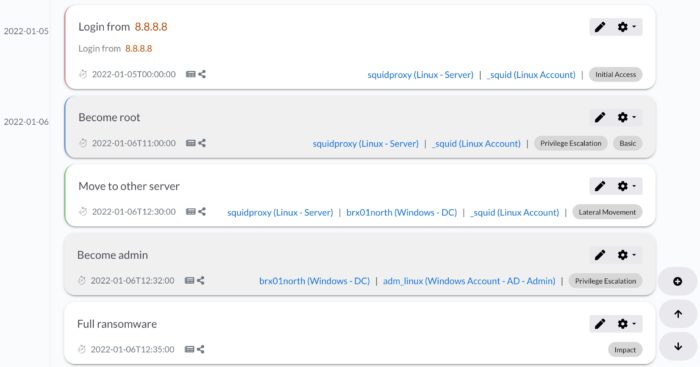
  • Create a timeline referencing assets and IOCs
  • Create an automated graph of the attack from the timeline
  • Much more, see: What can I do with Iris

Using DFIR-IRIS

Based on its feature list DFIR-IRIS looks as a very good candidate for a case management system for incident response. You can easily test IRIS yourself with the Docker setup.

git clone https://github.com/dfir-iris/iris-web.git
cd iris-web
cp .env.model .env
(edit .env and change the secrets)
docker-compose build

docker-compose up

Note that the password for the administrator account is displayed when the containers are being setup.

Tutorials

The documentation from DFIR-IRIS provides a number of demonstration videos that cover all its features.

Interface and performance

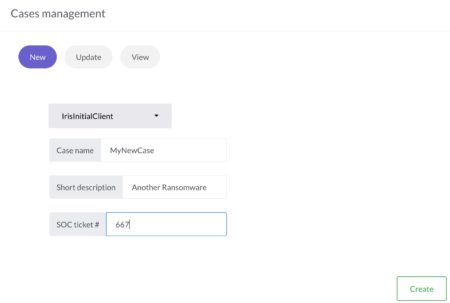
The DFIR-IRIS interface is slick and well-thought-out. There’s no unnecessary clutter of icons or menu’s and is very responsive. To demonstrate the ease of use just have a look at how to create a new case. You only have to provide a customer name, case name, description and a SOC ticket number.
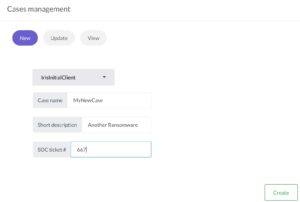

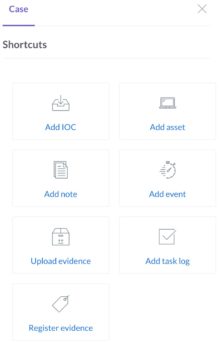
Another demonstration of the ease of use is the shortcut toolbar, allowing you to quickly add assets, notes or events.

During none of my tests I had the impression that the system was slow or un-responsive.

Case templates

Cases in DFIR-IRIS consist of a summary, notes, assets, IOCs, tasks and evidences. Unfortunately there is no option to start a case based on a pre-defined template, something which can be found in TheHive. I use templates in TheHive describing the basic steps that need to be done for example for phishing incidents or account compromise cases.

There are however solutions to address the lack of templates. DFIR-IRIS is fully accessible via the API and one of the endpoints is add a case task. The case templates in TheHive are JSON files. So you only need a small script that reads the TheHive JSON template file, extracts the tasks and then adds them to DFIR-IRIS via the API.

Assets

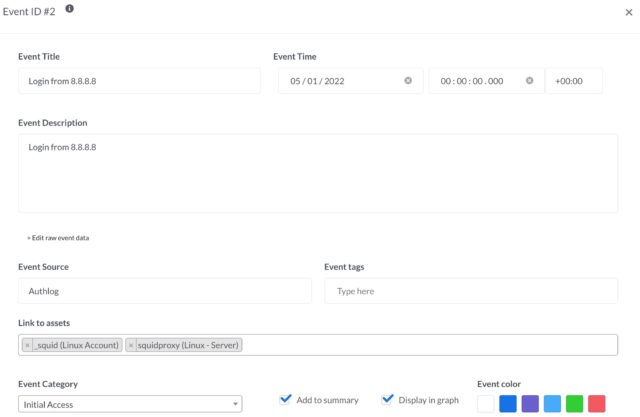
“Events” in DFIR-IRIS describe important events that can be displayed in the timeline. You can link these events to a specific source, add tags and categorise them.
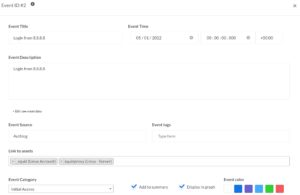

It’s also possible to link events to assets. Now instead of manually adding the assets via the user interface you can also make use of the API to add assets.

To demonstrate how easy this is you can find a Python script that creates assets based on a CSV file.

assets.csv

"brx01north",11,"","CORP","192.168.1.1","",2
"brx02north",11,"","CORP","192.168.10.1","",2
"squidproxy",3,"Corporate Squid Proxy","","192.168.1.10","",2
"_squid",5,"Linux account for Squid","","","",1

add_assets.py

import requests
import csv
import json
from requests_toolbelt.utils import dump

iris_host="https://case:4433/"
iris_apikey="IRIS_APIKEY"
iris_headers = {"Authorization": "Bearer {}".format(iris_apikey), "Content-Type": "application/json" }
iris_verify = False

case_id = 1

with open('assets.csv') as csv_file:
    csv_reader = csv.reader(csv_file, delimiter=',')
    for row in csv_reader:
        iris_data=json.dumps({"asset_name":row[0], "asset_type_id": row[1], "asset_description": row[2], "asset_domain": row[3], "asset_ip": row[4], "asset_info": row[5], "analysis_status_id": row[6], "cid": case_id})
        result = requests.post("{}/case/assets/add".format(iris_host), headers=iris_headers, data=iris_data, verify=iris_verify)
        print(dump.dump_all(result))

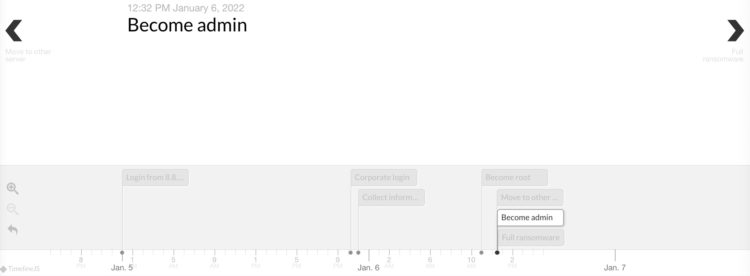
To come back to the events … you can obviously put the events on a timeline.
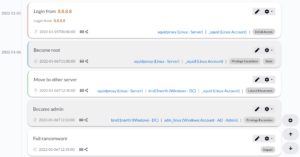

Unfortunately it’s not possible to export the graphical timeline to a JPEG or PNG format (correction: see https://github.com/dfir-iris/iris-web/issues/33#issuecomment-1006373124 and https://github.com/dfir-iris/iris-web/pull/35.

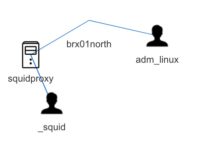
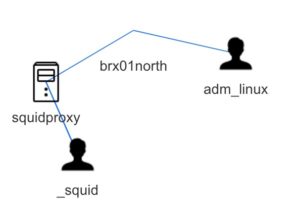
A neat automatically created graph is the relation graph between the different assets. This graph is build on the “affected assets” that you add to the event list.
Evidences

DFIR-IRIS allows you to register evidences but it’s for example not possible to link this with Timesketch. There is a module to import EVTX files but I’ve not been able to test it yet. Personally I’m not a big fan of adding the evidences directly to DFIR-IRIS. I already store evidences (or at least most of the logs) in Timesketch. The feature set of Timesketch to wade through the logs and analyse certain behaviour is not something that needs to be replicated in a case handling tool. A module that queries Timesketch for specific tags and then registers the corresponding events as evidence seems a better solution.

IOCs

In my setup I use MISP to collect all the relevant threat information for a specific customer into one (or multiple) threat events and then tag these events with a customer ID (not the customer name but a pseudonym). Now instead of pushing these IOCs to TheHive or do a lookup in Timesketch I wanted to do the same with DFIR-IRIS. To demonstrate how easy this is there’s a small Python script below that fetches IOCs tagged for a customer, from a MISP instance.

add_iocs.py

import requests
import csv
import json
from requests_toolbelt.utils import dump

iris_host="https://case:4433/"
iris_apikey="IRIS_APIKEY"
iris_headers={"Authorization": "Bearer {}".format(iris_apikey), "Content-Type": "application/json"}
iris_verify=False

misp_host="https://misp/"
misp_apikey="MISP_APIKEY"
misp_headers={"Authorization": misp_apikey, "Accept": "application/json", "Content-Type": "application/json"}
misp_verify=False
misp_data=json.dumps({"returnFormat": "json", "tags": ["customer:CORP"],"to_ids":"1"})

case_id = 1
tlp_code = 2

indicators=requests.post("{}/attributes/restSearch".format(misp_host), headers=misp_headers, data=misp_data, verify=misp_verify)
response=indicators.json()["response"]["Attribute"]
for attr in response:
    ioc_tags = ""
    value=attr["value"]
    if 'Tag' in attr:
        for t in attr["Tag"]:
            ioc_tags += t["name"] + ","

    attr_type=attr["type"]
    if attr_type in ["ip-src","ip-dst"]:
        attr_type="IP"
    elif attr_type in ["md5", "sha1", "sha256"]:
        attr_type="Hash"
    elif attr_type in ["hostname", "domain"]:
        attr_type="Domain"

    iris_data=json.dumps({"ioc_type": attr_type, "ioc_tlp_id": tlp_code, "ioc_value": value, "ioc_description": "From MISP", "ioc_tags": ioc_tags, "cid": case_id})
    result = requests.post("{}/case/ioc/add".format(iris_host), headers=iris_headers, data=iris_data, verify=iris_verify)
    print(dump.dump_all(result))

Notes

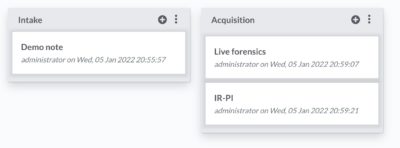
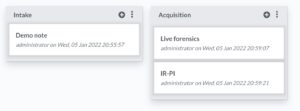
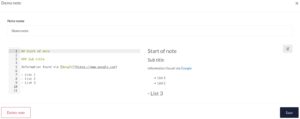
You can add multiple notes, organised in note groups. There’s nothing spectacular about the note-taking except that it’s incredible straightforward and fast. Exactly how note-taking should be. I personally like this option a lot, also because the notes are stored in MarkDown format and you can do all note manipulations from the API.

I can easily imagine a couple of scripts that collect artefacts (live forensics, via KAPE, analysing PCAP files) and automatically create/add notes for you. Another option would be that there’s a synchronisation between MISP reports (also in MD) and the DFIR-IRIS notes.
Report generation

It’s possible to create incident reports based on a template and on the information added to a case. I’ve not created a custom template but based on the demo template that’s included (https://github.com/dfir-iris/iris-web/blob/master/source/app/templates/docx_reports/iris_report_template.docx) the generated report provides a solid base to create a final -customer- incident response report.

Conclusion

In the short time since it’s available I’ve come to like DFIR-IRIS a lot. I especially enjoy that everything is available via an API (note: there’s a Python client for the API on the roadmap).

There are some features missing, like a direct integration with Timesketch, case templates, integrations with MISP and a “more beautiful timeline” (something like the visual timeline from Aurora). The beauty of DFIR-IRIS is that you can easily contribute to the code or, if you know your way around with accessing an API, you can just create these integrations yourself. And contribute them back to the community (the license model for DFIR-IRIS is LGPL).

Note: the scripts used in this article are also at https://github.com/cudeso/tools/tree/master/dfir-iris.
Send malware samples from MISP to MWDB (Malware Repository)

I use a MISP instance to store malware samples that I came across during an investigation or incident. I also worked for example on an integration via a MISP module with the VMRay malware sandbox. The setup with MISP works very well but I needed an easier solution to make these samples available to other users (and tools), without the need of access to this MISP instance.

Enter Malware Repository MWDB, formerly known as Malwarecage. This is a project from CERT.pl that is available as a service (via https://mwdb.cert.pl/login) but you can also host its core component on your own infrastructure. Its features include

  • Storage for malware binaries and static/dynamic malware configurations
  • Tracking and visualizing relations between objects
  • Quick search
  • Data sharing and user management mechanism
  • Integration capabilities via webhooks and plugin system

My goal with the integration with MWDB was to

  • Push samples to MWDB so that I can share/use them more easily during a training;
  • Keep the MISP taxonomy (tags) when samples are pushed to MWDB. This allows me to add some contextualisation around the malware samples;
  • Use MWDB, or rather its integration with Karton, to have the ability to support different malware analysis backends. Having these multiple backends would greatly reduce the amount of manual work needed. The results of the analysis should still be pushed back to MISP;
  • Within MWDB, I wanted a link back to the MISP threat event and in MISP I wanted a link pointing directly to the object in MWDB;

To setup this integration, I wrote a small MISP module for MWDB.

Setting up MWDB

Setting up MWDB is straightforward and described in the MWDB-core documentation. Basically you have to setup a Python virtual environment and then do

pip install mwdb-core
mwdb-core configure (create mwdb.ini)
mwdb-core run

Apart from the normal configuration of MWDB, the next settings are necessary to have the integration working as expected.

Separate user

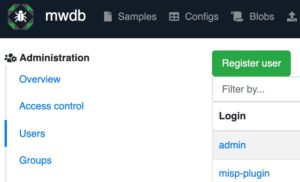
Create a separate MWDB user for the integration and create an API key for this user.

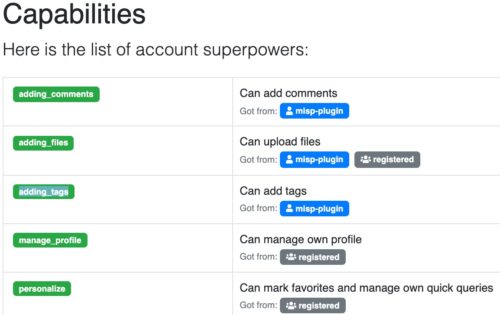
Then assign this user sufficient capabilities. You will need to add adding_comments, adding_files and adding_tags.

MWDB attribute

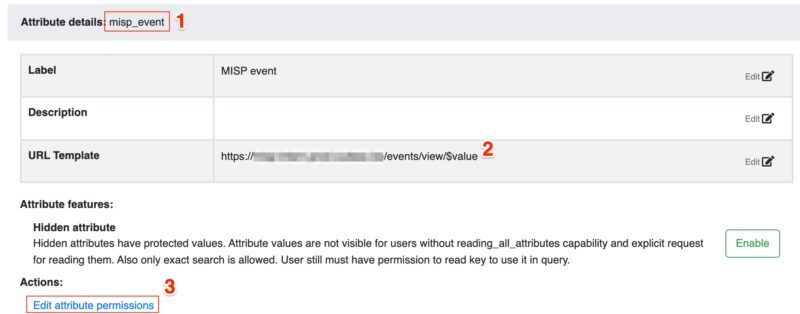
The link “back” to MISP is achieved with a MWDB object attribute. These attributes (formerly called “metakeys”) are used to store associations with external systems and other extra information about an object.

Remember the name (1) of the attribute, you need it later to configure the MISP module. In the URL template (2) add the URL of your MISP instance and add /events/view/$value. The “$value” will be replaced with the MISP event ID. Lastly, do not forget to give your earlier created user the sufficient permissions (3), enable “Read” and “Set”.

MWDB module

Setting up the MISP module

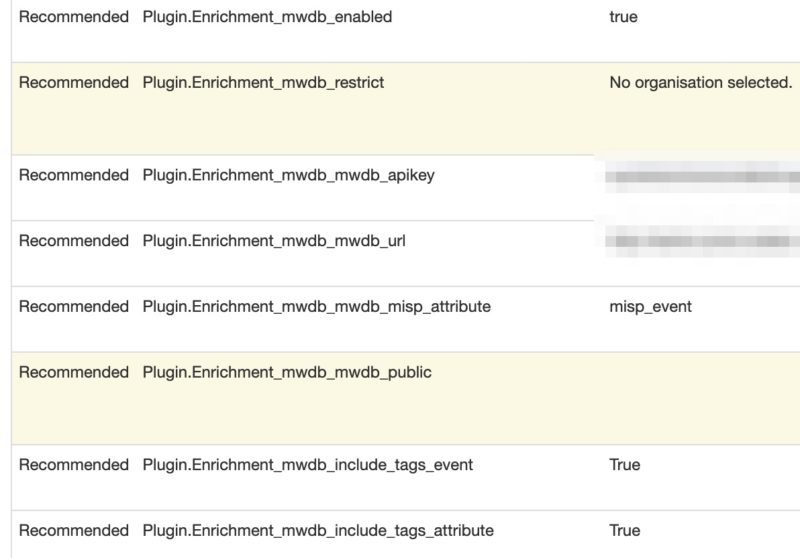
The MWDB module is part of https://github.com/MISP/misp-modules. If you upgraded your MISP modules to the latest version it should be available under Server Settings & Maintenance, Plugin Settings, Enrichment

Enable the plugin and add these configuration settings

  • mwdb_mwdb_apikey: The API key that you created earlier in MWDB;
  • mwdb_mwdb_url: The MWDB URL for API access. This will be along the line of https://yourmwdb:5000/api . It should end in /api. If you access your MWDB instance via “https://my.mwdb.org” this will be “https://my.mwdb.org/api”;
  • mwdb_mwdb_misp_attribute: The name of the MWDB object attribute used to link back to the MISP event;
  • mwdb_include_tags_event: Set to True if you want to include the tags from the event. Tags with “misp-galaxy” in the name are always excluded;
  • mwdb_include_tags_attribute: Set to True if you want to include the tags from the attribute. Tags with “misp-galaxy” in the name are always excluded;

Configuring PyMISP

The module also uses PyMISP to fetch the event information (title) and the tags associated to the event and attachment/malware-sample. To achieve this it makes use of PyMISP. However for PyMISP to function it needs the MISP URL and an API key. The MISP MWDB module expects a keys.py file to be present in /var/www/MISP/PyMISP. You can change this in the code of the module in the variable

pymisp_keys_file = "/var/www/MISP/PyMISP/"

In a next version of the module this should be set as a configuration option from the MISP web interface. The file /var/www/MISP/PyMISP/keys.py needs to contain these variables

misp_url = 'MISP URL'
misp_key = 'API KEY'
misp_verifycert = True (or False if it should skip the SSL check)

Using the module

The module is an enrichment for two attribute types: attachment and malware-sample. It will return one attribute, a link to the MWDB object.

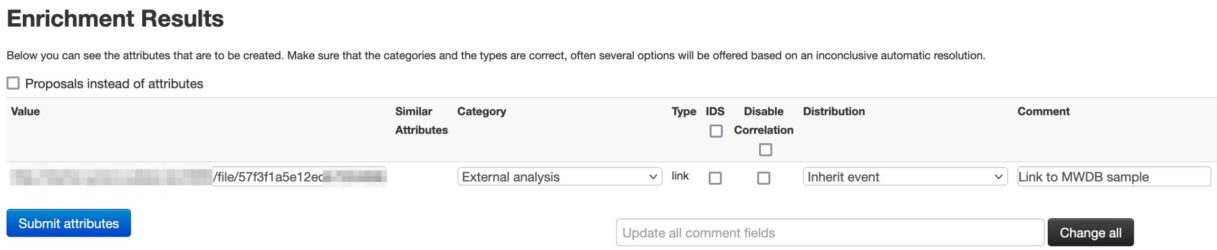
Choose either to (1) propose an enrichment or (2) add an enrichment.


This will then submit the sample to your MWDB instance and add the event and/or tag taxonomy. The result is a proposal for an additional attribute pointing back to the MWDB object.

Output in MWDB

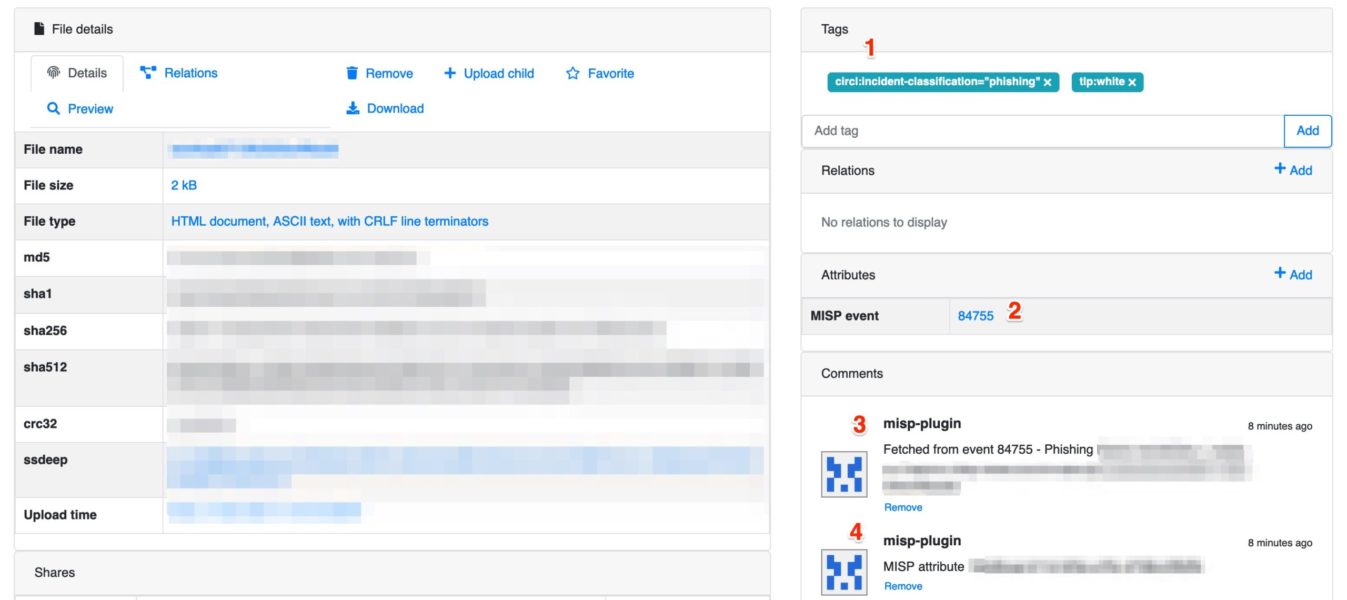
If you then head to MWDB you will see the result of the upload.


The output contains the (1) tags that were part of the original MISP event/attribute, (2) a link back to the MISP event, (3) the MISP event ID and the title of the event and (4) the MISP attribute UUID.

Remarks

The extraction of malware configuration or the relations features of MWDB are not used. An additional feature of the MISP module could be to include relations between samples if they belong to the same MISP event. Eventually though, these relations and configuration extraction features will be more used by plugging in MWDB into a Karton pipeline.

Instead of MWDB I could also have setup a separate MISP instance that holds only the malware samples. This is not hard to achieve with the proper taxonomy and synchronisation between servers. But because I wanted to have a look at Karton (and integrating it with the CAPE malware sandbox) anyway, MWDB seems as the obvious choice.