What Metrics Do You Need to Measure the Success of Your SOC?

I published an article on What Metrics Do You Need to Measure the Success of Your SOC? on the Security Intelligence blog.

This article describes how you can evaluate the SOC performance and growth more accurately by building out consistent measurements to review it’s essential functions.

The article covers people, roles, technology, policies and processes and also includes some tips for further tuning reporting and metrics to measure the success of your SOC.

How to Leverage Log Services to Analyze C&C Traffic

I published an article on How to Leverage Log Services to Analyze C&C Traffic
on the Security Intelligence blog.

This article describes what can cause C2 traffic, the different types of C2 traffic and what log sources that you can use to detect the C2 traffic caused by malware.

How to Defend With the Courses of Action Matrix and Indicator Lifecycle Management

I published an article on How to Defend With the Courses of Action Matrix and Indicator Lifecycle Management
on the Security Intelligence blog.

This article describes the courses of action matrix to help you understand how to verify and validate indicators. The CoA matrix assists you in choosing the most useful action (“response”) to take with a an indicator.

Recover administrator password of a Windows VM

VMware Workstation

I run a lab with a couple of Windows VMs on different laptops via VMware Workstation (for Linux). Some of these machines are “vulnerable” Windows systems (check out Microsoft Evaluation Center). I pretty much always use the same password for the administrator account to make management easy. This is bad practice for a real-life environment, but the purpose of these machines is to get compromised anyway.

However, sometimes it might seem like a good idea to change that password … and then you boot the machine after a couple of days of inactivity and can not remember the password.

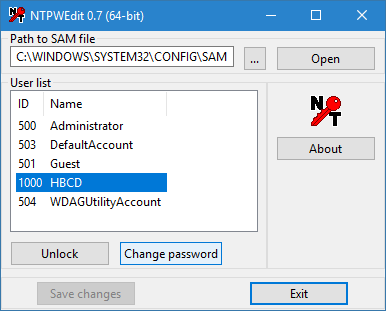
Instead of rebuilding the machine from scratch I wanted to use a Windows recovery trick that I learned from one of my colleagues.

Recovering Windows Administrator Password

I remember the BartPE Windows environment on a LiveCD that allowed you to recover broken Windows installs. It turns out that there’s some sort of successor for this LiveCD, it’s now called : Hiren’s BootCD PE.

This LiveCD includes a feature to reset a Windows password, if you can boot the system from the USB. Resetting the password is pretty much point-‘n-click.


The pre-requisite is “boot the system from USB”. Back to the Windows VMs in VMware Workstation.

Adjusting VMware boot preference

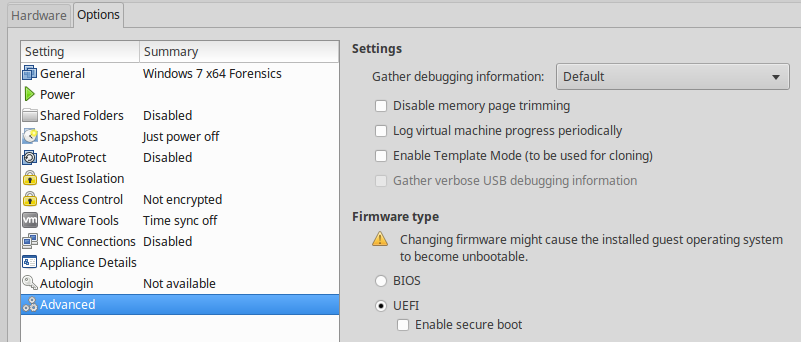
The normal procedure to boot from the USB drive would have been : Connect the USB, Reboot the VM, hit “Escape”, select external drive from the boot menu. Unfortunately this doesn’t work. You have to tell your VM to boot from UEFI, the Unified Extensible Firmware Interface.

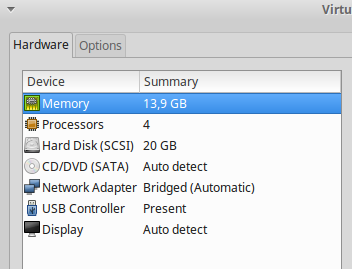
Changing this is pretty easy, at least on VMware Workstation for Linux. First go to the Settings screen.


and then to the Options tab. Set the Firmware type to UEFI.


Then reboot the machine with the USB key plugged-in.

Once you have reset the password (see above), you have to set the firmware type back to BIOS.

This will probably seem pretty obvious for seasoned system administrators, but instead of having future Google-quests I decided to write this down for my own reference.

How Pivoting Can Help Your Incident Response Process

I published an article on How Pivoting Can Help Your Incident Response Process on the Security Intelligence blog.

This article describes what pivoting is about (mostly from a point of view of a defender, or during incident response), how to evaluate and track the links that you found, what domains are most useful to use for pivoting and what data points you can use for pivoting.

BloodHound Active Directory queries for Defenders

Active directory security

Getting Active Directory security right can be a challenging task. Individual groups of computers or user privileges will most likely be properly configured but there are always some trade-offs that have to be made. Attackers will try to find an attack path by abusing the weaknesses that are caused by these trade-offs. Jumping from one host to another, compromising user accounts and abusing active sessions might get them to their final objectives. Whether this is getting a Domain Admin account or gaining access to a system with sensitive data.

Constructing this attack path can be done manually but can also be done via tooling. BloodHound is such a tool.

BloodHound uses graph theory to reveal the hidden and often unintended relationships within an Active Directory environment. Attackers can use BloodHound to easily identify highly complex attack paths that would otherwise be impossible to quickly identify. Defenders can use BloodHound to identify and eliminate the same attack paths.

BloodHound uses a number of critical data sets from an AD domain. It uses the Local Administrator groups, the active sessions and the logged on users on domain-joined computers.

Setting up BloodHound

Installing BloodHound is described in detail in the Wiki but some prerequisites are necessary.

PowerShell

Make sure that you run the latest version >=5 of PowerShell. You can easily check this (in PowerShell) with

$PSVersionTable

Upgrading PowerShell requires you to upgrade the .net Framework.

Java

Once that you have PowerShell it’s a matter of installing the latest Java version.

On one of the installs I encountered the error “Could not locate JVM.DLL”

Invoke-Neo4j : Could not locate JVM.DLL at C:\Program Files (x86)\Java\jre1.8.0_181\bin\server\jvm.dll
At line:1 char:299
+ ... t.psd1'; Exit (Invoke-Neo4j install-service)
+                    ~~~~~~~~~~~~~~~~~~~~~~~~~~~~
    + CategoryInfo          : NotSpecified: (:) [Write-Error], WriteErrorException
    + FullyQualifiedErrorId : Microsoft.PowerShell.Commands.WriteErrorException,Invoke-Neo4j

I fixed this by copying the client directory to a server server directory.

neo4j password reset

The installation steps do not mention that you have to reset the password for the neo4j user. You first have to login with user neo4j/neo4j and then change the password. This is described in issue 171.

Running BloodHound

Collecting data via SharpHound

BloodHound first collects the data via an ingestor, writes out the results to CSV files and these CSV files can then be imported in the graphical interface. You can collect the data via a PowerShell script or via an executable (SharpHound). There is also a direct method but building these CSV files can also serve other purposes for post-analysis.

Running SharpHound can take a while, depending on the size of your domain and the requested options.

What is in the CSV files?

A default run of SharpHound creates four CSV files. The filenames pretty much describe their content.

  • group_membership.csv
  • local_admins.csv
  • sessions.csv
  • trusts.csv

Import the data

If you’ve previously ran the script in another environment then don’t forget to empty the database! Importing the different CSVs can also take a while.

The BloodHound graph

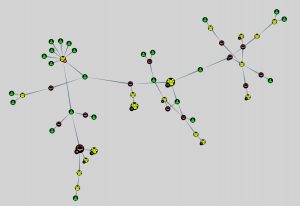
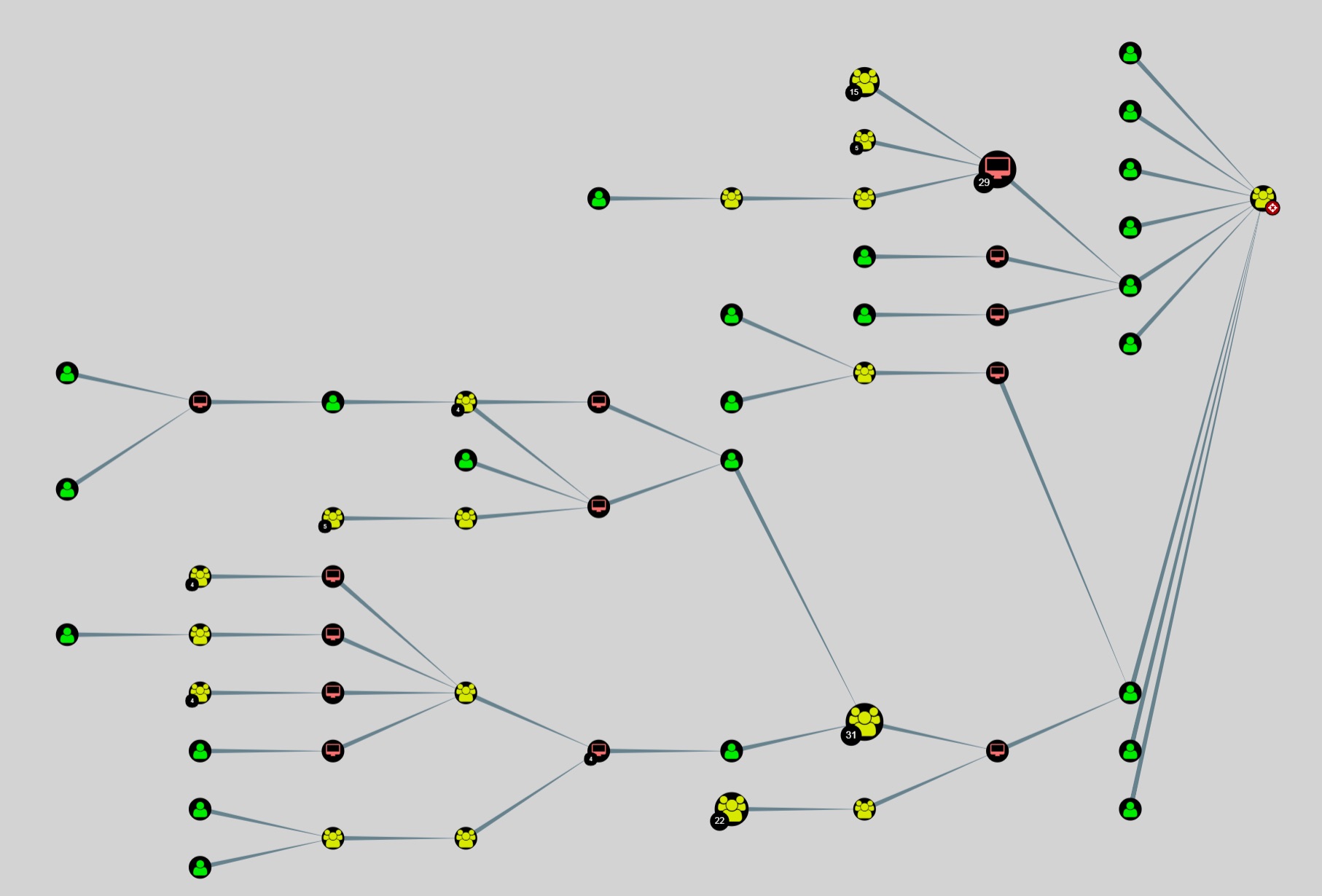
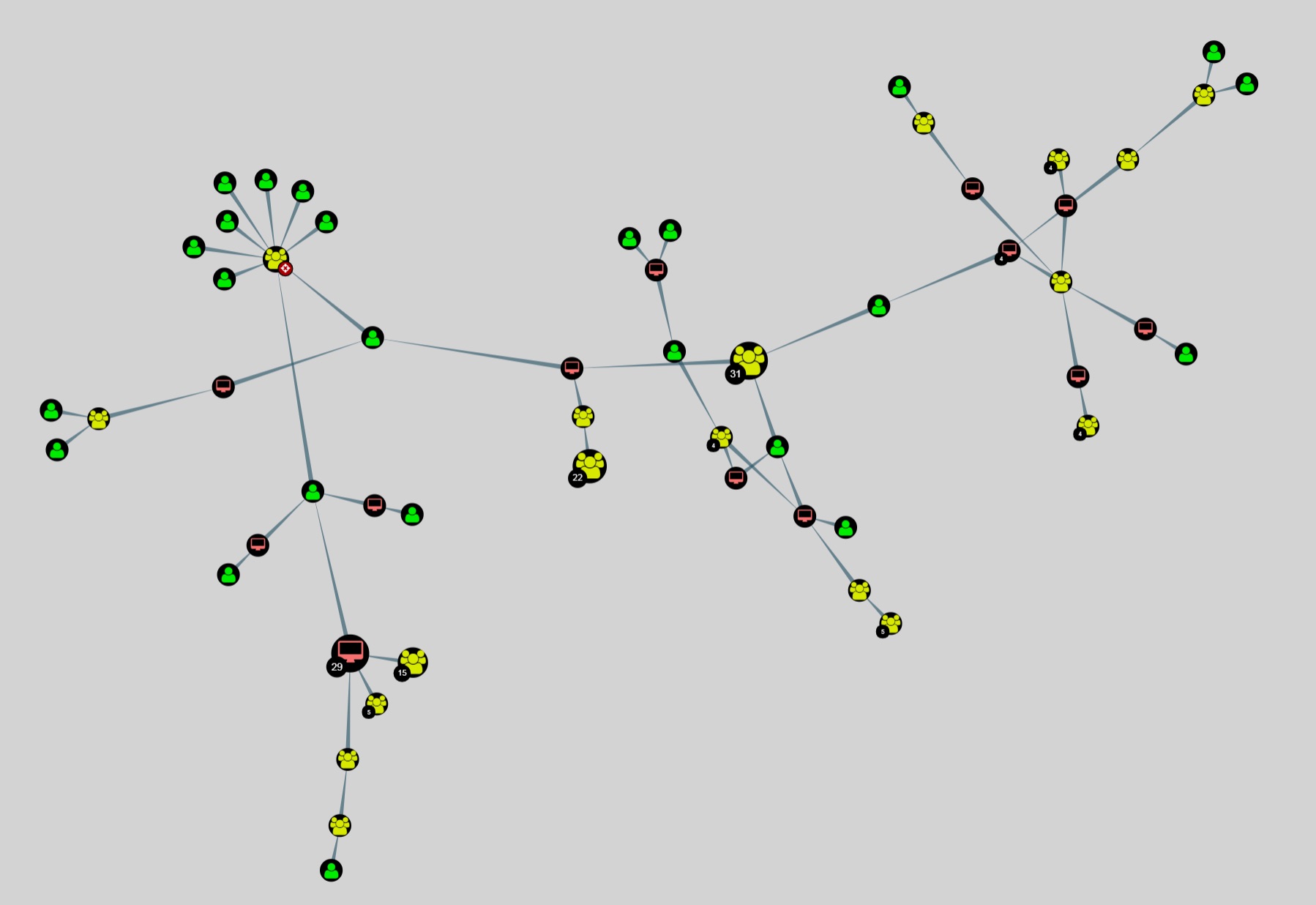
BloodHound can present the data in two types of graph, hierarchical and directed.
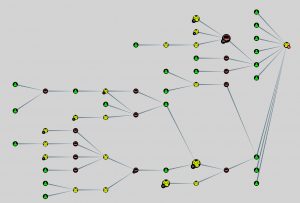


Note that in the screenshots I disabled the option of having the nodes name displayed. In a real-world environment you’ll probably have this option enabled to better understand what nodes (computers or users) you’re looking at.

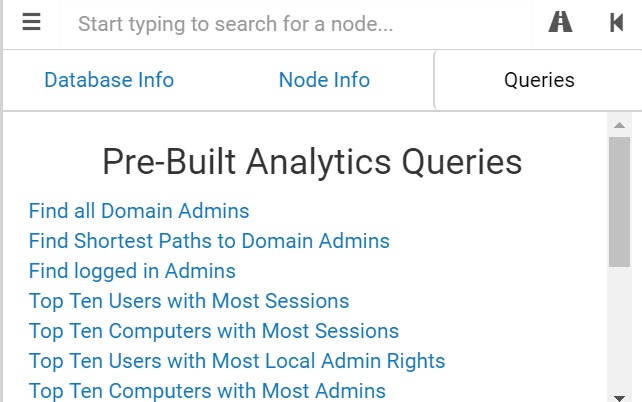
BloodHound queries

BloodHound (Neo4j) has its own query language: Cypher but also comes with a set of predefined -and very useful- queries.
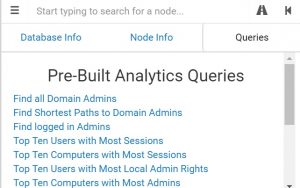

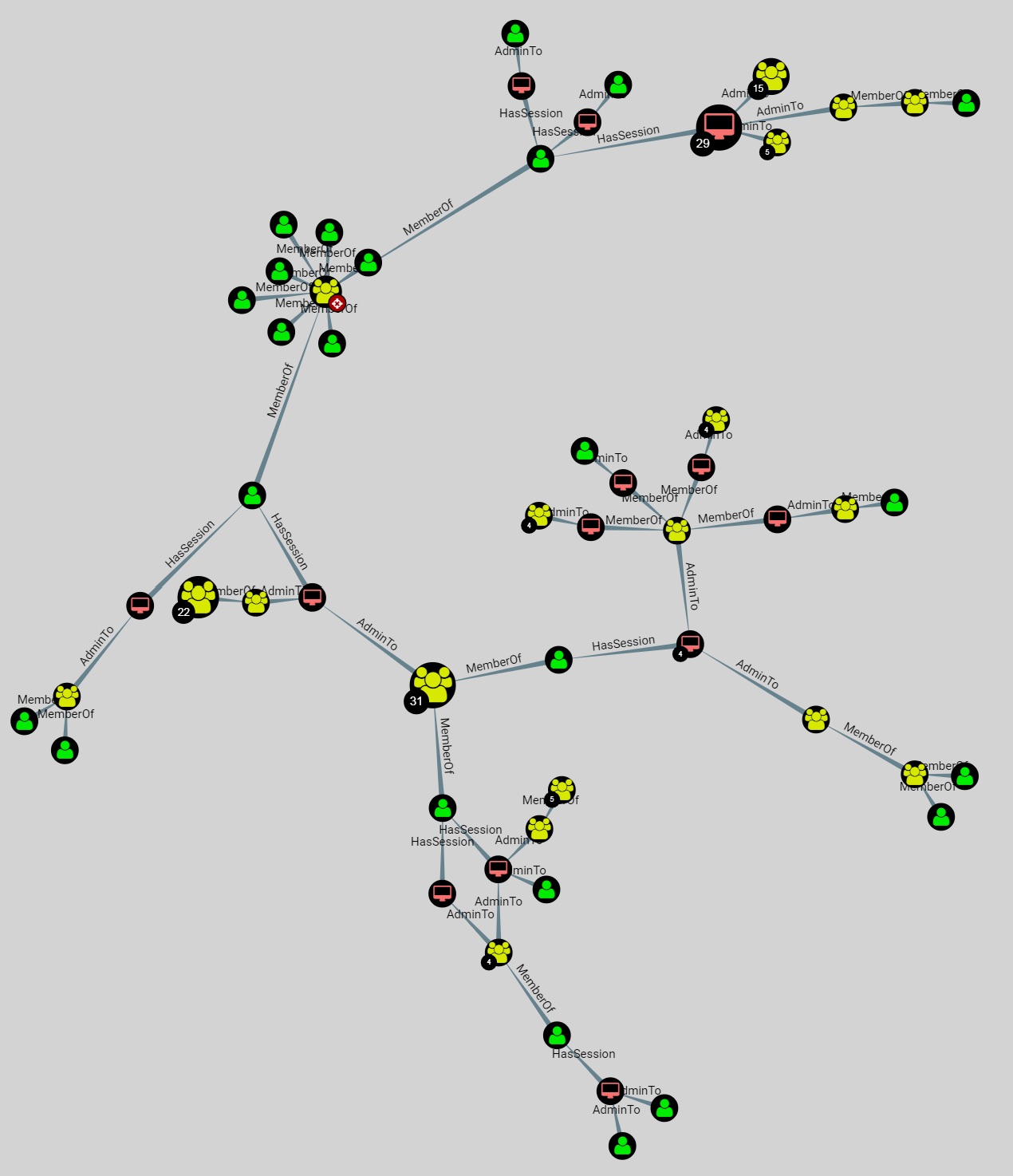
You probably have spotted which query is used most : “Find Shortest Paths to Domain Admins”.
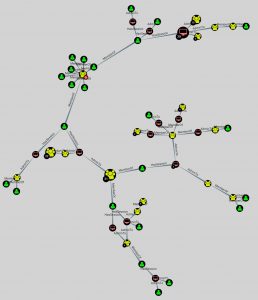


This type of information can show you the most crucial system (or weaknesses) in your environment that would allow intruders to become Domain Admins.

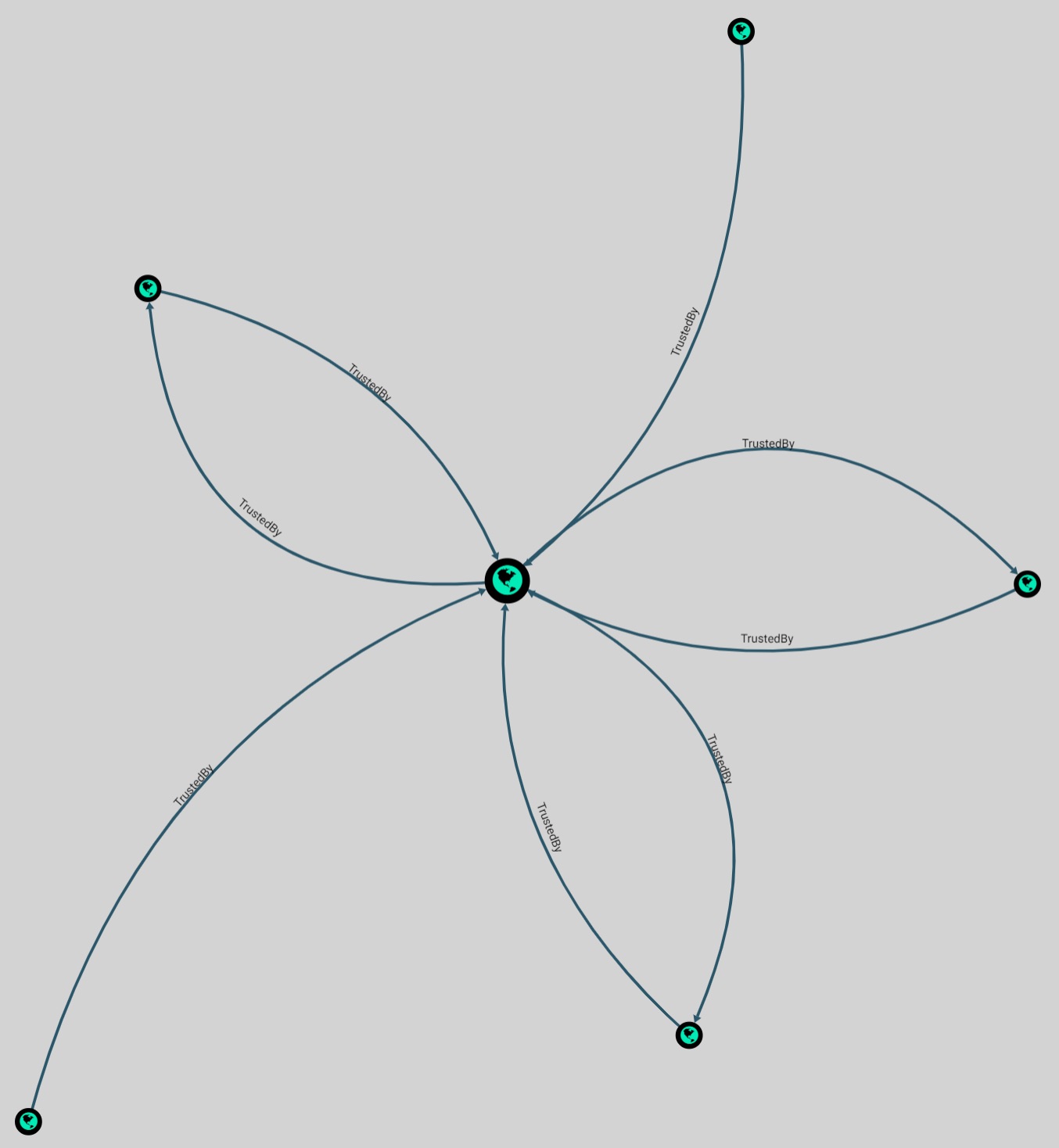
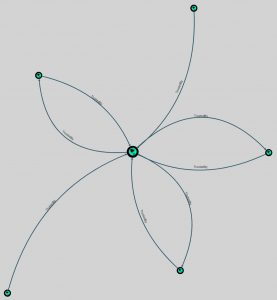
Another interesting query is “Map Domain Trusts”. Abusing the established trusts between domains might allow you to jump from one organization to another.

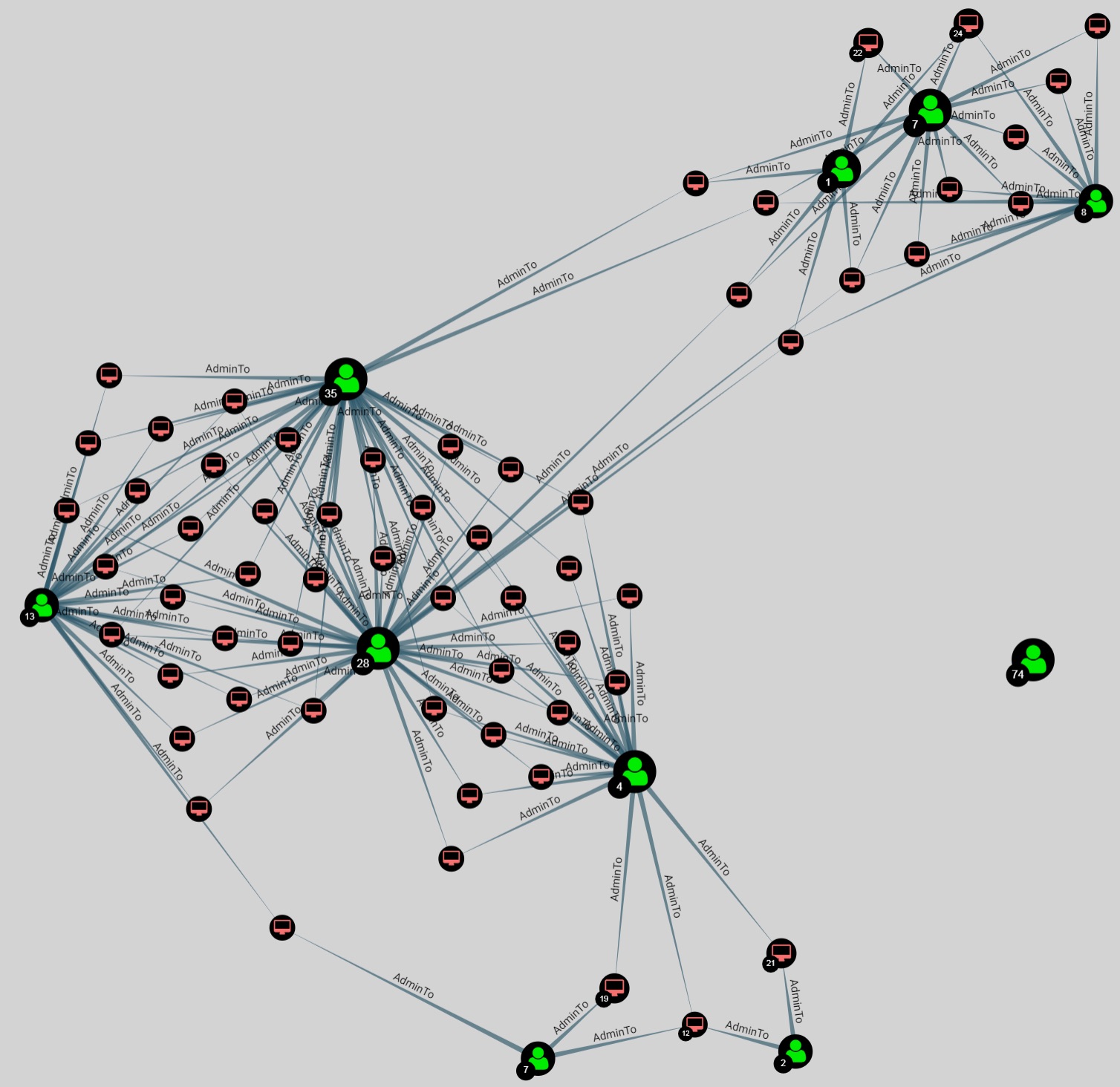
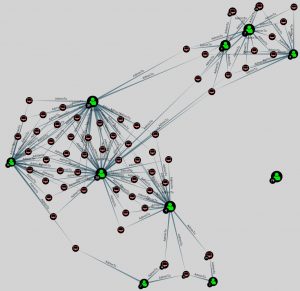
The last query that I wanted to show is “Top 10 Users with Most Local Admin Rights”, showing you which user accounts definitely need account monitoring.

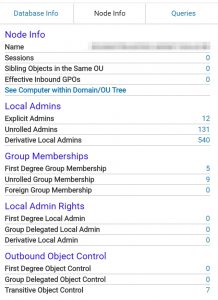
Node information

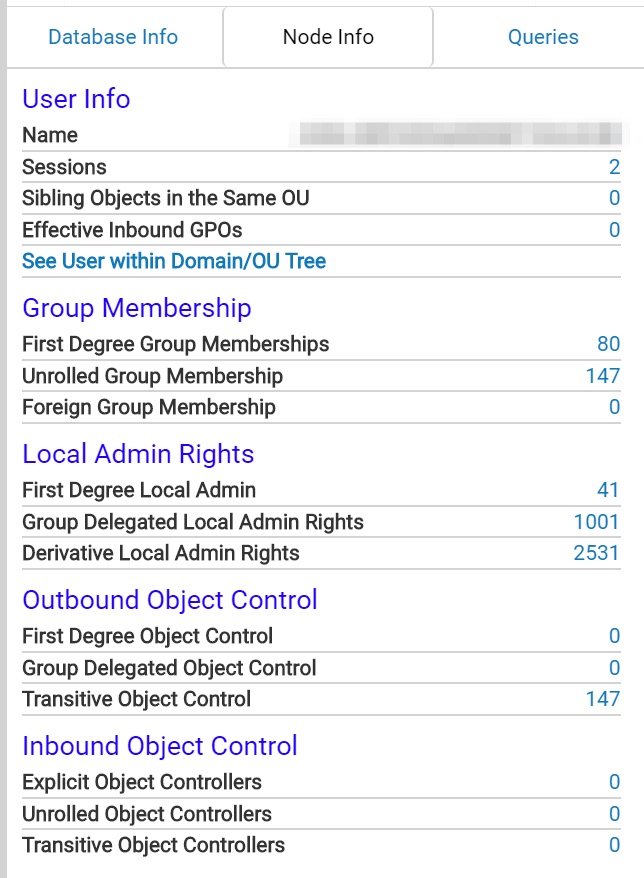
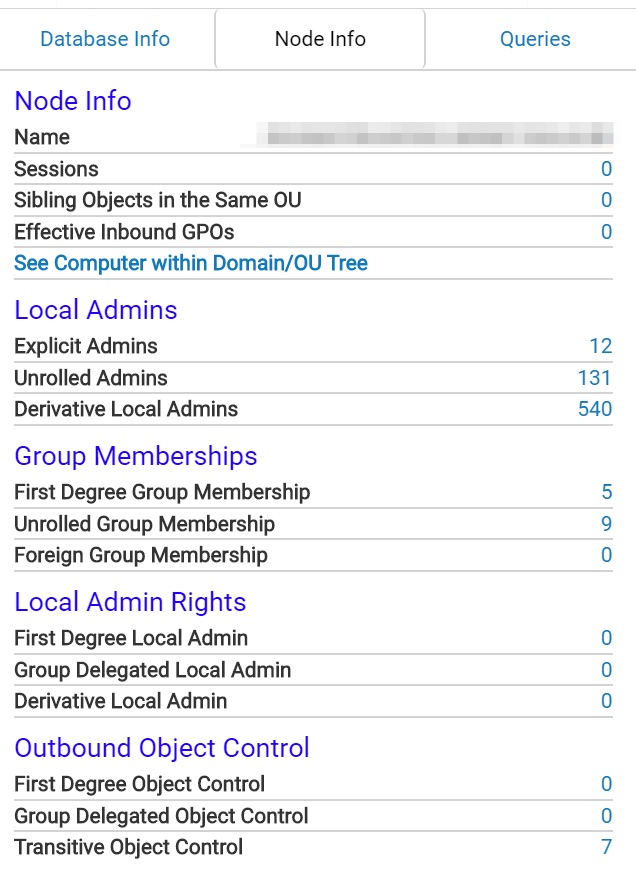
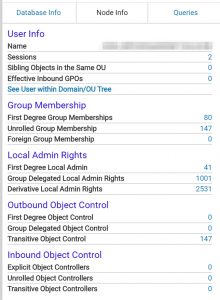
BloodHound also gives you detailed information for the specific nodes.


Conclusion

Although BloodHound is primarily seen as a tool for attackers it can also provide great value for defenders and during an incident response process.

  • Spot the weaknesses in your AD environment;
  • Find user accounts with excessive access to Local Admin;
  • Detect system with abnormal high established sessions;
  • The CSV files are a great source of information.
Security and MQTT

What is MQTT?

I recently had to explore MQTT. I had never heard of this protocol before. However some helpful resources provide a clear explanation what MQTT is about.

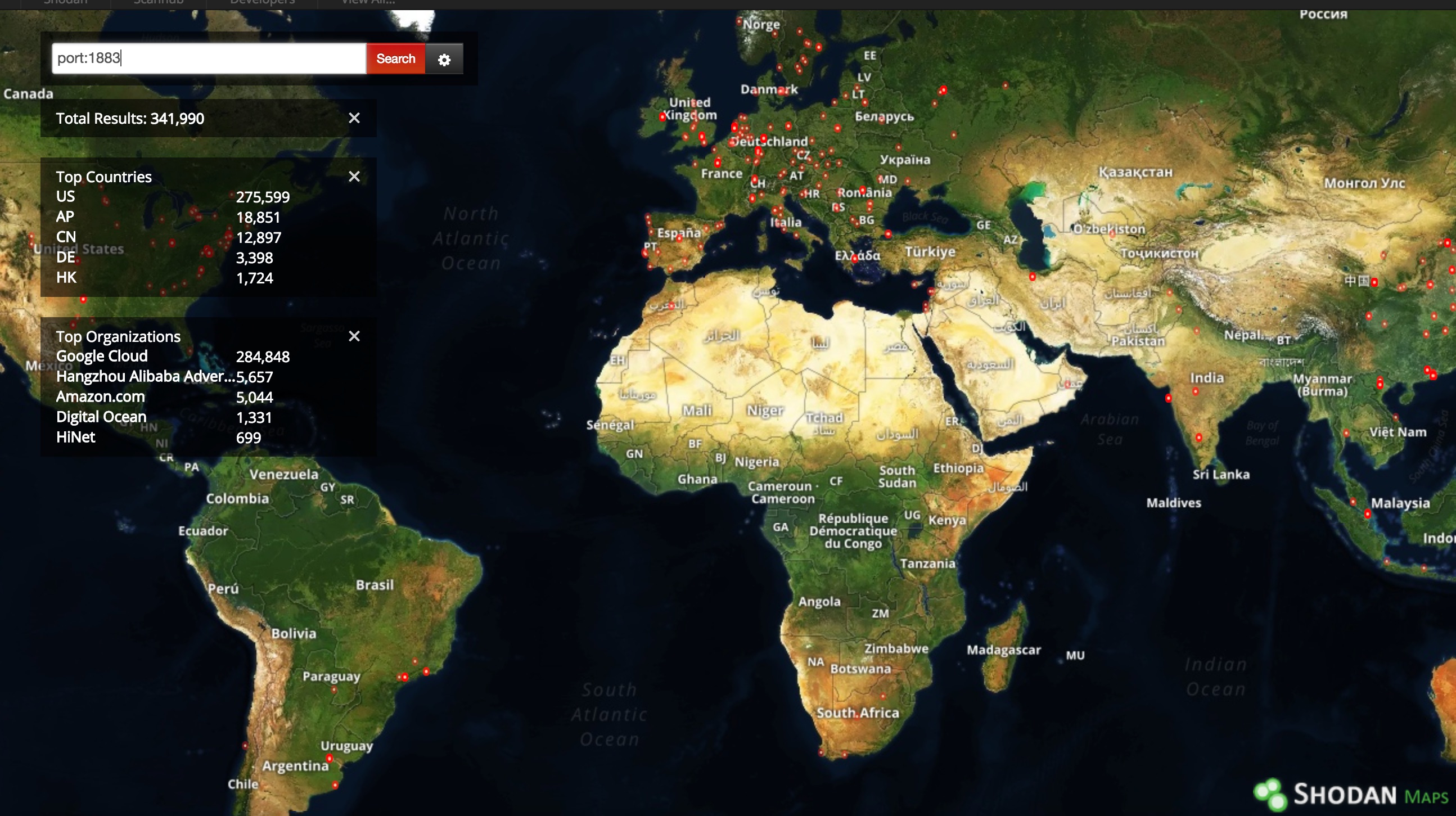
MQTT is a machine-to-machine (M2M)/”Internet of Things” connectivity protocol that uses a lightweight publish/subscribe messaging transport. MQTT works on top of TCP/IP and by default uses port tcp/1883.

A quick search on Shodan reveals that there are a lot of devices publicly available, primarily in the US and Asia.


The publish/subscribe method in MQTT consist of a client subscribing to receive messages that are distributed by a broker. These messages are received from a device that is publishing its content to the broker. Theses messages are linked to so called topics. The simplest way to look at this is to consider topics as a “resource”.

Security within MQTT

The MQTT protocol does not include a lot of security features by design. This doesn’t mean that it’s insecure, it just requires additional wrapping or configuration settings to be secure.

Authorization (publish/subscribe)

A mis-configured publish / subscribe setup can grant access to all topics (content) for clients or can lead to the pollution of the messages that are distributed by the broker. How do you fix this? By using authorization and implement topic permissions on the broker side.

The permissions need to include the topic and what operations (subscribe or publish) are allowed. The article MQTT Security Fundamentals: Authorization describes how you can tackle the authorization problem within MQTT.

One of the features of brokers is to grant permissions on wildcard topics. These wildcards should be avoided because it prevents you from maintaining fine-grain control on authorising access to specific topics (resources).

Authentication

Closely related to authorization is authentication. MQTT supports authentication by providing for example username and password fields in the CONNECT message. The mechanism that is used after submitting the authentication credentials for granting or denying acces then further depends on the implementation of the broker.

Important to know is that authentication credentials are sent in clear text.

Additionally the broker itself needs to be secured. If an intruder is able to compromise the broker they can capture or extract the authentication credentials (certificates etc.). This is no different as compared to other “centralised” authentication methods.

Encryption

MQTT traffic is by default in plain text, including its authentication credentials. Obviously this is not a good idea.

MQTT traffic can also be encapsulated in TLS. This is then called “secure-mqtt” and uses the port tcp/8883.

Take care that when you use TLS to always use the latest TLS version and to validate the full certificate chain.

Isolation

Hooking up IoT devices (regardless if they use MQTT) on a public network is never a good idea. This is also the case for MQTT devices. Network isolation is a must for IoT devices. As a rule of thumb :

  • Firewall all the MQTT components (clients, brokers, …);
  • Put them on a separate network, isolated from your normal office network;
  • Log the connections going to your brokers. Do this either via the firewall or via netflow.

Conclusion

If you plan on using MQTT then

  • Put those devices on a firewalled network, isolated from the Internet and from your office network;
  • Use TLS for transportation;
  • Harden the brokers and monitor the access to the brokers (log review, netflow traffic);
  • Do not use wildcard authorization;
  • Implement a strong authorization schema for the topics;
  • Use certificate authentication on the brokers.

How Can an ISAC Improve Cybersecurity and Resilience?

I published an article on IBM Security Intelligence on How Can an ISAC Improve Cybersecurity and Resilience?.

The article covers analysing the three common types of ISACs (information sharing and analysis centers), who creates ISACs, reasons for joining an ISAC and what drives ISACs.

RDP logs and incident response

What is RDP?

Remote desktop protocol (RDP) is designed by Microsoft for remote management of Windows-based virtual desktops. It provides users a graphical interface to connect over the network to a remote computer. Having a remote access feature leaves the door open for attackers.

I’ll use this post to summarise some of the information and commands that I use when investigating an RDP incident.

Note that RDP connections are usually done via tcp/3389.

Installing Remote access for Windows server

Investigating RDP goes best in your own lab environment. This short section describes how you can quickly configure a Windows server with RDP.

You can download an evaluation version of Windows Server (both 2012 and 2016) for testing purposes. Download the ISO and configure a virtual machine with enough memory and disk space.

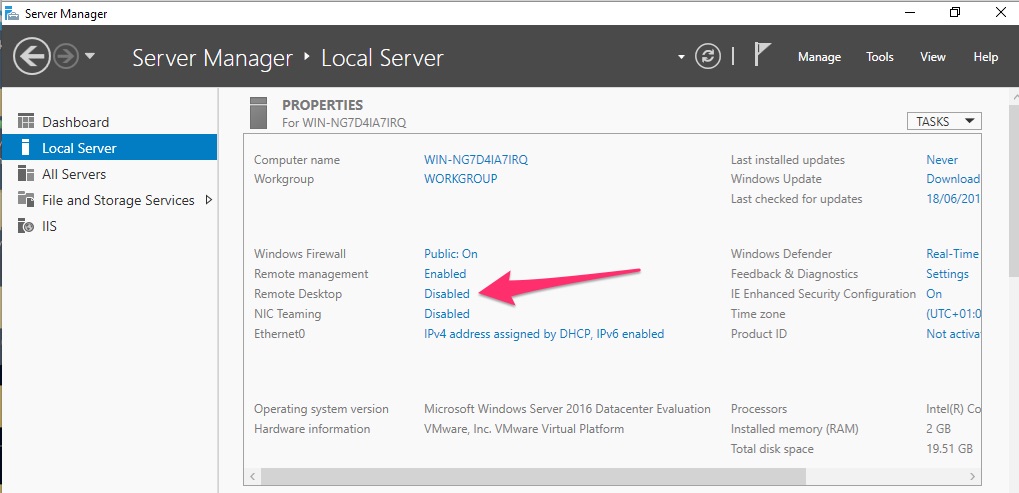
You do not have to enable the full Remote Desktop Services (RDS) role in Windows Server once the system has been installed. You only need to enable remote access. To do this open the Server Manager and navigate to Local Server. In the right pane you’ll then see Remote Desktop. This is disabled by default.

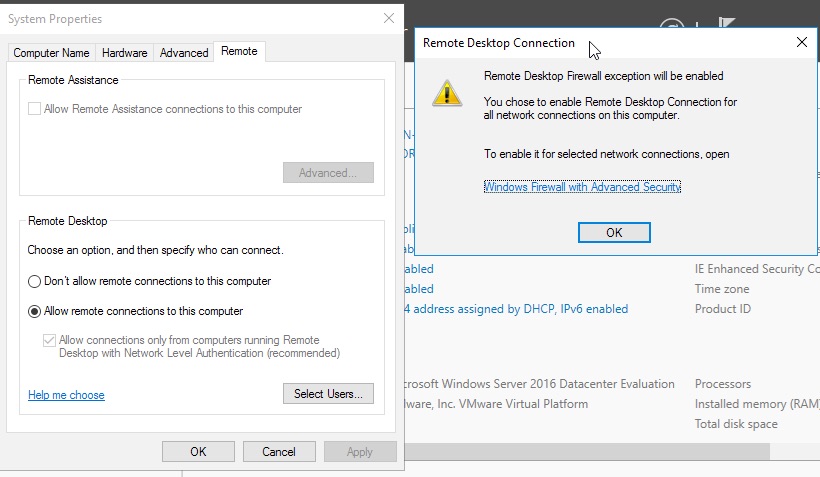
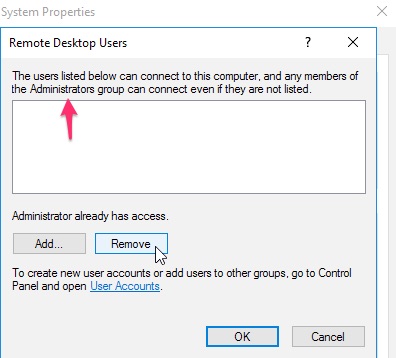
Click on the status disabled to enable it. This will open a dialog box where you can choose to Allow remote connections, with a warning dialog box. You can then add additional users that are allowed to have remote access. Note that the local administrator account or any member of the Administrators group is added automatically.


Forensic information gathering for RDP

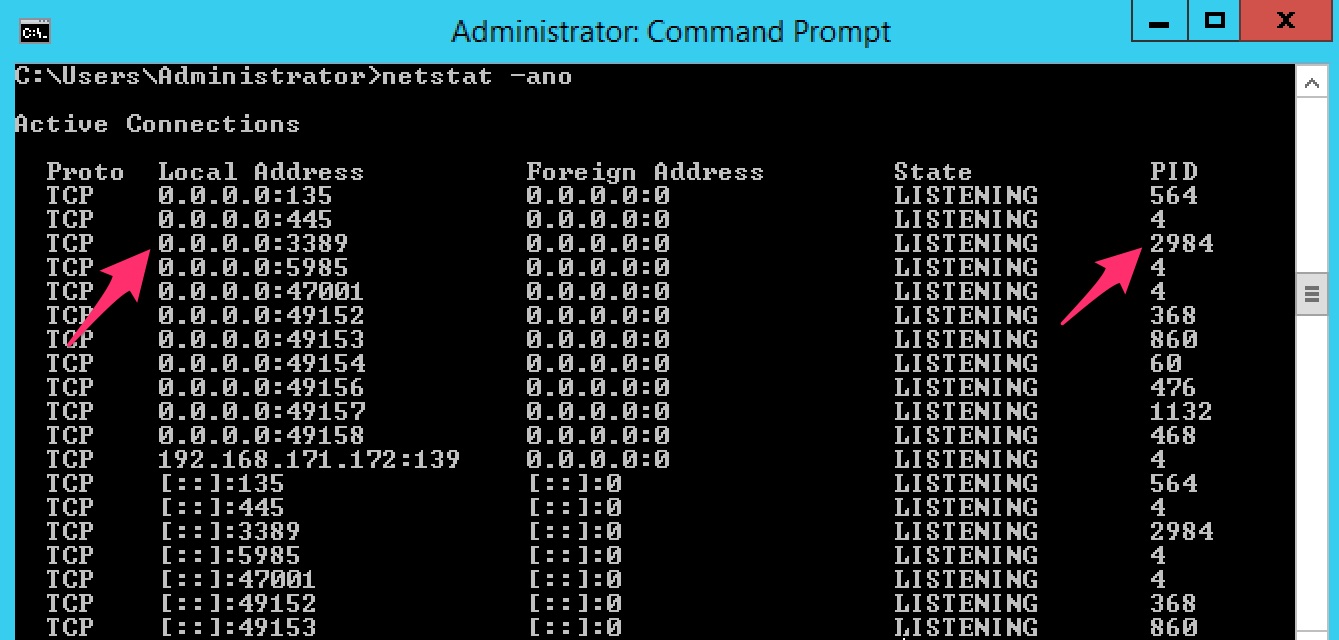
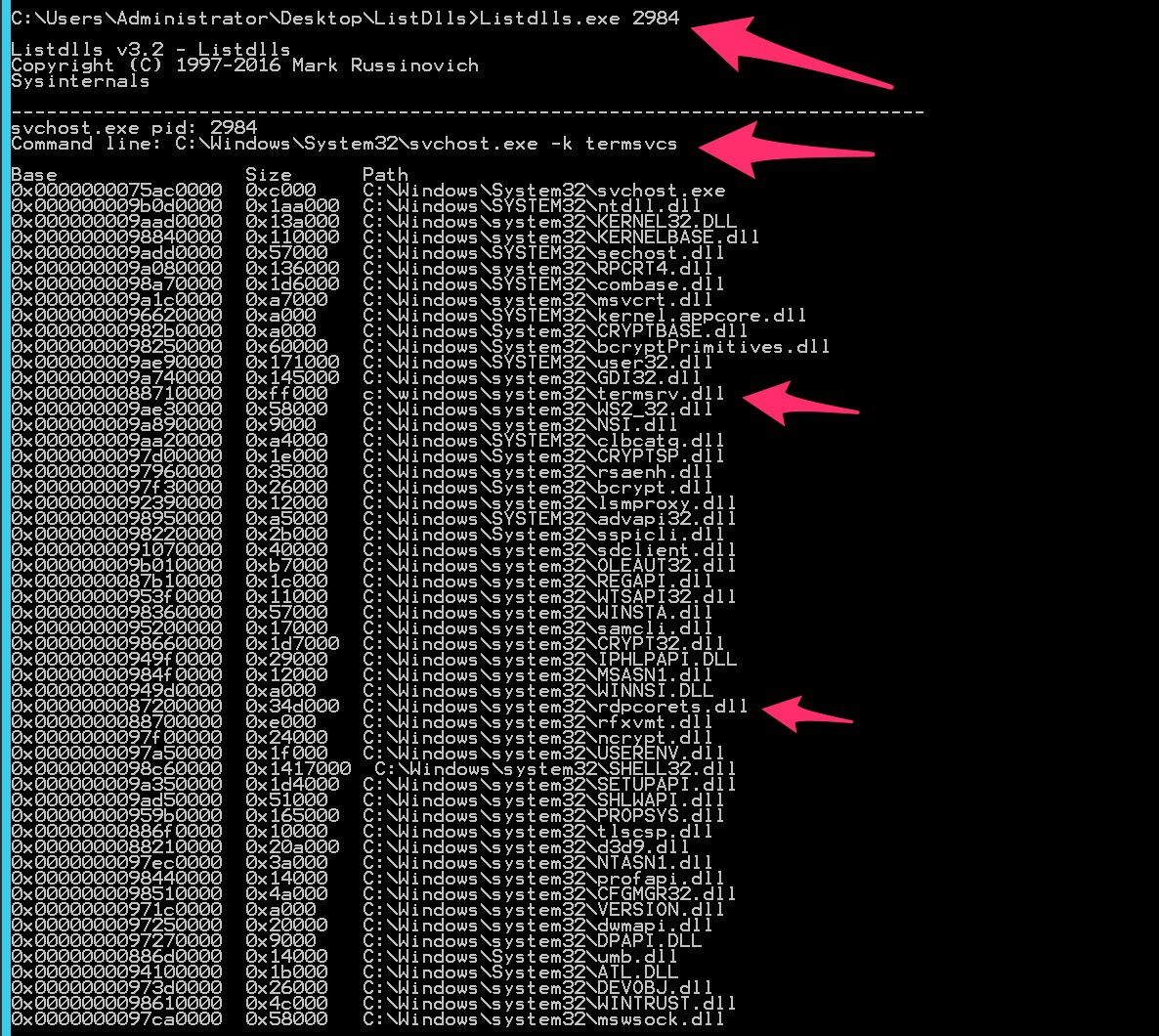
Get all listening network connections, together with the process ID. Look for the PID (in this case 2984) that corresponds with the process listening on tcp/3389.

netstat -noa

List all running processes. Search for the corresponding PID from netstat.

Note that having an established network connection to the RPD port does not mean that there’s an established RDP session. The network connection indicates that the connection is established to, for example, present the login dialog box, it does not indicate a successful authentication. Because of the RDP brute fore scanners you’ll see lots of established network connection on un-firewalled RDP hosts that are connected to the Internet.

tasklist -v

Check if the process is started from outside system32 or not.

wmic process where "ProcessID=2984" get ExecutablePath

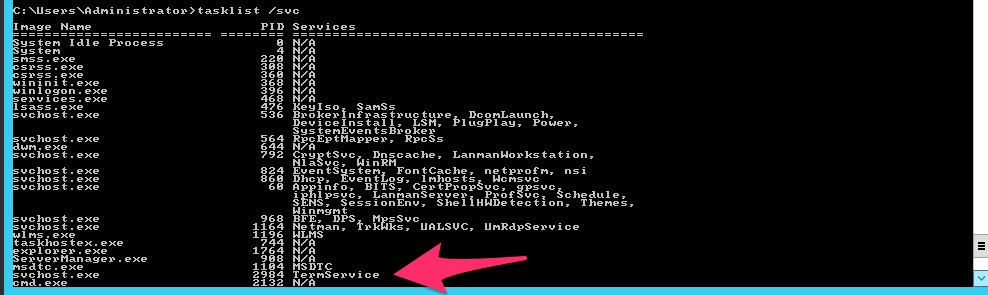
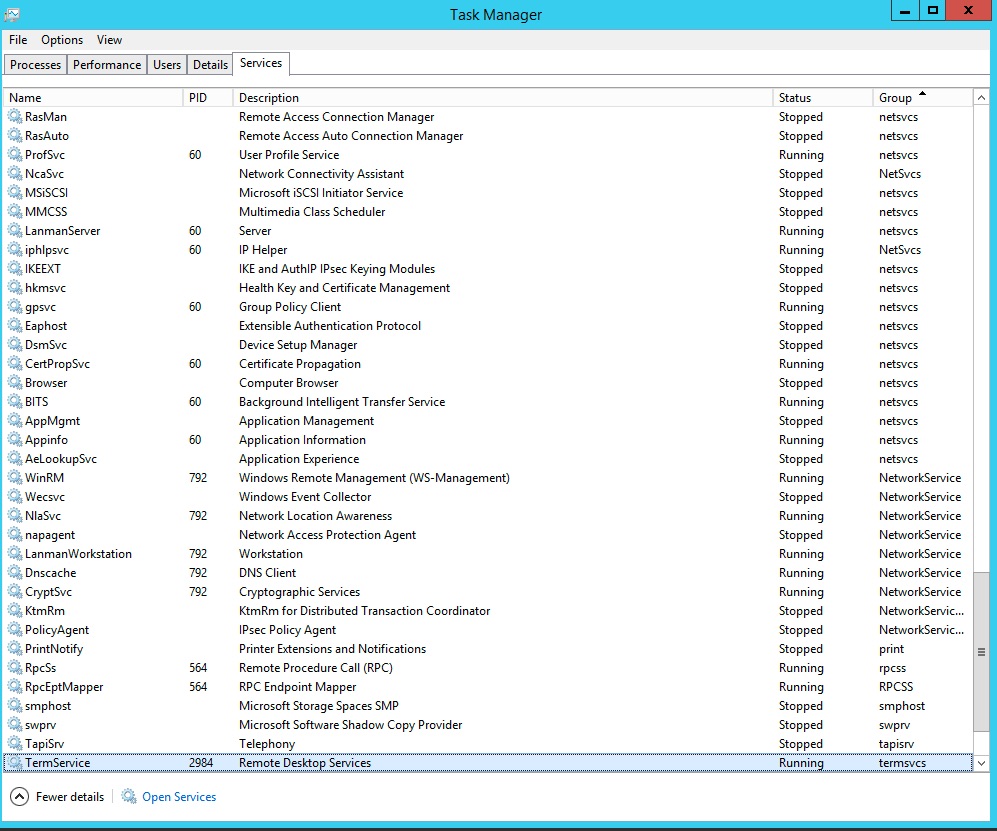
List the service details, via command line or via the Task Manager

tasklist /svc


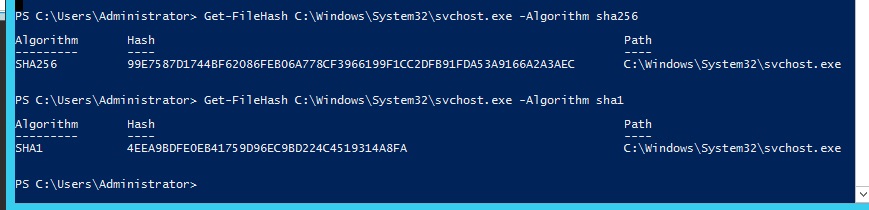
Create a hash of the service host and verify with Virustotal.

Get-FileHash C:\Windows\System32\svchost.exe -Algorithm sha256

List the loaded DLLs.

Listdlls.exe 2984

Verify that the firewall is configured. First audit which profile is active. Also dump the other installed firewall rules (maybe there’s a custom rule inserted).

netsh advfirewall show currentprofile
netsh advfirewall firewall show rule status=enabled name=all | select-string -pattern "(LocalPort.*3389)|(LocalPort.*Any)" -context 9,4
netsh advfirewall firewall show rule status=enabled name=all

Get information on running RDP sessions.

Session shadowing

I will not cover a feature that’s called Session Shadowing. By using Session Shadowing you can observe the actions taken via RDP. It’s the same as sitting next to the user (possibly the attacker) who is using the RDP-client. In most environments, except when there is a specific GPO setting applied that disables the necessity for a user’s consent, session shadowing requires the confirmation of the user who started the RDP session. It’s unlikely an attacker will provide this confirmation.

Additionally Session Shadowing only works properly for live sessions, not afterwards when doing an investigation.

Command list

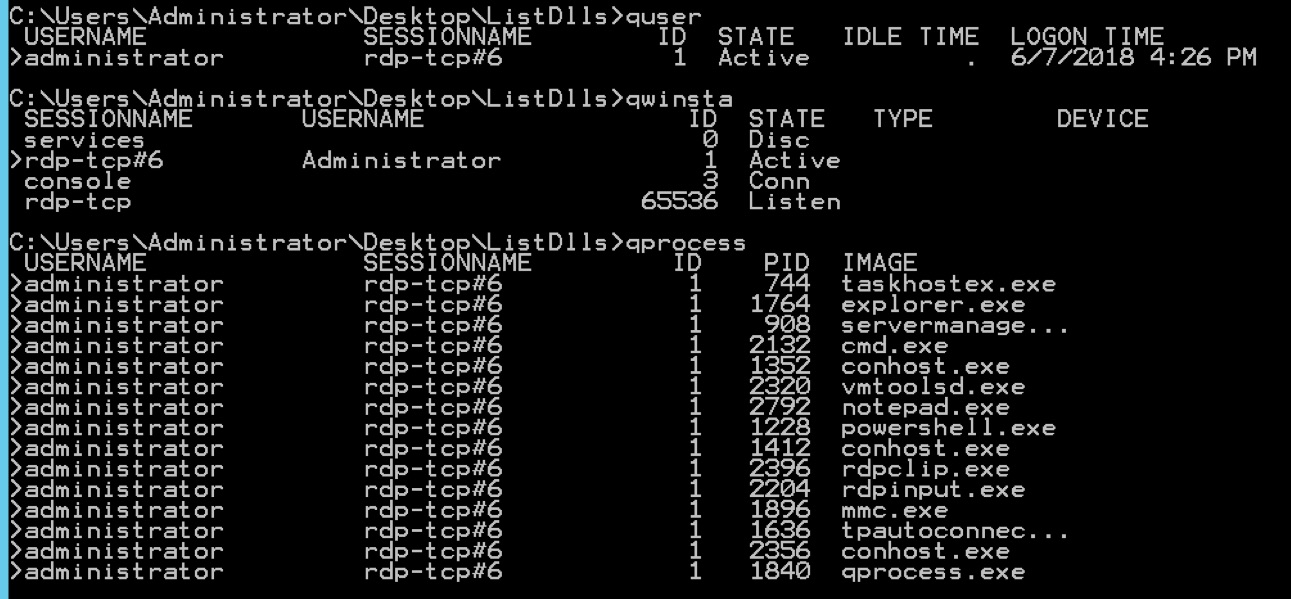
List the currently logged in users.

quser

Get an overview of active Remote Desktop sessions

qwinsta

List the processes running via Remote Desktop sessions.

qprocess

RDP log information

Disclaimer : information primarily gathered via Windows RDP-Related Event Logs: Identification, Tracking, and Investigation

Network logs

  • Microsoft-Windows-Terminal-Services-RemoteConnectionManager
  • Event 1149
  • A successful RDP client network connection but does not indicate a successful authentication (despite what the log event has as description).

System authentication

  • Microsoft-Windows-Security-Auditing
  • Event 4624 + LogonType : 10 or 7
  • Successful authentication with an account
  • Event 4625
  • Failed authentication

RDP Session

  • Microsoft-Windows-TerminalServices-LocalSessionManager
  • Event 21
  • Successful RDP logon and session start. Often preceded by an event 22.
  • Event 22
  • Successful RDP logon and shell start. Often followed by an event 22.
  • Event 24
  • The user has disconnected from an RDP session
  • Event 25
  • The user has reconnected to an existing RDP session
  • Event 39
  • The user formally disconnected from the RDP session.
  • Event 40
  • The user disconnected from or reconnected to an RDP session
  • Event 23
  • The user initiated a formal system logoff (versus a simple session disconnect)
  • Microsoft-Windows-Security-Auditing
  • Event 4778
  • The user reconnected to an existing RDP session. Often paired with ID 25.
  • Event 4779
  • The user disconnected from from an RDP session. Often paired with ID 24, likely also 39 and 40.
  • Event 4634
  • A user disconnected from, or logged off, an RDP session.
  • Event 4647
  • The user initiated a formal logoff (NOT a simple disconnect).
  • Microsoft-Windows-System
  • Event 9009
  • A user has closed out an RDP connection.

What Are the Different Types of Cyberthreat Intelligence?

I published an article on IBM Security Intelligence on What Are the Different Types of Cyberthreat Intelligence?.

The article covers analysing the The Different Types of Threat Intelligence and the prerequisites to Start With a Cyberthreat Intelligence Program.