Using the Digital First Aid Kit for Incident Response

Collaborative proces for dealing with security incidents

Dealing with security incidents is always a collaborative process, involving both your constituency and external players. There are a number of tools that help you with detecting (and preventing) incidents. One of those tools is for example the MISP – Malware Information Sharing Platform & Threat Sharing

But once you have an incident … how you deal with it? Everyone has (or should have) written their own incident response procedures but did you know that there’s also a collaborative process for dealing with this?

It’s called the Digital First Aid Kit and it’s on Github : https://github.com/RaReNet/DFAK.

This post explains how to visualize the information that’s in this digital first aid kit, or DFAK.

DFAK, or the Digital First Aid Kit for Incident Response

DFAK is build on Jekyll. It requires you to have Ruby v2.

Unfortunately the default Ubuntu 14 comes with Ruby 1.9. You can deal with this by using an external repository to upgrade to the newest version of Ruby.

Of course, before doing this do the usual update/upgrade drill

sudo apt-get update
sudo apt-get upgrade

Once this is done, include the new repository.

sudo apt-add-repository ppa:brightbox/ruby-ng
sudo apt-get update
sudo apt-get install ruby2.2

You also need the ruby development packages for installing Jekyll. Do this with

apt-get install ruby2.2-dev

These steps prepared the Ruby environment that you need to run Jekyll. Obviously the next command is installing Jekyll itself.

gem install jekyll

This can take a while. Be patient and already think about how you would be able to contribute to the information in the DFAK.

Once Jekyll is installed you need to download the DFAK repository. This is easy if you have git installed.

git clone https://github.com/RaReNet/DFAK.git

As a last step in the Jekyll process you need to build the bundle. Do this via

sudo apt-get install bundler
bundle install

Note that for the above command to be successful you have to be in the DFAK directory (depending on your setup you have to navigate to /var/www/html/DFAK before issuing the commands).

Display DFAK

The bulk of the information in the Digital First Aid Kit is stored in the Github pages but we are lazy and prefer a web interface to read the information.

If you followed the steps above you should have a working Jekyll environment in Ruby2. The next thing to do is build the web pages so that they can be displayed correctly.

Ruby comes with a build in web server. You can start it with

bundle exec jekyll serve

This will run the Jekyll server on localhost. This is inconvenient if you want to access it from another host. Without changing the local configuration you can get access to it by port forwarding the web server port through SSH.

ssh -L 4000:127.0.0.1:4000 user@192.168.218.2

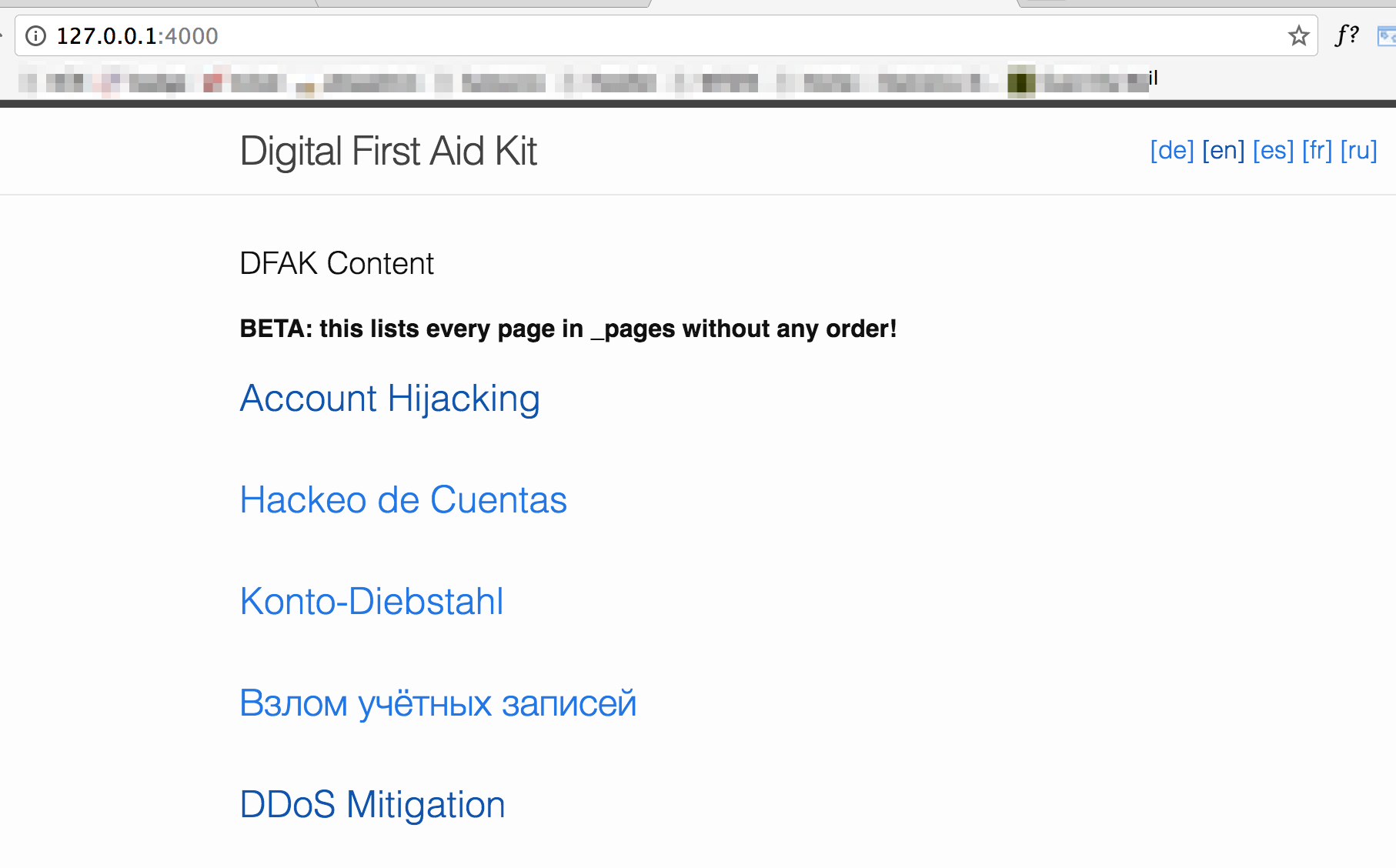
The above command forwards the port 4000 to your host. One this is done you can browse the information in the first aid kit via your web browser.


Digital_First_Aid_Kit

Conclusion

The Digital First Aid Kit will not provide answers for dealing with all of your security incidents. But if you made a working incident response procedure, why not share it with the community and make your experience useful for everyone? Adding your requests or comments is easy via the Github interface.

Exploring webshells on a WordPress site

Website compromised

I recently had to handle a case where a website development company was hacked. This post describes some of my findings during the investigation.

Incident intake

All of the company websites were hosted on one virtual server running Linux. Most of these websites were WordPress powered. The management of the server was done via DirectAdmin, updating of the web files happened via FTP.

The incident was brought to the attention of the company because they received complaints that some of their sites became unavailable. Additionally their hoster also complained about massive spam runs being conducted from their server.

I received the web logs and a copy of the files available on the webserver. Unfortunately the logging did not contain the content of the POST requests. This is not unusual but it would have helped further investigation.

This post only focuses on one website compromise. The company suffered from multiple compromises on different websites but I only take this one example to share my process.

Timelines and timestamps

Whenever dealing with an incident it’s important to keep track of what happened when and by whom. The best way to do this is via a timeline. It does not matter what tool you use to put together the timeline, even using pen and paper is a valid option. The most important thing is that the timeline needs to be able to help you understand how the attack took place and what sequence of events lead to the attack.

For this exercise I used a simple Excel sheet to construct the timeline. I noted the source IP, the timestamp, the action, the browser information and some comments.

A note about timestamps. When re-constructing events during an intrusion you also have to check if the machines you are investigating are NTP-synced. If this is not the case you have to adjust the timestamps of the different events. If you don’t do this you might draw the wrong conclusions, thinking that event A happened before B, based on a timestamp that was out of sync.

In this exercise, all the logs are sourced from the same machine and the goal was merely to know what events lead to the attack. Even if the machine was not NTP-synced, this would not influence my findings. Nevertheless, it’s worth noting that the host was NTP synced and set to UTC.

The host was set to UTC but the Apache access logs were in CEST. This difference is important when verifying the timestamps of the local files with the timestamps of the web requests that lead to the creation of these files (I had to adjust the timestamp with 2h).

Constructing the timeline of attack

The compromise I focused on (as said, the company felt victim to multiple sites being compromised) was a website running on WordPress. WordPress is one of the attackers preferred attack platforms because there are a lot of unmaintained and unpatched WordPress sites.

WordPress login

At 31-Jul the logs showed a request to wp-login.php, this is the WordPress login page. After the initial GET request there was a POST request and again a successful GET request to a file in /wp-admin/. Basically this means that the attacker was able to login successfully to WordPress.


wp-login

After the login the logs show that the attacker went to the WordPress theme editor. The theme editor is a simple text editor in WordPress located at Appearance -> Editor. It allows you to modify WordPress theme files from the admin area, meaning you can adjust code that gets executed by the webserver via the (admin) web interface.

The log lines show that the attacker used the theme editor to change the 404.php page in the theme “thoughts”.

404.php

What was changed in this page? The attacker left the page intact but added one line of code that does a PHP eval of the POST parameters ‘dd’.

404_php_suspected

Subsequent to the change the logs showed other POST requests going to the 404.php page, both from the IP that did the initial login and from other IPs.

There’s nothing wrong with the WordPress theme that was installed. The attacker did not abuse a vulnerability in WordPress, a plugin or in the theme. The attack consisted of using valid WordPress credentials and then changing the web code of a theme. Things any ordinary WordPress administrator can do.

Inserting the PHP eval (remember, the eval function allows execution of arbitrary PHP code) allowed the attacker to send arbitrary code to the server. Disabling eval (and other potentially dangerous functions) can be done by using http://php.net/manual/en/ini.core.php#ini.disable-functions. This was not the case in this setup.

File uploads

So what did the attacker(s) tried to achieve by sending data to the PHP eval function? Based on the log files and find files on the system they tried uploading another PHP file (or instruct the server to download a file from another location) that they could then use to get more control on the host. However there was not one file with a change timestamp that corresponded with the time of the web requests. This doesn’t mean that a file was not created, the file can be changed afterwards leading to an updated file timestamp.

The logs then showed subsequent POST requests to 404.php. This probably indicates that one of these subsequent requests modified the initially created file. As a reminder, you can use the Linux stat command to get the last access, last modified and last change date (the difference between modified and change is that modify concerns ‘content’, change concerns a change in the meta data, for example permissions).

WSO shells

I found three files that had a modify timestamp that corresponded with the subsequent (last) POST requests. One of these files had obfuscated content, starting with

<?php $auth_pass="";$color="#df5";$default_action="FilesMan";
$default_use_ajax=true;$default_charset="Windows-1251";preg_replace("/.*/e","\x65\x76\x61\x6C\x28\x67\x7A\x69...

I used online tools to deobfuscate the content and then prettify the code.

First I used PHP Decoder to get the deobfuscated PHP code. I then used the output of this tool to beautify the code via PHP Beautifier. This resulted in readable PHP code. The code contained a version definition string

@define('WSO_VERSION', '2.5');

“WSO” gives away that this concerns the WSO Web Shell. This web shell provides various features to an attacker like browsing the entire server, uploading and executing code and performing database actions.

The “basic” version of WSO requires attackers to submit a password (handled via ‘function wsoLogin()’) before being able to enter the shell. I also found another WSO shell with the version ‘2.5 lt’. This shell did not require a password but a cookie being set.

The result of the different uploads of various webshells indicated that the attacker had full control on the webserver. Reconstructing the POST log entries I could find leads to various files that were uploaded after the install of the webshell, some of them were spambots

Conclusions

Typically when you look at WordPress hacks you think about outdated versions.

This site was running the latest WordPress (4.5.3) with all plugins updated. This attack did not consist of exploiting a vulnerable version. Based on the login sequence in the logfiles it is relatively safe to assume this attack was performed via weak access credentials.

I did not ran any of the samples that found in a sandbox but used online tools like

to get hold of readable PHP code.

There’s a risk when using these online tools. Careful attackers might be able to snoop on the popular online tools to get notified that there attack has been spotted (typically this is for example the case with files uploaded to Virustotal). However in this case it was safe to assume that the attackers were not worried about this. They did not tried to cover their actions in any way on the server.

Based on the different artifacts that were found during the upload of files (various version of WSO) and the weblogs I can conclude that this compromise did not involve an exploitation of a vulnerable WordPress website. The attack consisted of the abuse of weak login password for a WordPress user. This user account then was allowed to change the included web theme, leading to the upload of various webshells. These webshells allowed the attacker further control of the webhost.

The initial staging of the attack could have been prevented by disabling the dangerous PHP eval function. This was not the case for this attack. However it’s not that un-common to see eval enabled by web hosters, most often because their customers otherwise start complaining that their web app “does not work”.

An Introduction To Exploit Kits

I published an introduction article on exploit kits on the blog at Ipswitch : An Introduction To Exploit Kits

.

The article covers why attackers use exploit kits, how they can select their targets, how users get infected through exploit kits and what you can do to improve your resilience against exploit kits.

Doing open source intelligence with SpiderFoot (part 2)

I did an earlier post on gathering open source intelligence with SpiderFoot. This post is a small update to incorporate the new version of Spiderfoot that was released recently.

A new version of Spiderfoot was recently released, including some extra modules. In my earlier post I described how I adjusted and added some modules. The new release of Spiderfoot contains part of my changes to the XForce module.

Passive intelligence

My initial change to Spiderfoot included a search for intelligence without touching the subject. This is now included in the core of Spiderfoot with the “Passive” option.

Extra modules

I added a couple of modules to enhance the search for intelligence data on a subject. My fork of Spiderfoot can be found on Github via https://github.com/cudeso/spiderfoot. The modules that I added are

  • cymon
  • sans_isc

I also extended the modules for

  • virustotal
  • shodan
  • xforce

with information that I found useful when looking at a target. Most of this information concerns passive DNS data.

Command line interface

An extra option that I added to Spiderfoot is a command line interface. See my earlier post on Spiderfoot for more info.

Recap

A recap of all the resources:

Will Blockchain Technology Replace Traditional Business Models?

I had to brush up my knowledge on the blockchain technology and decided to write a piece about it on the SecurityIntelligence.com website : Will Blockchain Technology Replace Traditional Business Models?

The article contains a short introduction on what the blockchain technology is and how it works. I conclude with some remarks how blockchain technology could remove the middleman (banks, etc.) for financial transactions.

Whitelist e-mails in Gmail (for example MISP notifications)

MISP mail in Gmail spam

Recently I noticed that some of the MISP notification e-mails ended up in my spam folder. I use Gmail linked to my personal domain.

You might argue that processing MISP mails, potentially containing restricted information, via Gmail is a problem. The MISP notifications however are GPG-encrypted so this limits a potential problem.

Whitelist e-mails in Gmail

Whitelisting e-mails in Gmail is not limited to MISP only but I cover this use-case as it caused me some annoyances.

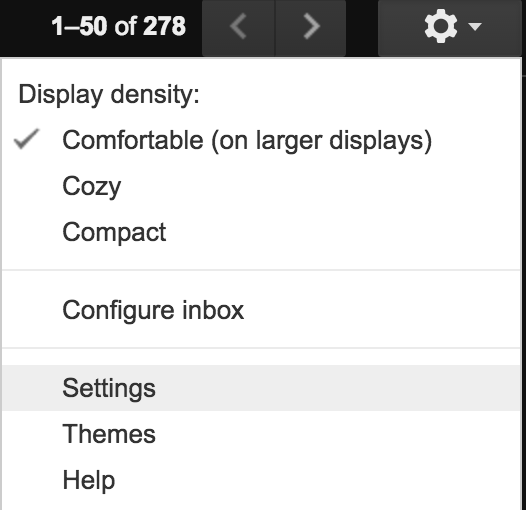
The first step in whitelisting the e-mails in Gmail is to go to the Settings page.


Gmail-settings

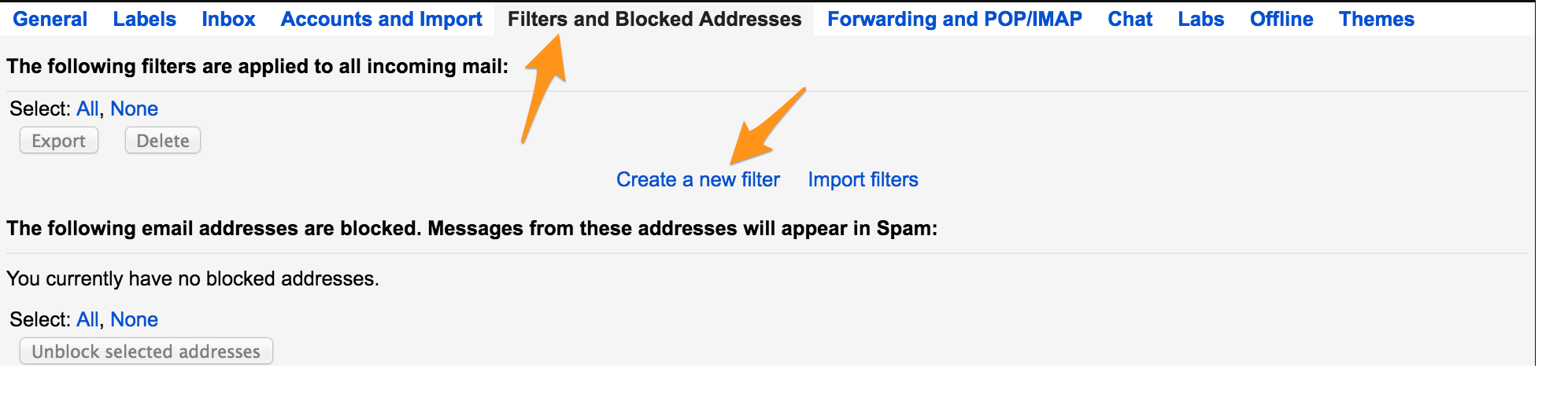
The next step is to go to Filters and Blocked Addresses and then click on Create a new filter


Gmail-filter

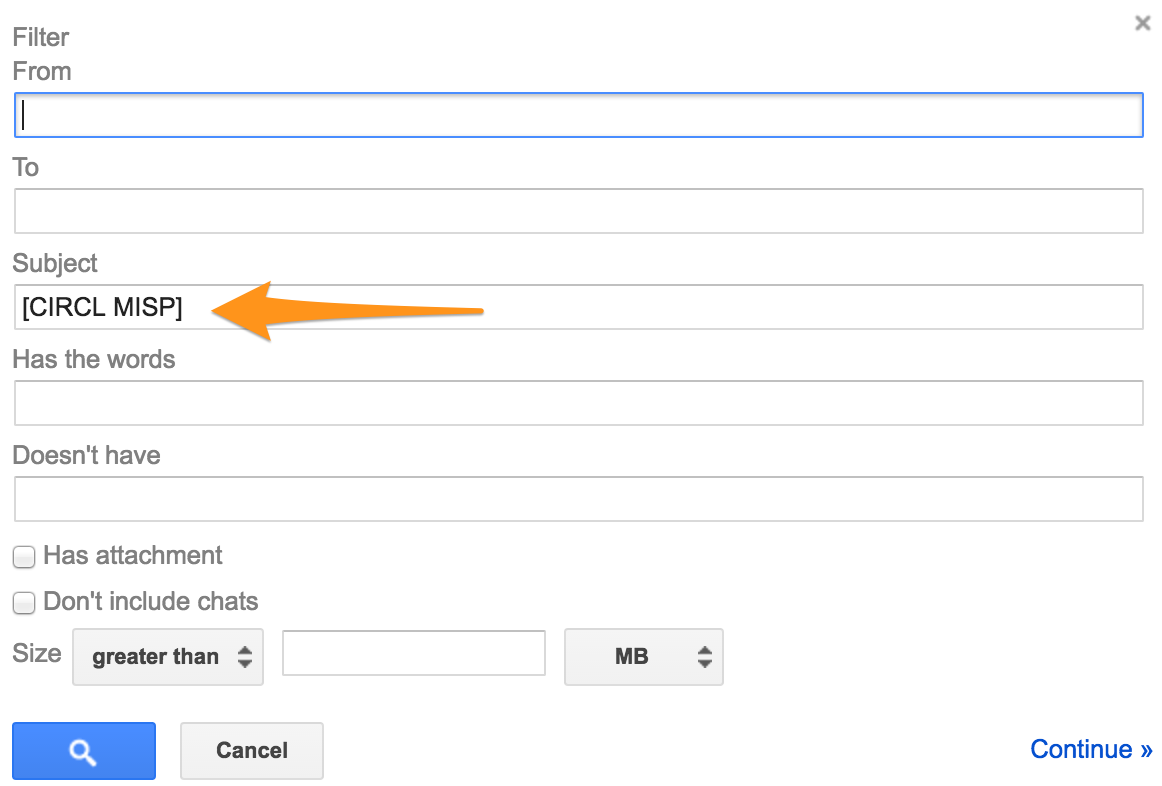
This will bring you to a form to enter the details of the messages that you would like to whitelist.


Gmail-filter-details

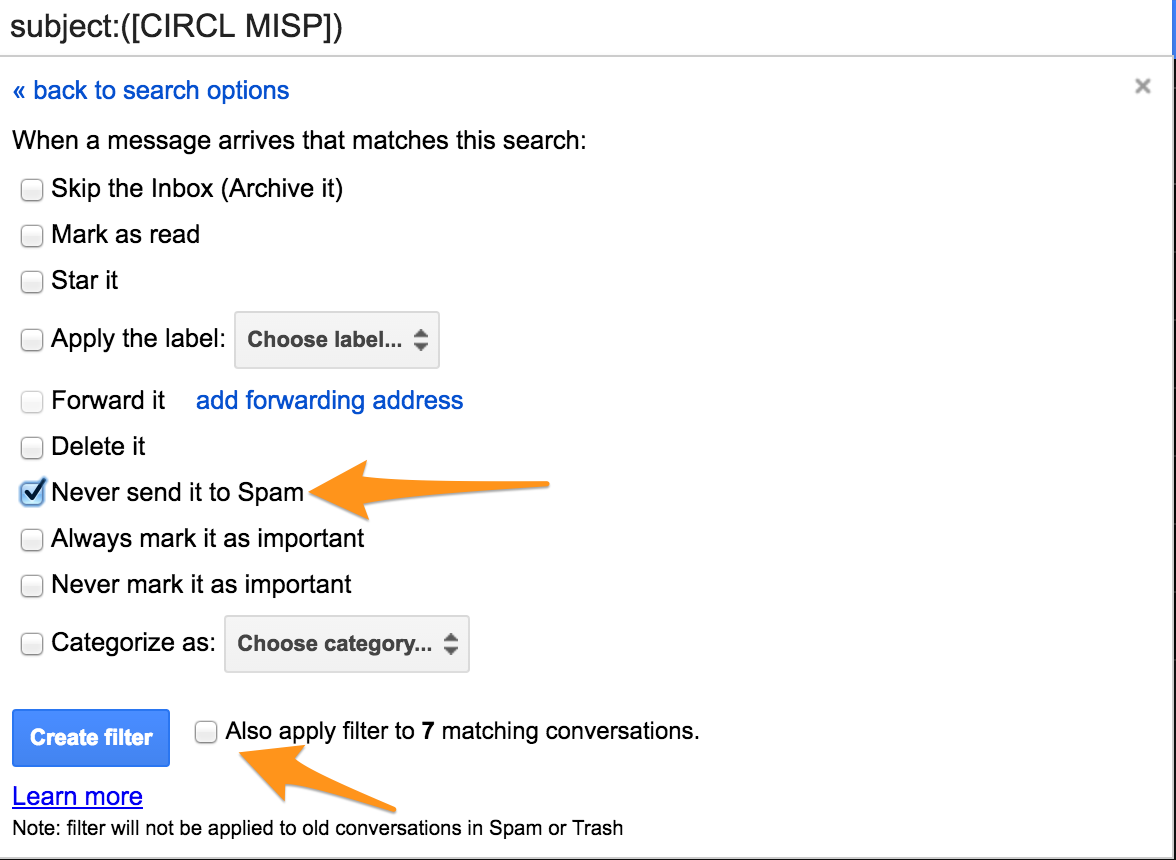
The last step you then have to take is to mark that the messages with the details as set in the step before should not end up in the spam filter.

Gmail-nospam

That’s all that there is to do to instruct Gmail not to put MISP e-mails in the spam folder.

HTTP 304 and Apache sinkhole

This is a short post, put here as a “reminder to self” on browser caching.

A colleague recently set up an HTTP sinkhole with Apache. The setup redirected all the user requests to one specific resource.

When deploying the sinkhole, the web server logs showed that the first requests where logged with HTTP status code 200 (“OK”). The next requests however were logged with HTTP status code 304 (“Not Modified”).

The HTTP 304 code basically means that a there is no need for the server to re-transfer the requested resource because the HTTP request indicates that the client, which made the request, already has a valid version of the resource. The request is done conditional, for example via the “If-Unmodified-Since” header.

In our setup we wanted to return the HTTP 200 code, regardless if the browser requesting the resource already had a valid version of the resource.

A bit of reading on how to modify HTTP headers within Apache resulted in adding these configuration settings

Header unset ETag
FileETag None
Header set Cache-Control "max-age=0"
RequestHeader unset If-Modified-Since

The settings above alter the client request to remove the conditional check (If-Modified-Since) and add an extra header limiting the resource lifetime. The ETag two configuration settings remove the cache validation token.

Note: when first testing the Apache configuration in a VM (with the requests only coming from local, RFC1918, addresses) there was never a HTTP 304 code returned. I couldn’t find anything related to browsers not sending the conditional check for ‘local’ addresses.

Useful resource : Hypertext Transfer Protocol (HTTP/1.1): Conditional Requests

Security Training for Incident Handling: What Else Is Out There?

I had a guest post published on Security Training for Incident Handling: What Else Is Out There?.

This post is a follow-up to an earlier post (Security Training for Incident Handlers: What’s Out There?) that points out some alternatives for training for incident handlers.

Proper Script Management: A Practical Guide

I had a guest post published on Proper Script Management: A Practical Guide.

The post lists some best practices when developing your scripts and how to measure the performance of your scripts.

Using Geolocation Data to Benefit Security

I had a guest post published on Using Geolocation Data to Benefit Security.

This post lists how you can enrich your information with geolocation data.